web application generator

Labels
AI(22) AJAX(112) App Studio(10) Apple(1) Application Builder(245) Application Factory(207) ASP.NET(95) ASP.NET 3.5(45) ASP.NET Code Generator(72) ASP.NET Membership(28) Azure(18) Barcode(2) Barcodes(3) BLOB(18) Business Rules(3) Business Rules/Logic(140) BYOD(13) Caching(2) Calendar(5) Charts(29) Cloud(14) Cloud On Time(2) Cloud On Time for Windows 7(2) Code Generator(54) Collaboration(11) command line(1) Conflict Detection(1) Content Management System(12) COT Tools for Excel(26) CRUD(1) Custom Actions(1) Data Aquarium Framework(122) Data Sheet(9) Data Sources(22) Database Lookups(50) Deployment(22) Designer(178) Device(1) Digital Workforce(3) DotNetNuke(12) EASE(20) Email(6) Features(101) Firebird(1) Form Builder(14) Globalization and Localization(6) HATEOAS(13) How To(1) Hypermedia(3) Inline Editing(1) Installation(5) JavaScript(20) Kiosk(1) Low Code(3) Mac(1) Many-To-Many(4) Maps(6) Master/Detail(36) Micro Ontology(5) Microservices(4) Mobile(63) Mode Builder(3) Model Builder(3) MySQL(10) Native Apps(5) News(18) OAuth(9) OAuth Scopes(1) OAuth2(14) Offline(20) Offline Apps(4) Offline Sync(5) Oracle(11) PKCE(2) Postgre SQL(1) PostgreSQL(2) PWA(2) QR codes(2) Rapid Application Development(5) Reading Pane(2) Release Notes(186) Reports(48) REST(29) RESTful(33) RESTful Workshop(14) RFID tags(1) SaaS(7) Security(81) SharePoint(12) SPA(5) SQL Anywhere(3) SQL Server(26) SSO(1) Stored Procedure(4) Teamwork(15) Tips and Tricks(87) Tools for Excel(3) Touch UI(93) Transactions(5) Tutorials(183) Universal Windows Platform(3) User Interface(337) Video Tutorial(37) Web 2.0(100) Web App Generator(101) Web Application Generator(607) Web Form Builder(40) Web.Config(9) Workflow(28)
Archive
Blog
web application generator
Monday, March 2, 2015PrintSubscribe
Automatic Construction of Charts in Touch UI

Data views in an app created with Code On Time may present users with the view style called “Charts”. This view style is either enabled automatically by application at runtime or by developers at design time. The purpose of the view style is to provide instant insight into data.

If the definitions of charts are not a part of application design, then the application framework will compose up to nine charts based on the properties of fields in the data view if possible.  The app will attempt to define charts after examining the presence of lookup, date, or numeric fields in the view. First, it will try creating charts with dates as the rows, and lookups as the values. Then, it will pair a few numeric fields with a lookup.

The picture shown below displays the charts automatically created for the Orders controller of the Northwind sample application.
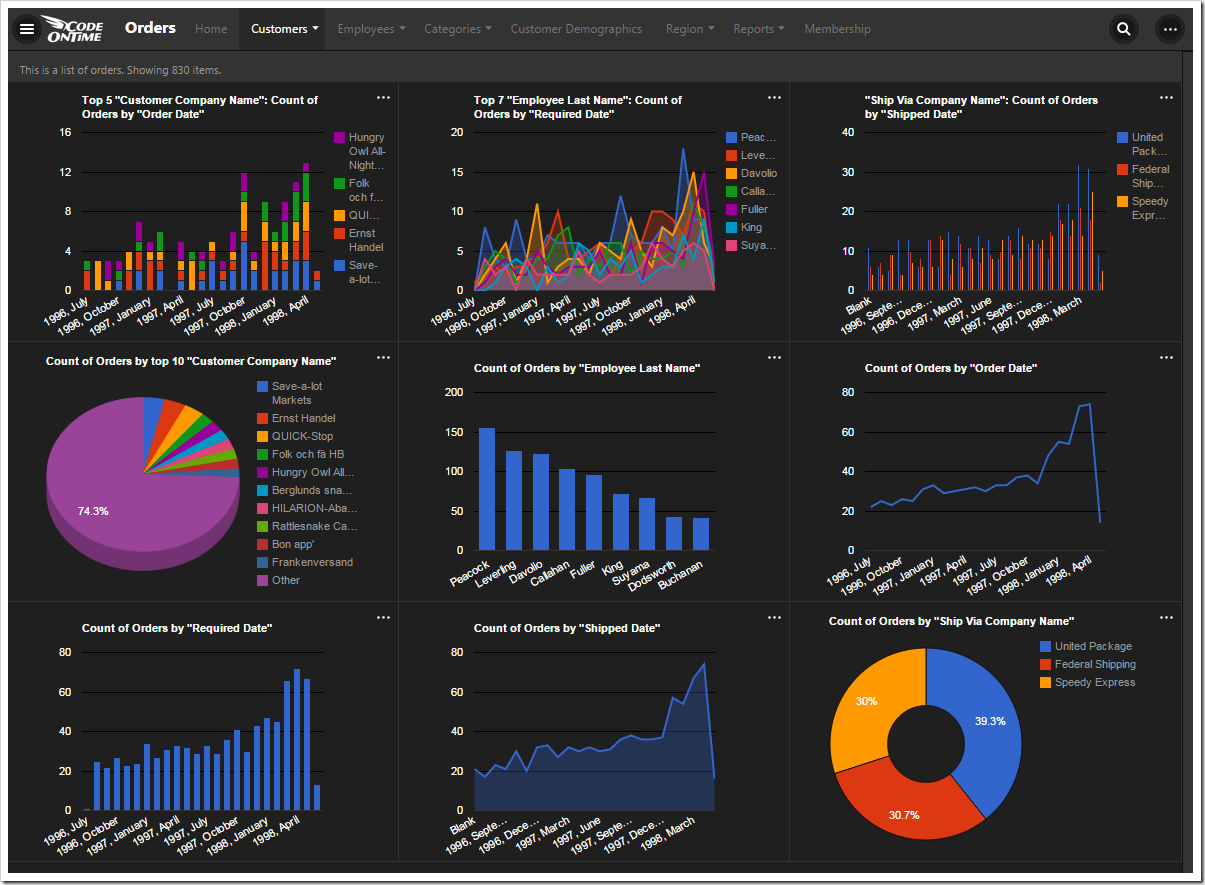
All nine charts that were automatically composed for Orders page of Northwind sample database.

The automatically created definitions for all of the nine charts are shown below. Each chart is described with one or two tags that start with “pivot-“ keyword followed by properties.  The elegant simplicity of the tag language makes possible sophisticated collections of charts defined both by developers and end users.
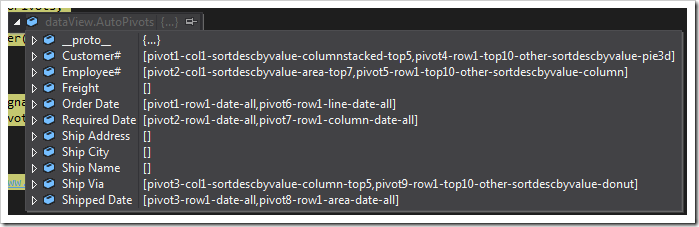
The chart definitions generated by the client library.

Application framework performs efficient server-side data pivots following the tag specification. Data pivots for all charts are performed on the server simultaneously. Data pivots take into account application-level and user-defined filters.

Let’s see how each chart works.

Chart 1 – Stacked Column + Dates
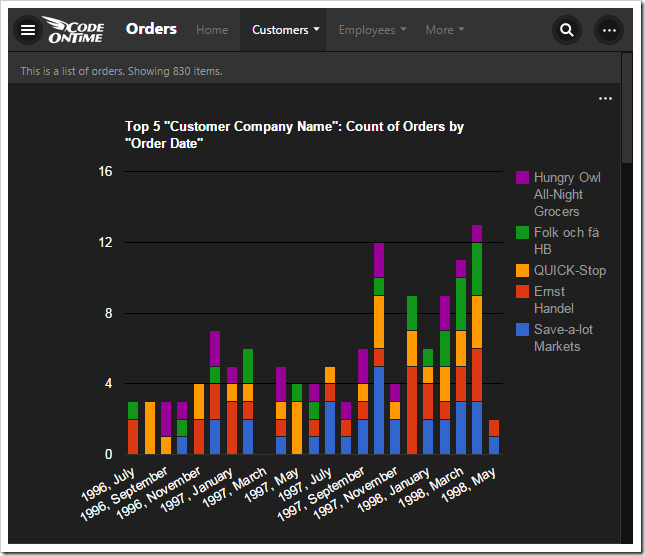
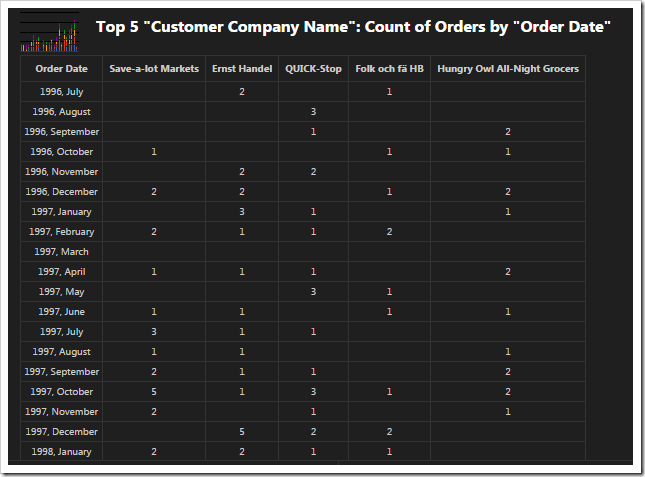
The first chart pivots customers by the order date in a stacked column chart.

Pivoted data of the 'stacked column + dates' chart.

This chart uses the first date field, OrderDate, as the rows. The “pivot1” property assigns the field to the pivot with ID of “1”. The “row” property sets the field as a row in the pivot, and assigns it index “1”.

The property “date” instructs the application to try several date bucket groups and choose the best one available based on the number of rows in the output. Application framework tries not to have too many or too few “date” rows in a pivot. For the dataset in the picture, the framework has produced the pivoted data as if tags “pivot1-row1-year pivot1-row2-month” were specified.

The “all” property ensures that any empty gaps in the data will be included in the pivot dimension.

The first lookup field, CustomerID, is used for the columns. The columns are sorted in descending order by the value of each column. Then, only the top five customers are kept, and the rest of them are dropped from the output. The “columnstacked” property defines the type of chart.

When a value field is not defined for the chart, a count of the first available field is used.

Field Name Tag
OrderDate pivot1-row1-date-all
CustomerID pivot1-col1-sortdescbyvalue-columnstacked-top5

Chart 2 – Area + Dates

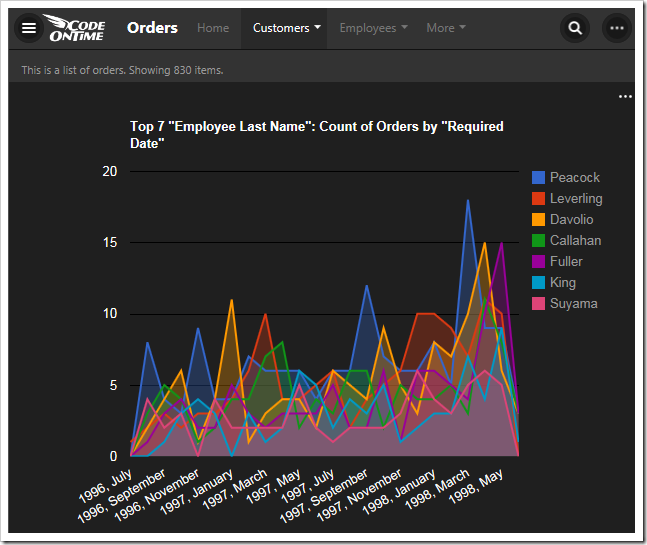
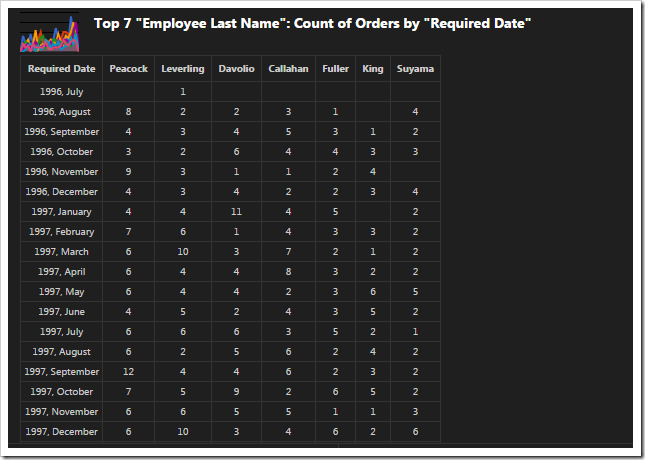
The second chart pivots employees by required date in an area chart.

Pivoted data of the 'area + dates' chart.

This chart uses the second date field, RequiredDate, as the rows.

The second lookup field, EmployeeID, is used for the columns, and the top seven employees sorted in descending order are used. The “area” property specifies the chart type.

Field Name Tag
RequiredDate pivot2-row1-date-all
EmployeeID pivot2-col1-sortdescbyvalue-area-top7

Chart 3 – Column + Dates

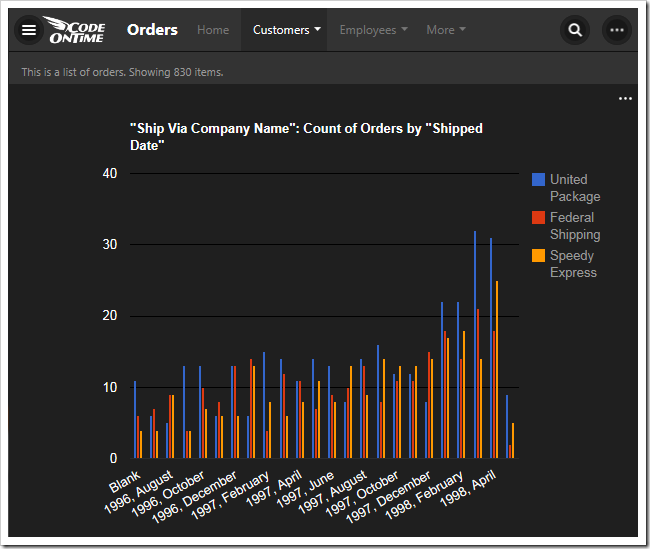
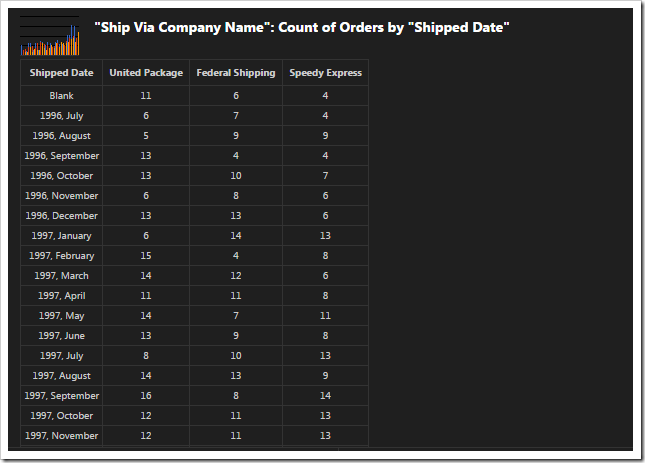
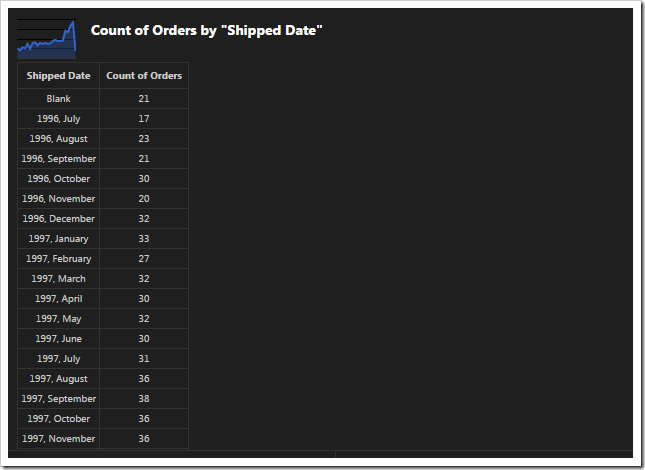
This chart pivots shipper companies by the shipped date in a column chart.

Pivoted data of 'column + dates' chart.

This chart uses the third date field, ShippedDate, as the rows of the output.

The ShipVia lookup field is used, and only the top five values are kept. The type of the chart is defined as “column”.

Field Name Tag
ShipVia pivot3-col1-sortdescbyvalue-column-top5
ShippedDate pivot3-row1-date-all

Chart 4 – 3d Pie

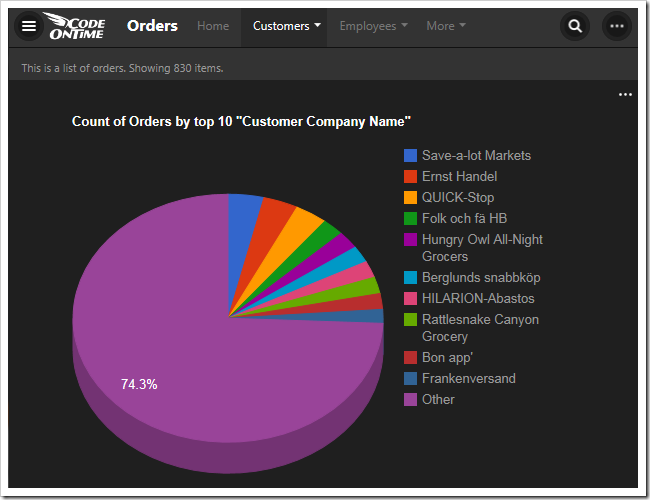
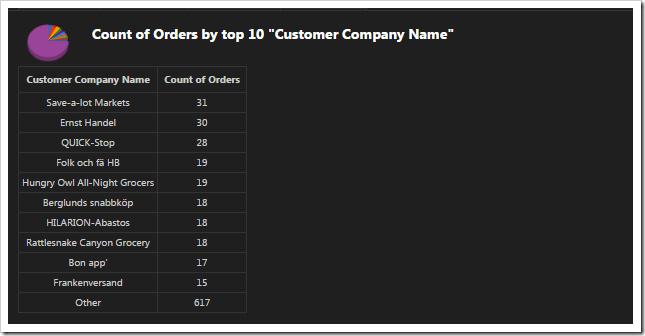
This chart shows the top ten orders by customer in a 3d pie chart.

Pivoted data of 3d pie chart.

The fourth chart uses CustomerID as the row values. The top ten values are displayed. The “other” property commands the server to sum up the rest of the values in an “Other” row. The type of chart is “pie3d”.

When no column field is defined, there will be only one column to display the value.

Field Name Tag
CustomerID pivot4-row1-top10-other-sortdescbyvalue-pie3d

Chart 5 – Columns

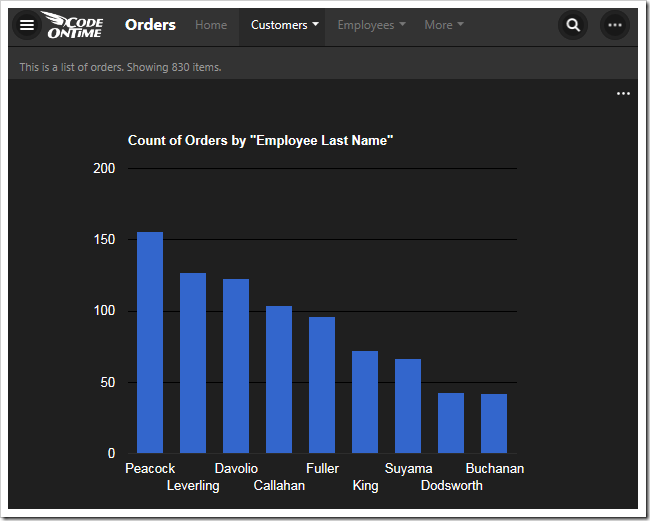
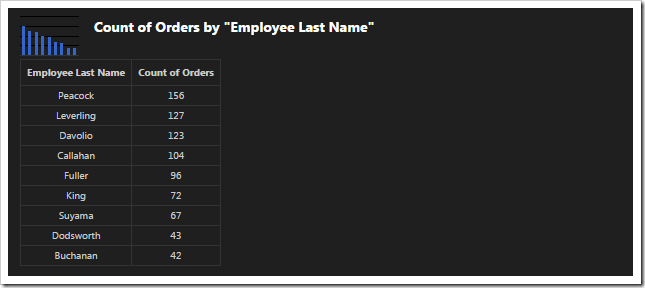
This chart shows the top 10 employees that made orders in a column chart.

Pivoted data of 'column' chart.

The fifth chart uses EmployeeID lookup field for the rows. The top ten values are displayed, and the rest are summed up into an “Other” row. The type of chart is “column”.

Field Name Tag
EmployeeID pivot5-row1-top10-other-sortdescbyvalue-column

Chart 6 – Line

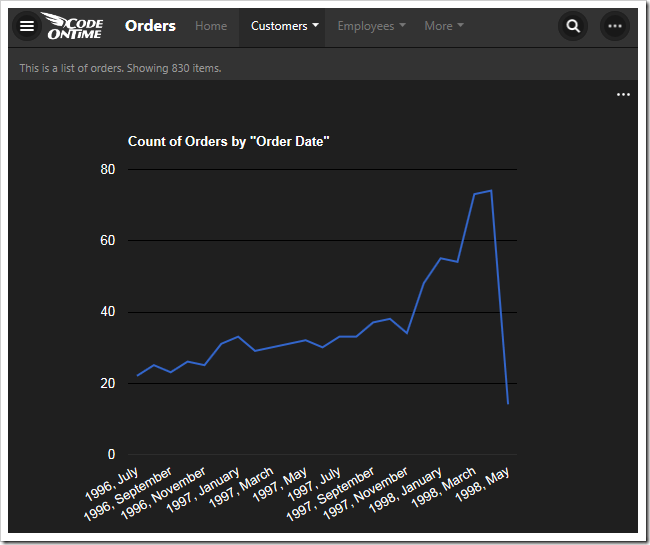
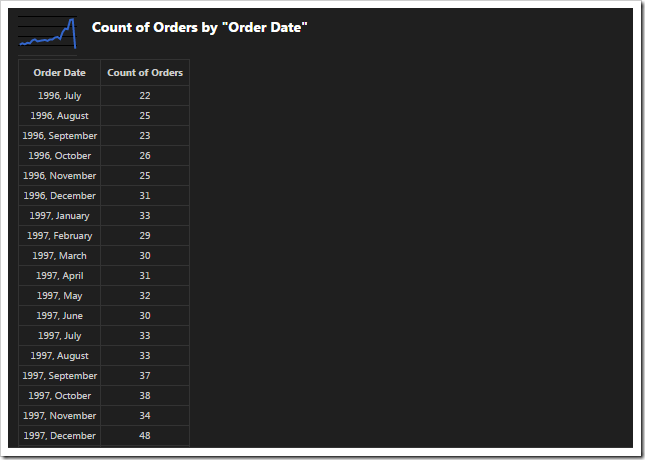
This chart shows the count of orders made by order date in a line chart.

Pivoted data of 'line' chart.

The next chart uses the OrderDate field as the rows. The “date” property will generate multiple sets of data, differentiated by bucket size, and use the best result for the chart. The property “all” will ensure that there are no missing values in the date range. The type of chart is “line”.

Field Name Tag
OrderDate pivot6-row1-line-date-all

Chart 7 – Columns

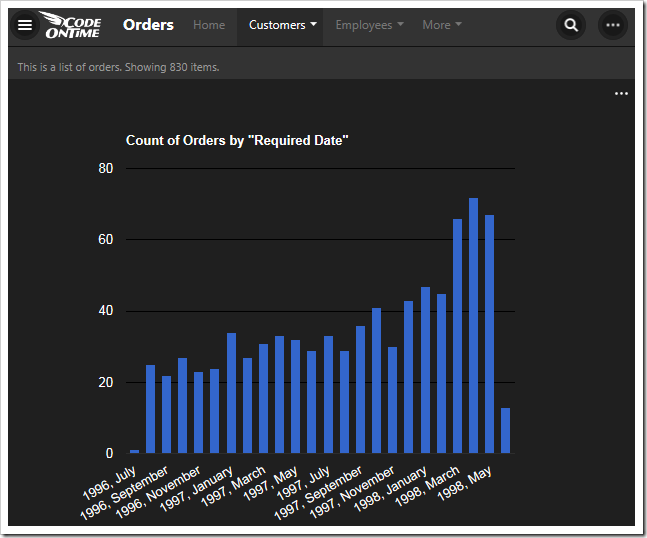
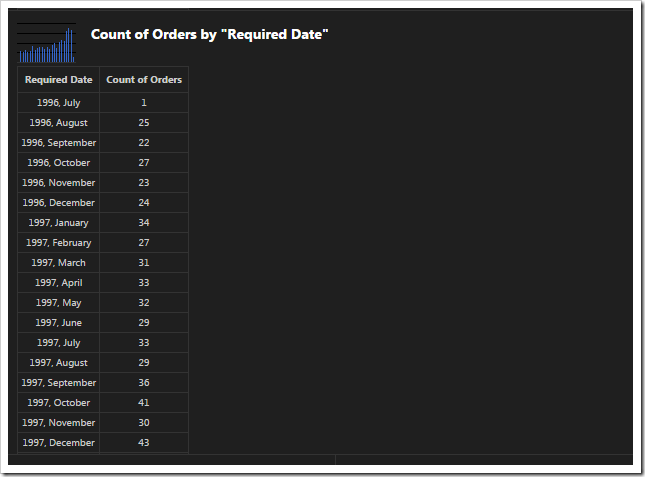
This chart shows a count of orders made by required date in a column chart.

Pivoted data of 'column' chart.

This chart uses the RequiredDate field for the row values. The type of chart is “column”. The server will compose multiple results and pick the best one that fits in the graph when “date” is used. The chart will not miss any gaps in dates with the “all” keyword.

Field Name Tag
RequiredDate pivot7-row1-column-date-all

Chart 8 - Area

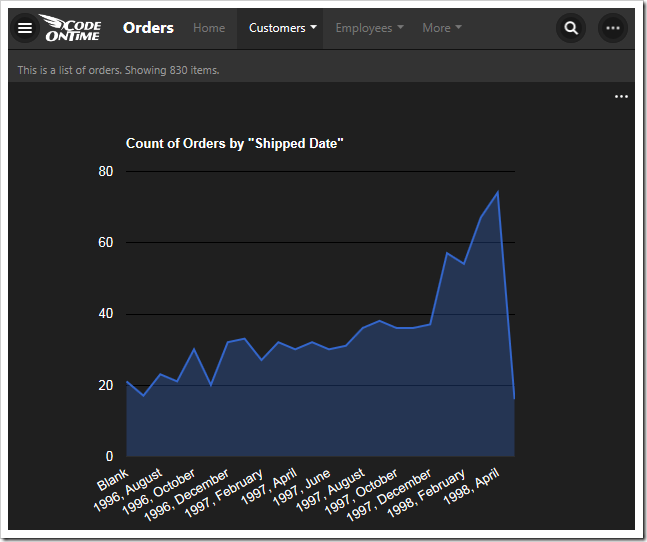
This chart shows the count of orders made by shipped date.

Pivoted data of 'area' chart.

This chart shows values grouped into rows by the ShippedDate field.

Field Name Tag
ShippedDate pivot8-row1-area-date-all

Chart 9- Donut

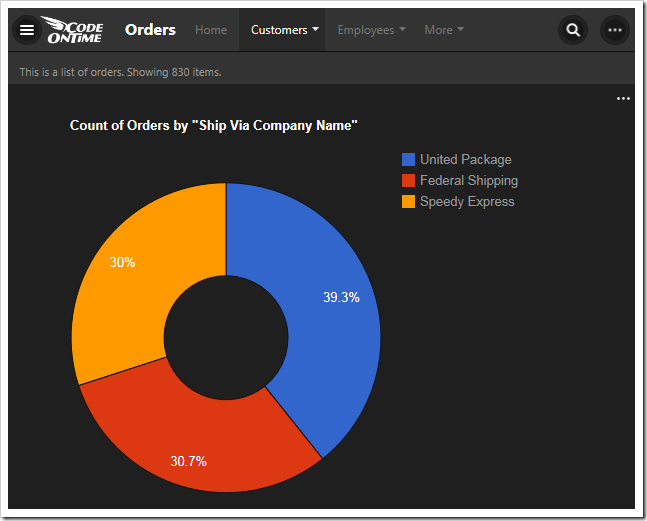
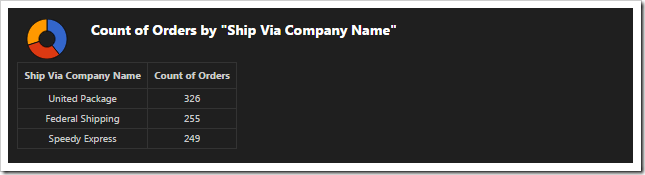
This chart shows the count of orders made, grouped by shipper company, in a donut chart.

Pivoted data of 'donut' chart.

This chart uses the ShipVia lookup field for the rows of the result. The “top10” tag is disregarded as there are less than ten values in the result.

Field Name Tag
ShipVia pivot9-row1-top10-other-sortdescbyvalue-donut
Friday, January 23, 2015PrintSubscribe
Responsive Grids, Lists, and Cards

A challenge of figuring the best presentation style for your data on a variety of devices is non-existent in apps created with Code On Time.  Data views always provide at least three responsive view styles to end users. Application automatically elects the best presentation style if developers do not provide a default option. Mobile devices will present data as responsive lists while desktop devices will switch to responsive grids.  If “image” or multi-line text fields are detected, then desktop presentation will be switched to “responsive list” instead.

Responsive List

The screen shot demonstrates a responsive list in action. Every data field is visible. The data fields and their content overflow to the next line as needed. Multi-line text fields start a new paragraph in the list item.

Responsive list in a Touch UI application created with Code On Time.

This presentation style is perfect when large amounts of information needs to be displayed.

A wider screen will fit more items, since data fields are redistributed along the entire available width.

Responsive list with a sidebar in a Touch UI application created with Code On Time.

Responsive Cards

An alternative responsive compact presentation of list items is called “Cards”. Only a subset of data fields is included in a card by default. Fields that do not fit will become invisible. The content of a field does not overflow to the next line.

Responsive Cards view in a Touch UI application created with Code On Time. 

List items are “cards” of the same height. Wider screen will break the flow of cards into two or three columns if possible.

This presentation style maximizes the amount of information available to the user without scrolling.

Multi-column cards in  a Touch UI applicaiton created with Code On Time.

Responsive Grid

The spreadsheet style presentation of data is convenient when field values require comparison. Responsive grid displays field values aligned horizontally in each row. Better yet, the grid will dynamically measure the available width, relative width of individual fields, and their importance. Then it will hide the “less important” fields to provide the best presentation possible given the width of the device.

Responsive grid view in a Touch UI application created with Code On Time.

Wider screen will reveal more data columns.

Responsive grid view with a sidebar in a Touch UI application created with Code On Time.

Developers can control how individuals data fields are displayed in each view style through tags using Project Designer.

Changing tags of data fields in Project Explorer of Code On Time app generator.

Application users switch between view styles either by choosing the desired option on the sidebar or through the context menu options. Sidebar may not be available for some screen orientations and sizes.

Context menu is available on all devices. User activates context menu by touching or clicking on the context menu button. Next user selects the very first option in panel that shows the name of the current view.

Activating context menu in Touch UI app created with Code On Time.   Activating view options in Touch UI app created with Code On Time.

Available presentation styles will be displayed. User touches or clicks on the options and the view style will change after the panel has closed.

Choosing desired view style in Touch UI app created with Code On Time.   Responsive list view style in a Touch UI app created with Code On Time.

Developers can tag the data view on a page to display a specific view style by default using Project Designer.

Changing tags of data view on a page in Project Explorer of Code On Time app generator.

Thursday, January 15, 2015PrintSubscribe
Brand New Advanced Search, Deep Search, Right-Click to Filter

Code On Time release 8.0.12.0 introduces a collection of new features designed to improve productivity of end users.

The highlights of this release are:

  • Brand New Advanced Search implementation in Touch UI. Users can search for data by entering groups of conditions. Each group uses one of the four matching methods – “Match All”, “Match Any”, “Do Not Match All”, “Do Not Match Any”. Unlimited number of groups can be created. Data views will keep track of up to 30 recent searches. End users can execute and edit previous searches.
     
  • Deep Search is a new capability available in Touch UI. It is now possible to find master records via the content of the details. For example, users can find customers that have orders placed by employee Fuller and shipped to London. Application automatically detects master-detail relationships on the pages and allows specifying detail fields in advanced search groups or in the scope of quick find.
     
  • Right-Click to Filter is now supported in lists and grids of Touch UI applications. Users can right-click any visible value and immediately apply “Equal”, “Does Not Equal” and several other filtering options.  This feature is supported by Touch UI applications on desktop computers equipped with a mouse.
     
  • Empty/Not Empty and dedicated Less/Greater Than and Less/Greater Than Or Equal are now supported in Desktop UI and Touch UI. The first two new filters allow located records that match the corresponding criteria. Previous implementations supported only the last variation of typical comparisons.
     
  • Data Pivoting is now integrated in the application framework. The new implementation includes support for a  high performance universal server-side data pivoting driven by tags. This feature is the foundation of the upcoming brand new charting support that will be introduced first in Touch UI. The same pivoting capability will also be used for sidebar filtering options similar to those found on popular shopping web sites. This pivoting capability will also be used in the Calendar view style that will become available first in the Touch UI.

Take a look at the screen shots of the new user interface features.

The search button on the toolbar now activates either Quick Find search box  or Advanced Search screen. The default option is Quick Find. If  a data view is configured to “Search on Start” than Advanced Search is always engaged when a data page is loaded.

The search button on the toolbar now activates either Quick Find search box  or Advanced Search screen.

The new Quick Find box has a drop down arrow next to the search icon on the left and advanced search button on the right.

The new Quick Find box has a drop down arrow next to the search icon on the left and advanced search button on the right.

The drop down arrow activates a list of child data views on the page that are directly connected to the data view in focus. User has expanded the scope of search to include master data view Customers  and child data views Orders and Order Details. Inclusion of child data views will engage deep search capability.

The drop down arrow activates a list of child data views on the page that are directly connected to the data view in focus. User has expanded the scope of search to include master data view Customers  and child data views Orders and Order Details. Inclusion of child data views will engage deep search capability.

If a user clicks on the button on the right side of the Quick Find search box on the toolbar than advanced search screen slides down from the top of the browser window.

If a user clicks on the button on the right side of the Quick Find search box on the toolbar than advanced search screen slides down from the top of the browser window.

Four data matching methods are supported.

Four data matching methods are supported.

Groups can be deleted and duplicated as needed.

Groups can be deleted and duplicated as needed.

Right-click on the data values will display a context menu.

Right-click on the data values will display a context menu.

An example of “deep search” conditions.

An example of 'deep search' conditions.

The result of the “deep search”.

The result of the 'deep search' via child data records.

The history of searches on Advanced Search screen.

The history of searches on Advanced Search screen.

Searching from recent history on Advanced Search page.

Searching from recent history on Advanced Search page.

The complete list of enhancements and bug fixes is presented below:

  • A new implementation of advanced search for Touch UI with multiple matching groups, history of recent searches and favorite searches.
     
  • Deep search is supported in Touch UI.
     
  • Right-click to filter is now available in Touch UI.
     
  • Data Pivoting is supported in GetPage method.
     
  • Ensured that SQL Server database with one custom schema and the rest of the tables in "dbo" will generate a correct initial menu.
     
  • Renamed __resultset to resultset__ to ensure wider compatibility with database engines.
     
  • Fixed DateTime UTC formatting issue when printing reports.
     
  • Method $app.find first tries to find a data view by ID and then tries to find it by controller name.
     
  • User-level properties are now application and user-specific in Touch UI apps.
     
  • Implemented InitBusinessRules to enable IDataEninge.ExecuteReader to work with business rules.
     
  • Data type TimeStamp will not break applications.

We are finally ready to publish various new tutorials that were in work for the past few months. This year you will see tutorials demonstrating development of single page apps with jQuery Mobile and Bootstrap. A new tutorial will explain how to build the Order Form sample with Touch UI.

In about two weeks we will release another with supported for data visualization in Touch UI and numerous other enhancements including BLOB uploading in Touch UI.