ASP.NET

Labels
AI(10) AJAX(112) App Studio(10) Apple(1) Application Builder(245) Application Factory(207) ASP.NET(95) ASP.NET 3.5(45) ASP.NET Code Generator(72) ASP.NET Membership(28) Azure(18) Barcode(2) Barcodes(3) BLOB(18) Business Rules(3) Business Rules/Logic(140) BYOD(13) Caching(2) Calendar(5) Charts(29) Cloud(14) Cloud On Time(2) Cloud On Time for Windows 7(2) Code Generator(54) Collaboration(11) command line(1) Conflict Detection(1) Content Management System(12) COT Tools for Excel(26) CRUD(1) Custom Actions(1) Data Aquarium Framework(122) Data Sheet(9) Data Sources(22) Database Lookups(50) Deployment(22) Designer(178) Device(1) Digital Workforce(3) DotNetNuke(12) EASE(20) Email(6) Features(101) Firebird(1) Form Builder(14) Globalization and Localization(6) HATEOAS(2) How To(1) Hypermedia(2) Inline Editing(1) Installation(5) JavaScript(20) Kiosk(1) Low Code(3) Mac(1) Many-To-Many(4) Maps(6) Master/Detail(36) Micro Ontology(4) Microservices(4) Mobile(63) Mode Builder(3) Model Builder(3) MySQL(10) Native Apps(5) News(18) OAuth(9) OAuth Scopes(1) OAuth2(13) Offline(20) Offline Apps(4) Offline Sync(5) Oracle(11) PKCE(2) Postgre SQL(1) PostgreSQL(2) PWA(2) QR codes(2) Rapid Application Development(5) Reading Pane(2) Release Notes(185) Reports(48) REST(29) RESTful(30) RESTful Workshop(15) RFID tags(1) SaaS(7) Security(81) SharePoint(12) SPA(6) SQL Anywhere(3) SQL Server(26) SSO(1) Stored Procedure(4) Teamwork(15) Tips and Tricks(87) Tools for Excel(3) Touch UI(93) Transactions(5) Tutorials(183) Universal Windows Platform(3) User Interface(338) Video Tutorial(37) Web 2.0(100) Web App Generator(101) Web Application Generator(607) Web Form Builder(40) Web.Config(9) Workflow(28)
Archive
Blog
ASP.NET
Tuesday, March 10, 2015PrintSubscribe
Sorting Rows and Columns in Charts

Suppose that you have a chart on the Orders page that shows the number of orders made by up to 10 customers. By default, the rows are sorted in ascending alphabetical order of the customer’s name.

Data Field Tag
CustomerID pivot1-row1-column-top10

The chart with alphabetically sorted customers is shown below.
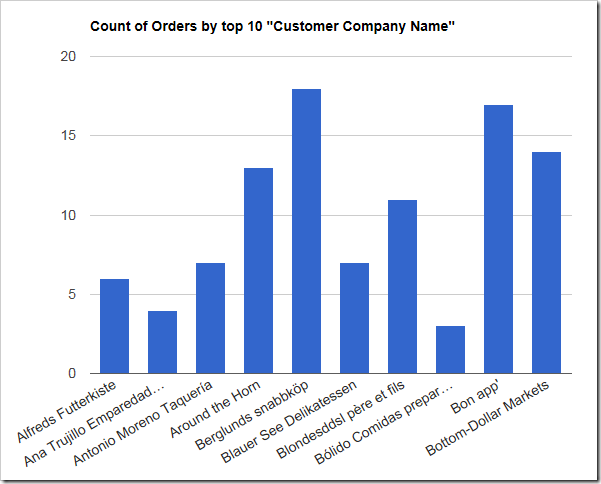
Chart shows count of orders made by customers. The first 10 customers by alphabetical order of the customer last name is shown.

The chart data shows that the first ten customers were included in the chart.
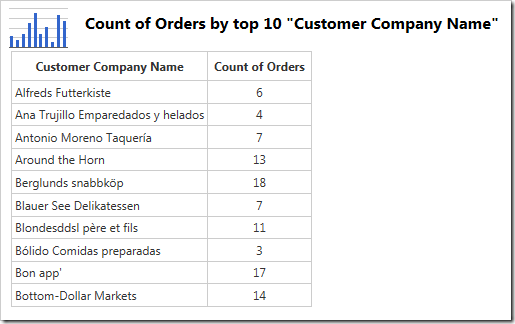
The data shows that the first 10 customer in alphabetical order were included.

The customers can also be sorted in descending alphabetical order by using the keyword “sort” or “sortdesc”.

Data Field Tag
CustomerID pivot1-row1-column-top10-sort

The new chart shows the first 10 customers in descending order.
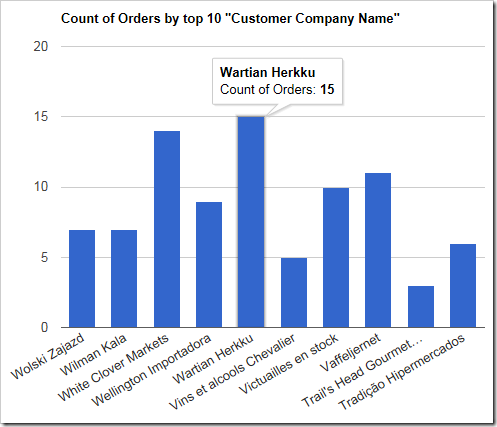
The chart shows the last 10 customers in alphabetical order

The chart data will show customers sorted in descending alphabetical order.
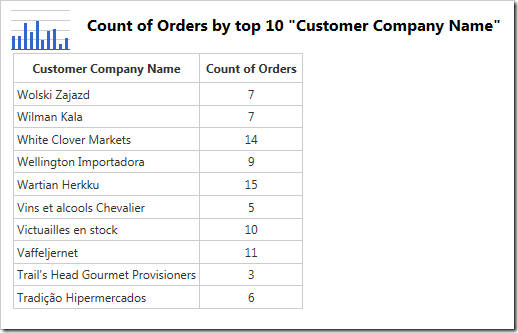
The data shows the first 10 customers in descending alphabetical order.

Sometimes it may be necessary to sort the rows by a column value. Use “sortbyvalue” or “sortdescbyvalue” to sort in descending order of the row value.

Data Field Tag
CustomerID pivot1-row1-column-top10-sortbyvalue

The chart now shows the top 10 customers that make orders.
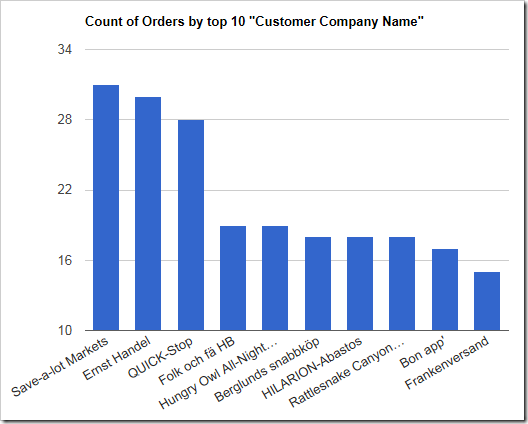
The chart shows customers sorted in descending order by value.

The data shows that the rows have been sorted by the “Count of Orders” column.
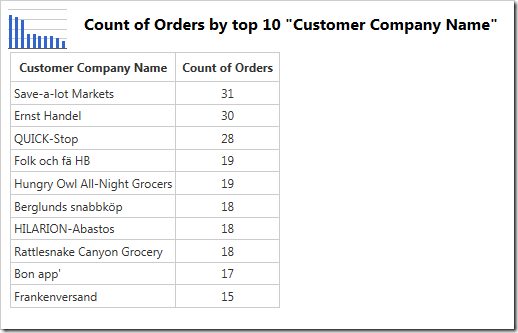
The chart data shows the customers sorted by the count of orders.

In a similar fashion, the bottom 10 customers making orders can be displayed by using “sortascbyvalue” keyword.

Data Field Tag
CustomerID pivot1-row1-column-top10-sortascbyvalue

The chart now shows the least active customers.
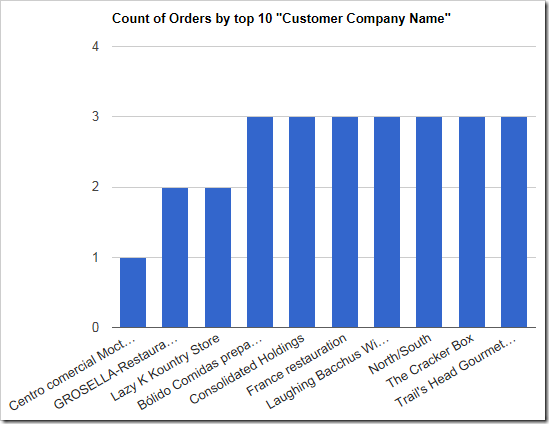
The bottom ten customes by value are shown in this chart.

The chart data will reveal the correct ascending order.
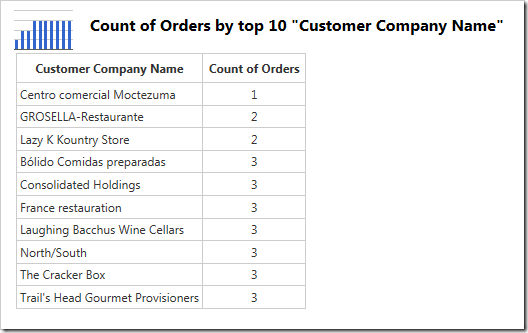
The chart data shows the customers sorted in ascending order by value.

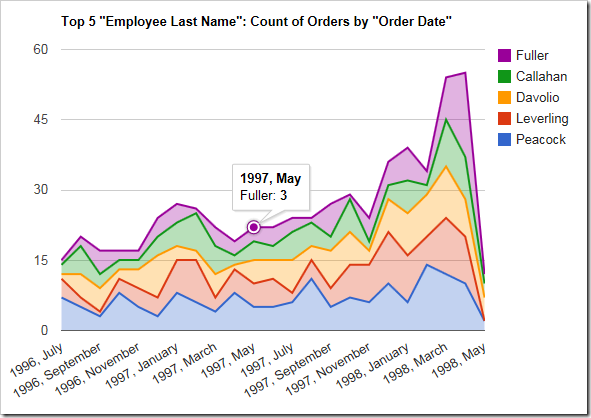
Column fields can be sorted with the same keywords. For example, the chart below shows the top 5 employees making orders over the Order Date. It appears “Peacock” made the most orders in this time period.

Data Field Tag
EmployeeID pivot1-col1-top5-sortbyvalue
OrderDate pivot1-row1-date-areastacked

The columns are sorted in descending order of value. Only the top 5 performing employees are shown.

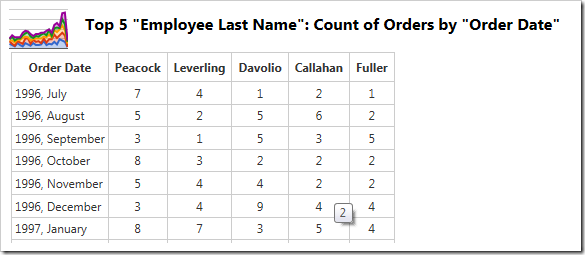
The data can be seen here:

The data shows only the top 5 performing employee columns.

Tuesday, March 10, 2015PrintSubscribe
Enabling Crosshairs on Charts

Line and area charts allow the user to click on a data point to see the value. The chart below shows how the tooltip appears.

Data Field Tag
EmployeeID pivot1-col1-top3
OrderDate pivot1-row1-line-curve-date
Freight pivot1-val1-sum

Line chart with crosshairs disabled.

However, it can be difficult to gauge where the actual value is on the horizontal and vertical axes. Using the “crosshair” keyword in the tag will enable a horizontal and vertical line that makes it easier for the user to see the value in relation to the chart. The color of the crosshair also shows which value is selected.

Data Field Tag
EmployeeID pivot1-col1-top3
OrderDate pivot1-row1-line-curve-date-crosshair
Freight pivot1-val1-sum

Line chart with crosshairs enabled.

The “crosshair” keyword will by default enable a line for both the horizontal and vertical axis. The “crosshair” property can also use the value “horizontal” or “vertical” to limit the line to the respective axis.

Data Field Tag
EmployeeID pivot1-col1-top3
OrderDate pivot1-row1-line-curve-date pivot1-crosshair:"vertical"
Freight pivot1-val1-sum

Line chart with crosshairs enabled in the vertical axis only.

Tuesday, March 10, 2015PrintSubscribe
Specifying Default Size On Charts

Charts presentation style will display as many reasonably-sized charts as possible on each device size. By default, each chart is of size “small”, which means that the chart will use 1/3 of the available space in each dimension on large screens.

The default charts for Orders page will attempt to show three charts in each dimension on large screens.

On medium-sized devices, the charts will use 1/2 of the available space.

Small charts on medium-size devices will show two in each dimension.

The smallest devices will display only one chart at a time.

Small devices only show one chart at at time.

The user is able to change the size of the charts using the context menu in the top right corner of each chart. “Large” is only available on large devices, and “Medium” is only available on moderately sized devices and tablets.

The user is able to change the size of the charts using the context menu in the top right corner of each chart.

The developer is also capable of specifying the default size for each chart by adding the keywords “medium” or “large”. Suppose that the Orders controller has manually specified charts matching those that have been automatically created. The highlighted tags below will specify the default sizes for those charts.

Data Field Tag
CustomerID pivot1-col1-sortdescbyvalue-columnstacked-top5 pivot1-medium pivot4-row1-top10-other-sortdescbyvalue-pie3d pivot4-large
EmployeeID pivot2-col1-sortdescbyvalue-area-top7 pivot5-row1-top10-other-sortdescbyvalue-column
OrderDate pivot1-row1-date-all pivot6-row1-line-date-all
RequiredDate pivot2-row1-date-all pivot7-row1-column-date-all
ShippedDate pivot3-row1-date-all pivot8-row1-area-date-all
ShipVia pivot3-col1-sortdescbyvalue-column-top5 pivot9-row1-top10-other-sortdescbyvalue-donut

Upon regenerating the app and refreshing the page, notice that the default sizes have been applied. The first chart is of “medium” size and now takes 2/3s of the screen on large devices.

The first chart has size of "medium" and takes 2/3s of the screen.

The “large” fourth chart takes the whole screen.

The fourth chart is "large" and takes the full screen