ASP.NET

Labels
AI(19) AJAX(112) App Studio(10) Apple(1) Application Builder(245) Application Factory(207) ASP.NET(95) ASP.NET 3.5(45) ASP.NET Code Generator(72) ASP.NET Membership(28) Azure(18) Barcode(2) Barcodes(3) BLOB(18) Business Rules(3) Business Rules/Logic(140) BYOD(13) Caching(2) Calendar(5) Charts(29) Cloud(14) Cloud On Time(2) Cloud On Time for Windows 7(2) Code Generator(54) Collaboration(11) command line(1) Conflict Detection(1) Content Management System(12) COT Tools for Excel(26) CRUD(1) Custom Actions(1) Data Aquarium Framework(122) Data Sheet(9) Data Sources(22) Database Lookups(50) Deployment(22) Designer(178) Device(1) Digital Workforce(3) DotNetNuke(12) EASE(20) Email(6) Features(101) Firebird(1) Form Builder(14) Globalization and Localization(6) HATEOAS(10) How To(1) Hypermedia(3) Inline Editing(1) Installation(5) JavaScript(20) Kiosk(1) Low Code(3) Mac(1) Many-To-Many(4) Maps(6) Master/Detail(36) Micro Ontology(5) Microservices(4) Mobile(63) Mode Builder(3) Model Builder(3) MySQL(10) Native Apps(5) News(18) OAuth(9) OAuth Scopes(1) OAuth2(14) Offline(20) Offline Apps(4) Offline Sync(5) Oracle(11) PKCE(2) Postgre SQL(1) PostgreSQL(2) PWA(2) QR codes(2) Rapid Application Development(5) Reading Pane(2) Release Notes(186) Reports(48) REST(29) RESTful(33) RESTful Workshop(14) RFID tags(1) SaaS(7) Security(81) SharePoint(12) SPA(5) SQL Anywhere(3) SQL Server(26) SSO(1) Stored Procedure(4) Teamwork(15) Tips and Tricks(87) Tools for Excel(3) Touch UI(93) Transactions(5) Tutorials(183) Universal Windows Platform(3) User Interface(337) Video Tutorial(37) Web 2.0(100) Web App Generator(101) Web Application Generator(607) Web Form Builder(40) Web.Config(9) Workflow(28)
Archive
Blog
ASP.NET
Tuesday, March 15, 2011PrintSubscribe
MySQL, IIS Express 7.5, Search Bar Improvements

The latest release of Code On Time generator includes significant new features and bug fixes.

Major Features

  • Code On Time generator now fully supports MySQL. Generate sophisticated web applications with native membership support, amazing end user capabilities such as live Excel data feeds, RSS, and on-the-fly reports.
     
  • In an effort to simplify product installation and to offer up-to-date development experience we have integrated support for IIS Express 7.5 in the web application generator. Code On Time generator will automatically use IIS Express to run and test generated applications. IIS Express can be installed on any Windows computer starting with XP and can run side-by-side with the production version of IIS bundled in many versions of Windows.
     
  • Search bars are now enhanced to support the new Search property of data fields. The search bars will no longer display “Hidden” data fields in the field options. The following values of the Search property allow precise control of the search bar behavior:
    • Default – if the field is no hidden then it is allowed to be displayed in the search bar options. Up to three fields are automatically presented on the search bar by default.
    • Required – the field must be presented on the search bar and cannot be left blank. If at least one field is marked as Required or Suggested then only required and suggested fields are displayed in the search bar.
    • Suggested – the field is automatically presented in the search bar when a search bar is activated.
    • Allowed – the field is allowed to be displayed in the search bar. This value may be useful to expose the “hidden” fields in the search bar.
    • Forbidden – the field is not allowed to be displayed in the search bar even if the field is present in the grid / data sheet / tree view.

Bug Fixes and Minor Improvements

  • The application will correctly hide the tab in a form if there are no visible categories.
     
  • Method SqlText.Execute has been renamed to SqlText.ExecuteScalar
     
  • SqlText class has been enhanced with several static methods that make it easy to execute an SQL statement with parameters. The name of the methods are Execute, ExecuteNonQuery, and ExecuteScalar. For example,
    object[] values = MyCompany.Data.SqlText.Execute(
        "select CompanyName, ContactName from Customers where CustomerID = @CustomerID", 
        "ANTON");
    will return Company Name and Contact Name of a customer with ID = “ANTON”.
     
  • An exception raised when registering an activation code has been fixed.
  • Table of Contents user control now adjusts targets of TreeNode elements if the URL is of a page is spelled as “_blank:….” or starts with any other standard browser window name.
     
  • Business rules now support “array” filters. If you enter a view filter as “CustomerID in @CustomerIDList” and implement property CustomerIDList as an array or any enumerable property then the application will expand the filter into “CustomerID in (@p1, @p2,@p3)” if the property is returning three values.
     
  • Code generator will automatically remove read-only flag if detected when generated the project protected by a source control system.
     
  • Membership Business Rules were refactored. All methods are now virtual and can be overridden when needed.
     
  • The bug with conflict detection when read-only fields are present in a view has been resolved.
     
  • Mandatory boolean fields now automatically display first option “(select)” instead of “N/A”.
     
  • If the property ItemsStyle of a mandatory boolean field is set to “CheckBox” then field will correctly render as a check box.
     
  • The speed of metadata processing when generating a project for the first time or when refreshing the metadata to reflect changes in the database is now significantly improved.
     
  • Export as CSV  will use the List Separator of the client UI culture instead of a fixed “comma” character.
     
  • If a form view has more than one column then the form will automatically take enough of real estate of the screen to fit the contents of the form into available space.
     
  • All boxes displayed in the search bar now feature an additional CSS class signifying the purpose of the box. The classes are Summary, TaskList, About, and See Also. This makes it possible to permanently hide the boxes from the UI when needed.
     
  • An exception is no raised if there is an error in the code formula. Previously the application silently ignored the runtime error making it difficult to detect the problem.
     
  • Summary box automatically trims words that are too long to fit in the side bar. This was frequently happening to email addresses and other “long” text sequences with spaces.

Coming Soon

Many new exciting features are coming soon.

  • Data Sheet view will be available in Premium and Unlimited editions of the product to provide a spreadsheet-style data entry.
     
  • Data Pivot capability will allow creating powerful data entry views with side-by-side presentation of categorized values.
     
  • Dynamic Access Control List will be available soon in Unlimited edition. Enterprise class dynamic security system will be available to control access to data on a user and role level without modifying application code.
     
  • Support for Sybase SQL Anywhere is being prepared for release.
      
  • Date Time Picker will be automatically displayed when data format string of a field is G or g.
     
  • New “Purpose” property will be introduced in the fields to allow specifying the business purpose of the field, such as Modified On, Created By, Membership User Name, Phone Number, etc. The code generator will automatically create the necessary business rules to support the expressed purpose of the field.
     
  • Azure Factory code generation project is being finalized and will be available to create applications working with Microsoft SQL Azure.
     
  • Extended support for file uploading is finally coming to conclusion. It will be possible to capture File Name, File Size, File Content Type, and to redirect file storage / retrieval to an external location. Azure Factory applications will use this capability to store uploaded files and annotations in Azure tables.
     
  • Tree View will complement Grid View, Data Sheet, Form, and Chart.
Saturday, November 13, 2010PrintSubscribe
Order Form Sample

In this tutorial we will detail the process of creating a custom Order Form with Code On Time generator and Web Site Factory project. We will customize the sample application generated straight from the Northwind database.

Customization includes creating a new page, adding data views to the page, configuring data controllers to calculate the extended priced of order detail records, the subtotal and total amounts of the order, and freight charges. We will also apply a custom template to alter the presentation of the form.

The screen shot below represents the final product of project customization.

image

Here is the same form rendered in “read-only” mode.

image

 Download this tutorial now! (6172K)

Watch the tutorial on our YouTube channel:

Part 1: http://www.youtube.com/watch?v=ekb8_S7YaRM

Part 2: http://www.youtube.com/watch?v=syGsUTuK2ZE

Part 3: http://www.youtube.com/watch?v=zImXeWos1U0

Sunday, November 7, 2010PrintSubscribe
Custom Field Editors

Code On Time applications support custom field editors. Use custom field editors to enhance the standard user interface of data fields in  generated applications with custom  presentation.

Background

Custom field editor is an ASP.NET User Control that has its code behind class declared with YourNamespace.Web.AquariumFieldEditor attribute. The attribute definition is generated as a part of the project code base.

Each generated application includes a standard custom field editor ~/Controls/RichEdtior.ascx. This user control hosts HtmlEditor component from Ajax Control Toolkit included with the generated project.

You can activate this field editor using one of the two methods.

  • First method is to enter “RichEditor” in Editor property of a field that must support rich editing capability. You may also want to ensure that every instance of a field binding to a view has its HtmlEncoding attribute set to “false”. Field binding are data fields declared in each view of a data controller.
  • The second method consists of setting the Text Mode property of a data field in a corresponding view to “Rich Text”. The client library will automatically handle configuring of Html Encoding and Editor properties at runtime.

Custom field editor can be implemented with the standard ASP.NET controls and requires a small amount of JavaScript code discussed below.

Custom Rich Editor Example

Let’s replace the standard HtmlEditor with UltimateEditor from Karamasoft to illustrate the basic steps required to integrate external components of the custom field editor.

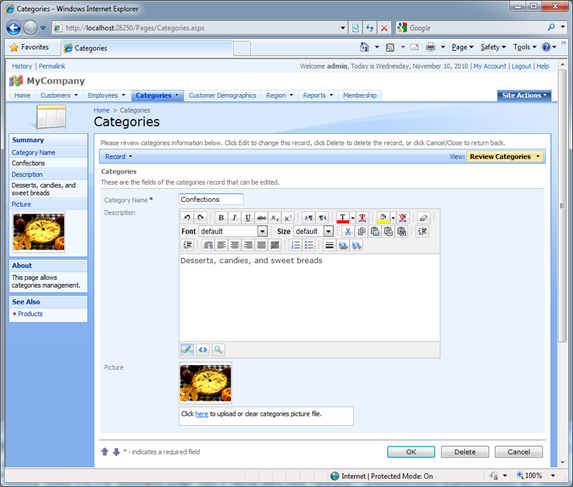
Generate an ASP.NET 3.5 version of Web App Factory from your database. We will be using the Northwind sample for the purpose of this discussion. Designate a data field in one of the form views to have its Text Mode property set to “Rich Text” (/blog/2010/11/rich-text-editor.html).  We will do so for Categories.Description field. Here is the form view editForm1 with Description field rendered as a standard Rich Text editor.
image

Download and install the Karamasoft Ultimiate Editor for ASP.NET 3.5. The installation program will save the files to the C:\inetpub folder on your computer. Consult installation documentation provided by the vendor and copy the following files to the generated project source code.

  1. Copy ephtmltopdf.dll, UltimateEditor.dll, and UltimateSpell.dll to the [Your Project Root]\WebApp\bin folder.
  2. Copy entire UltimateEditorInclude folder to the [Your Project Root]\WebApp folder.
  3. Copy entire UltimateSpellInclude folder to the [Your Project Root]\WebApp folder.

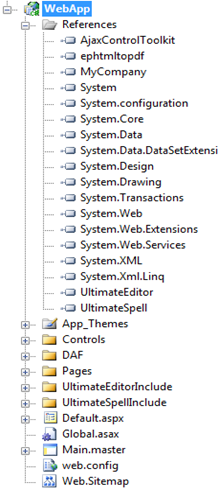
Open the project in Visual Studio 2008 and add the references to the DLLs copied in step 1 to your own project, include the folders copied in steps 2-3 into your project using the Solution Explorer.

The project WebApp of the generated solution will look as shown below:
image

Open WebApp/Controls/RichEdit.ascx and the change the markup as shown in this C# sample.

<%@ Control Language="C#" AutoEventWireup="True" Inherits="Controls_RichEditor" 
    Codebehind="RichEditor.ascx.cs" %>
<%@ Register Assembly="UltimateEditor" 
    Namespace="Karamasoft.WebControls.UltimateEditor"
    TagPrefix="kswc" %>
<kswc:UltimateEditor ID="UltimateEditor1" runat="server" SetFocus="False">
    <UltimateSpell MisspelledWordStyle-Font-Bold="True" 
        MisspelledWordStyle-ForeColor="#FF0000"
        GrammaticalErrorStyle-Font-Bold="True" 
        GrammaticalErrorStyle-ForeColor="#008000">
        <SpellButton ButtonType="Button" Text="Spell Check" 
            CausesValidation="True" 
            ImageAlign="AbsMiddle"></SpellButton>
        <GrammarButton ButtonType="Button" Text="Grammar Check" 
            CausesValidation="True" 
            ImageAlign="AbsMiddle"></GrammarButton>
    </UltimateSpell>
</kswc:UltimateEditor>

Open the code-behind class and change it as shown in this example.

[MyCompany.Web.AquariumFieldEditor()]
public partial class Controls_RichEditor : System.Web.UI.UserControl
{

    protected void Page_Load(object sender, EventArgs e)
    {
        if (!(IsPostBack))
            Page.ClientScript.RegisterClientScriptBlock(GetType(), "ClientScripts", String.Format(@"
var initialValue = null;
function FieldEditor_GetValue(){{
    if(typeof(UltimateEditors)!=='undefined')
        return UltimateEditors['{0}'].GetEditorHTML();
    else
        return initialValue;
}}
function FieldEditor_SetValue(value) {{
    if(typeof(UltimateEditors)!=='undefined')
        UltimateEditors['{0}'].SetEditorHTML(value);
    else {{
        initialValue = value;
        window.setTimeout('FieldEditor_SetValue(initialValue)', 100);
    }}
}}
",
    UltimateEditor1.ClientID), true);
    }
}

The markup of the user control is quite obvious. Ultimate Editor is initialized with default property values. The most important one is probably the SetFocus property. We don’t want this control to take control over input focus from the client library of the generated application.

The source of the user control emits two JavaScript functions, FieldEditor_GetValue and FieldEditor_SetValue that are provided to allow integration with the client library of your application. The emitted functions will look  as follows when the page hosting the user control is rendered in a browser:

var initialValue = null;
function FieldEditor_GetValue(){
    if(typeof(UltimateEditors)!=='undefined')
        return UltimateEditors['ctl03_UltimateEditor1'].GetEditorHTML();
    else
        return initialValue;
}
function FieldEditor_SetValue(value) {
    if(typeof(UltimateEditors)!=='undefined')
        UltimateEditors['ctl03_UltimateEditor1'].SetEditorHTML(value);
    else {
        initialValue = value;
        window.setTimeout('FieldEditor_SetValue(initialValue)', 100);
    }
}

The functions are using the Ultimate Editor API to interact with the client-side editor component of the vendor.

Note the use of window.setTimeout function that performs a delayed initialization of the vendor control. This technique may be needed if the the vendor control is dynamically loading its own scripts and is not ready for use upon initial loading of the editor in the browser window. Such situation may occur upon first activation of the editor – subsequent activations do not require a delay.

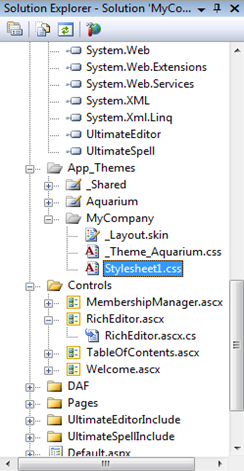
The last step is ensure that enough of the page real estate is available for Ultimate Editor at runtime. Add a new CSS file to the WebAp/App_Themes folder of your solution.
image

Enter the following CSS rule:

iframe.FieldEditor
{
    width: 695px !important;
    height: 379px !important;
}

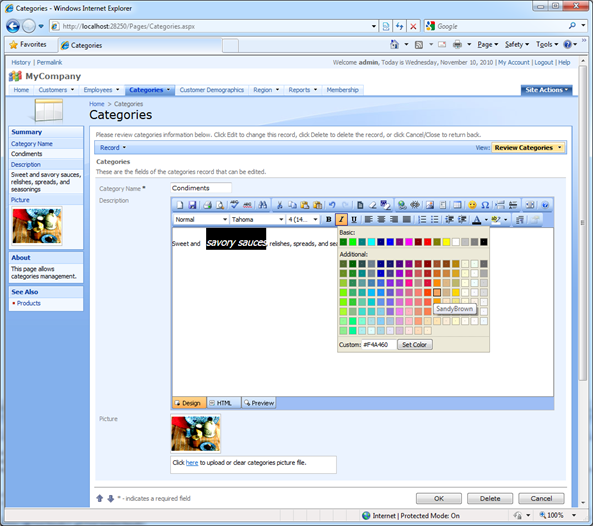
Run the WebApp project to see the new version of Rich Editor control in action.
image

Subsequent code generation of your Web App Factory project will retain all project modifications. The code generator will use the latest version of the project file to list the same folders and references that were included in the project for the purpose of this exercise.