Web Application Generator

Labels
AI(22) AJAX(112) App Studio(10) Apple(1) Application Builder(245) Application Factory(207) ASP.NET(95) ASP.NET 3.5(45) ASP.NET Code Generator(72) ASP.NET Membership(28) Azure(18) Barcode(2) Barcodes(3) BLOB(18) Business Rules(3) Business Rules/Logic(140) BYOD(13) Caching(2) Calendar(5) Charts(29) Cloud(14) Cloud On Time(2) Cloud On Time for Windows 7(2) Code Generator(54) Collaboration(11) command line(1) Conflict Detection(1) Content Management System(12) COT Tools for Excel(26) CRUD(1) Custom Actions(1) Data Aquarium Framework(122) Data Sheet(9) Data Sources(22) Database Lookups(50) Deployment(22) Designer(178) Device(1) Digital Workforce(3) DotNetNuke(12) EASE(20) Email(6) Features(101) Firebird(1) Form Builder(14) Globalization and Localization(6) HATEOAS(13) How To(1) Hypermedia(3) Inline Editing(1) Installation(5) JavaScript(20) Kiosk(1) Low Code(3) Mac(1) Many-To-Many(4) Maps(6) Master/Detail(36) Micro Ontology(5) Microservices(4) Mobile(63) Mode Builder(3) Model Builder(3) MySQL(10) Native Apps(5) News(18) OAuth(9) OAuth Scopes(1) OAuth2(14) Offline(20) Offline Apps(4) Offline Sync(5) Oracle(11) PKCE(2) Postgre SQL(1) PostgreSQL(2) PWA(2) QR codes(2) Rapid Application Development(5) Reading Pane(2) Release Notes(186) Reports(48) REST(29) RESTful(33) RESTful Workshop(14) RFID tags(1) SaaS(7) Security(81) SharePoint(12) SPA(5) SQL Anywhere(3) SQL Server(26) SSO(1) Stored Procedure(4) Teamwork(15) Tips and Tricks(87) Tools for Excel(3) Touch UI(93) Transactions(5) Tutorials(183) Universal Windows Platform(3) User Interface(337) Video Tutorial(37) Web 2.0(100) Web App Generator(101) Web Application Generator(607) Web Form Builder(40) Web.Config(9) Workflow(28)
Archive
Blog
Web Application Generator
Tuesday, February 5, 2013PrintSubscribe
DB2 Sample Web Application

The database server DB2 Express-C, provided by IBM, comes with a database called “SAMPLE”. Let’s use Code On Time web application generator to create a web app straight from this database.

Installing and Configuring DB2

The first step is to download the  DB2 Express-C 10.1.2 for Windows 64-bit from the IBM website.

When the download is complete, run the executable. Follow the steps to install DB2 on your computer.

Creating a Web Application

Start the web app generator and click on the Create a new web application link on the start page. On the New Project screen, select Web Site Factory.

Creating a new Web Site Factory application.

Assign a name of “DB2Sample”, select your preferred programming language, and press Create.

Creating a new project called 'DB2Sample'.

Preserve the default Namespace and Framework, and press Next.

Namespace and Framework page of Code On Time project wizard.

From the Data Provider dropdown, select IBM DB2 .NET Data Provider.

Creating a DB2 database connection string.

To the right of the Connection String field, click on the “…” button to activate the Connection String Assistant.

If you are using a locally installed database, use the following configuration:

Database: SAMPLE

If you want to connect to a local database as a different user, use Server of “127.0.0.1” or “localhost”. If you are using a remote database, model your configuration after the one below:

Server: [IP Address]:[Port]
Database: SAMPLE
User name: [User name]
Password: [Password]

Press Test to confirm that the settings are configured correctly.

The connection succeeds when tested.

Press OK to insert the connection string into the field.

Configured connection string inserted into the 'Connection String' field.

Press Next twice to reach the Reporting page. Check the box to enable reporting.

Enabling reporting for the Web Site Factory web application.

The next page allows configuration of Custom Membership and Role Providers. Leave the default settings and press Next until you reach the Theme page. Select “Summer” from the list box.

Selecting the 'Summer' theme in the Project Wizard.

Hold down Shift key and press Next to skip to the Summary page. Press Generate to create the web application.

The Summary screen of the Project Wizard.

When generation is complete, the web application will open in the default browser.

Default Employee page of a generated web application from SAMPLE DB2 database.

Saturday, January 19, 2013PrintSubscribe
“Filter Field” Property for Data Views

The Filter Field property specifies the foreign key field on the child data view that will be filtered in a master-detail relationship.

Drag & drop techniques can be used in order to automatically configure the relationship. For example, the picture below shows how to configure CustomerID as the filter field between Customers and Orders data views.
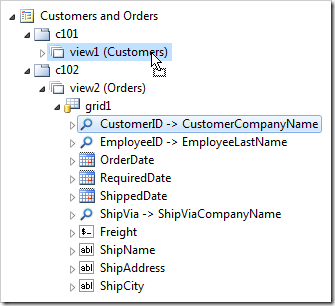
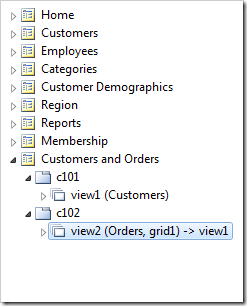
Dropping CustomerID field onto 'view1' to create a master-detail relationship.     Master-detail relationship created between view1 and view2.

However, when the master data view has a compound primary key, the relationship must be configured manually.

Let’s add a Notes table to the database that will have a compound primary key that refers to OrderID and ProductID.
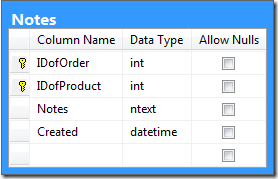
Notes table diagram.

The table will then be added to the project. A Notes data view will be added to the default Orders page in order to compose a three-level master-detail relationship.

Creating the Notes Table

Start SQL Server Management Studio and connect to your database. In the Object Explorer, right-click on Databases / Northwind node, and press New Query.
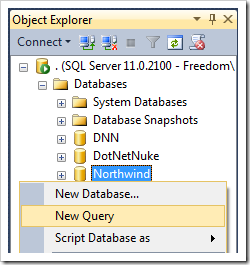
Creating a new query for Northwind database.

Paste in the following script:

create table dbo.Notes(
    IDofOrder int not null,
    IDofProduct int not null,
    Notes ntext not null,
    Created datetime not null,
     constraint PK_Notes primary key clustered
    (
        IDofOrder asc,
        IDofProduct asc
    )
)

alter table dbo.Notes add constraint FK_Notes_OrderDetails_OrderID foreign key (IDofOrder)
references dbo.Orders (OrderID)

alter table dbo.Notes add constraint FK_Notes_OrderDetails_ProductID foreign key (IDofProduct)
references dbo.Products (ProductID)

Click on Execute on the toolbar to run the query.

Adding the Table to the Project

Start the web application generator. Click on the project name, and press Refresh. Check the box next to dbo.Notes table to add it to the project, and press Refresh.
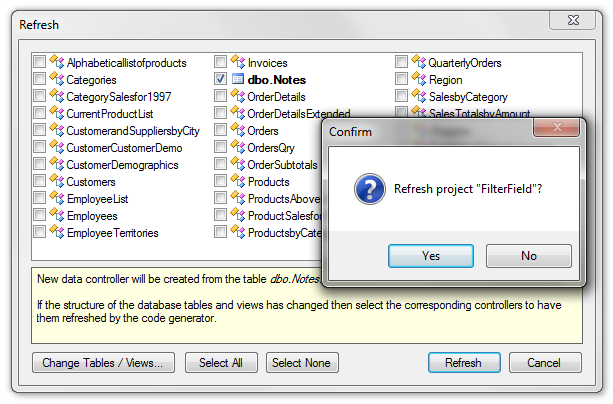
Adding the Notes table to the project.

Adding Notes Data View

Right-click on Notes controller node, and press Copy.
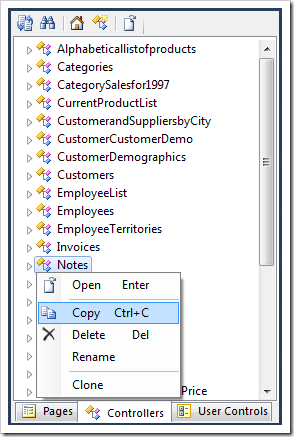
Copying the Notes controller.

Switch back to the Pages tab. Right-click on Customers / Orders page node, and press Paste. The data controller will be instantiated as a data view in a new container.
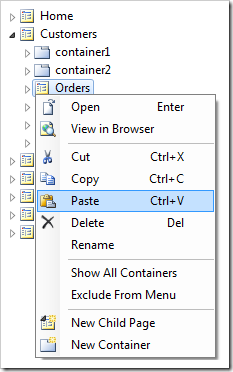
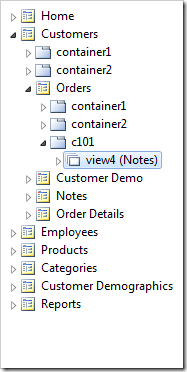
Pasting the Notes controller onto Orders page.     Notes controller instantiated as a view on the page.

Configuring Master-Detail Relationship

Double-click on Customers /Orders / c101/ view4(Notes) node.
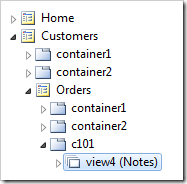
'View4' view on the Orders controller.

Make the following changes:

Property New Value
View grid1
Text Notes
Filter Source view3
Filter Field #1 IDofOrder
Filter Field #2 IDofProduct
Auto Hide Container

Press OK to save.

Viewing the Results

On the Project Designer toolbar, press Browse. Navigate to the Orders page. Select an order from the list, and then select an order detail. The Notes data view will appear underneath, filtered by OrderID and ProductID.
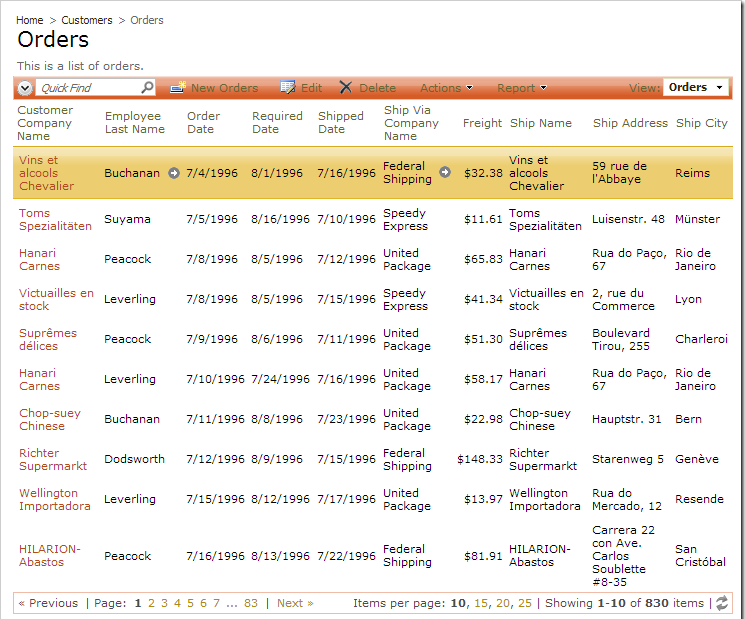
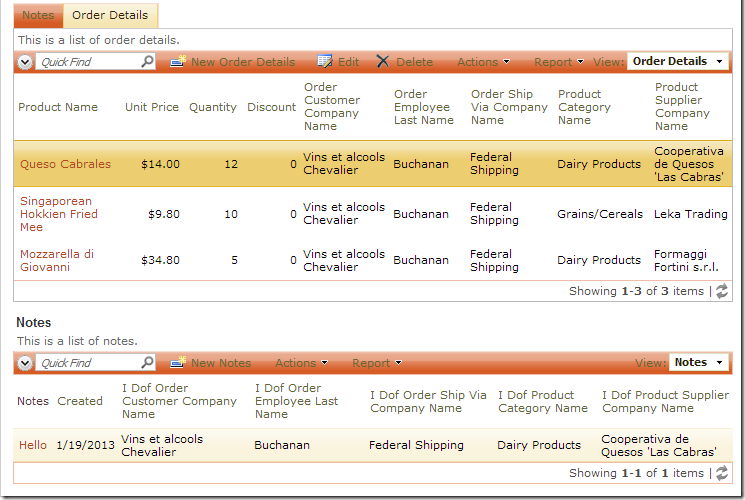
Notes data view is being filtered by OrderID and ProductID of Order Details view.Notes data view is being filtered by OrderID and ProductID of Order Details view.

Wednesday, January 16, 2013PrintSubscribe
“When Client Script” Property for Actions

Suppose that you have implemented the Order Form Sample with transactions using a “Status” field. The Status will partition “draft” orders from “committed” orders. However, the user may still navigate to the Orders page and change the values and details of a committed order.

Committed order values can be changed on the 'Orders' page.

Let’s prevent users from activating any Edit action when the Status field is set to “Committed”. This will be implemented with the help of “When Client Script” property. When the specified JavaScript expression evaluates to true, the action will be displayed. When it evaluates to false, the action will be hidden.

Adding Status Field

First, the Status field must be added to the controller so that the field value can be used in the JavaScript expression. Start the web application generator, and click on the project name. Press Refresh, and check the box next to Orders controller. Press Refresh, and confirm.

Refreshing the Orders controller.

On the Summary page, click on Design to activate the Project Designer. In the Project Explorer, switch to the Controllers tab and expand Orders / Fields node. Drop Status (String(50)) node onto Orders / Views / grid1. The field will be instantiated as a data field in the view.

Dropping 'Status' field onto 'grid1' view of Orders controller.     Data field for 'Status' created in 'grid1' view.

Double-click on Orders / Fields / Status (String(50)) node.

Status field of Orders controller.

Mark the field as hidden.

Property New Value
The field is hidden from users. true

Press OK to save.

Hiding Edit Fields

In the Project Explorer, double-click on Orders / Actions / ag1 (Grid) / a2 – Edit action node.

Action 'a2 - Edit' of action group 'ag1'.

Make the following change:

Property New Value
When Client Script
[Status] != 'Committed'

Press OK to save.

Make the same change to Orders / Actions / ag2 (Form) / a1 – Edit action node, and Orders / Actions / ag4 (ActionBar) – Edit/Delete / a1 – Edit, editForm1 action node.

Two Edit actions highlighted in Orders controller.

Viewing the Results

On the Project Explorer toolbar, press Browse. Navigate to Customers | Orders page.

Note that the Edit action is no longer available on the action bar or in the row context menu.

Edit actions on context menu and action bar are no longer available.

In addition, the form will no longer have an Edit button.

Edit button is no longer present in the form.