Database Lookups

Labels
AI(22) AJAX(112) App Studio(10) Apple(1) Application Builder(245) Application Factory(207) ASP.NET(95) ASP.NET 3.5(45) ASP.NET Code Generator(72) ASP.NET Membership(28) Azure(18) Barcode(2) Barcodes(3) BLOB(18) Business Rules(3) Business Rules/Logic(140) BYOD(13) Caching(2) Calendar(5) Charts(29) Cloud(14) Cloud On Time(2) Cloud On Time for Windows 7(2) Code Generator(54) Collaboration(11) command line(1) Conflict Detection(1) Content Management System(12) COT Tools for Excel(26) CRUD(1) Custom Actions(1) Data Aquarium Framework(122) Data Sheet(9) Data Sources(22) Database Lookups(50) Deployment(22) Designer(178) Device(1) Digital Workforce(3) DotNetNuke(12) EASE(20) Email(6) Features(101) Firebird(1) Form Builder(14) Globalization and Localization(6) HATEOAS(13) How To(1) Hypermedia(3) Inline Editing(1) Installation(5) JavaScript(20) Kiosk(1) Low Code(3) Mac(1) Many-To-Many(4) Maps(6) Master/Detail(36) Micro Ontology(5) Microservices(4) Mobile(63) Mode Builder(3) Model Builder(3) MySQL(10) Native Apps(5) News(18) OAuth(9) OAuth Scopes(1) OAuth2(14) Offline(20) Offline Apps(4) Offline Sync(5) Oracle(11) PKCE(2) Postgre SQL(1) PostgreSQL(2) PWA(2) QR codes(2) Rapid Application Development(5) Reading Pane(2) Release Notes(186) Reports(48) REST(29) RESTful(33) RESTful Workshop(14) RFID tags(1) SaaS(7) Security(81) SharePoint(12) SPA(5) SQL Anywhere(3) SQL Server(26) SSO(1) Stored Procedure(4) Teamwork(15) Tips and Tricks(87) Tools for Excel(3) Touch UI(93) Transactions(5) Tutorials(183) Universal Windows Platform(3) User Interface(337) Video Tutorial(37) Web 2.0(100) Web App Generator(101) Web Application Generator(607) Web Form Builder(40) Web.Config(9) Workflow(28)
Archive
Blog
Database Lookups
Saturday, September 29, 2012PrintSubscribe
Changing the Number of Columns of a Check Box List

The Columns property can be used on a Check Box List lookup data field in order to change the number of columns that the check boxes will be presented in.

The Employees edit form below contains the Territories many-to-many field.
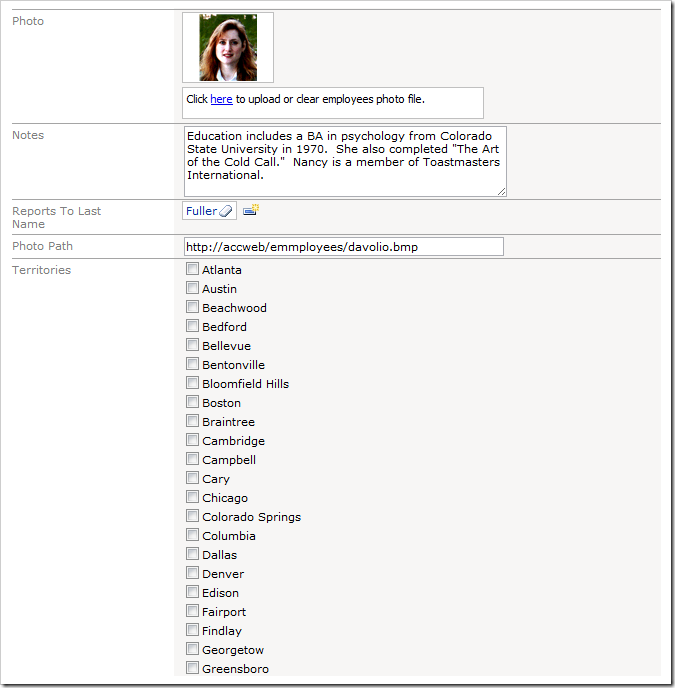
Territories Check Box List on the Employees form rendered in a single column

Note that all 53 Territories check boxes are presented in a single column – the form is excessively long. Let’s change the presentation into multiple columns.

Start the Project Designer. In the Project Explorer, switch to the Controllers tab and double-click on Employees / Views / editForm1 / c1 – Employees / Territories data field node.
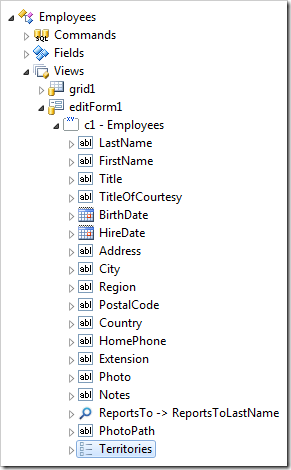
Territories data field in 'editForm1' view of Employees controller.

Change the Columns property:

Property Value
Columns 5

Press OK to save. On the toolbar, press Browse.

Navigate to the Employees page, and edit a record.
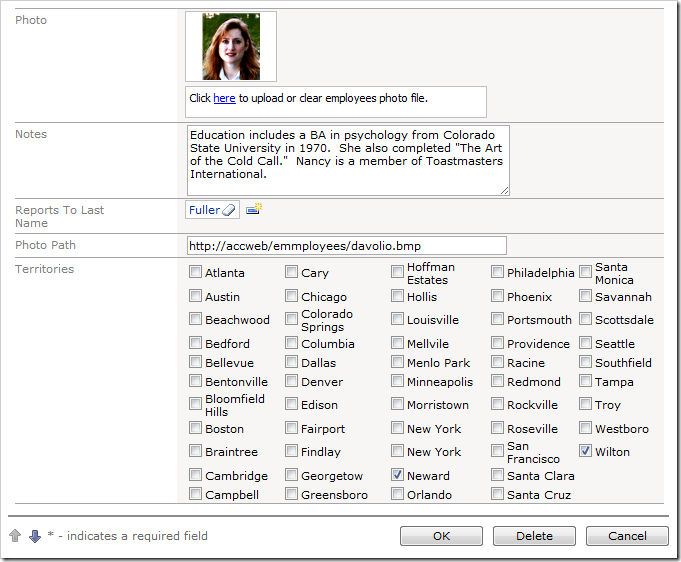
Territories Check Box List on the Employees form rendered in 5 columns

The Territories check box list is now displayed in 5 columns flowing vertically. The presentation is more compact.

Saturday, September 29, 2012PrintSubscribe
Changing the Width of a Data Field

The Columns property allows specifying the width of a data field.

For example, the Employee Last Name field in Orders edit form has been configured as an Auto Complete lookup. Note that the field takes up a lot of horizontal space.

Employee Last Name field takes up a lot of horizontal space.

Let’s reduce the width of the field.

Start the Project Designer. In the Project Explorer, switch to the Controllers tab and double-click on Orders / Views / editForm1 / c1 – Orders / EmployeeID data field node.

EmployeeID data field node in 'editForm1' view of Orders controller.

Change the Columns property:

Property New Value
Columns 15

Press OK to save the data field. On the toolbar, press Browse.

Navigate to the Orders page and edit an order. The Employee Last Name field will take up the specified number of logical columns.

Employee Last Name field takes less horizontal space.

Tuesday, July 24, 2012PrintSubscribe
Tooltips

Tooltips, also called hints, are commonly used to clarify application element functions to the end user.

Let’s apply a tooltip to the Unit Price data field in the New Order Details form.

Start the Project Designer. In the Project Explorer, switch to the Controllers tab and double-click on OrderDetails / Views / createForm1 / c1 – New Order Details / UnitPrice data field node.

UnitPrice data field in createForm1 of OrderDetails controller in the Project Explorer.

Change the Tooltip property:

Property New Value
Tooltip Please specify the agreed upon price per unit in this order.

Press OK to save the data field. On the toolbar, press Browse.

Navigate to the Order Details page, and create a new order detail. Mouse over the Unit Price input, and the specified tooltip will appear.

Specified tooltip displayed when user mouses over Unit Price input box.