Database Lookups

Labels
AI(10) AJAX(112) App Studio(10) Apple(1) Application Builder(245) Application Factory(207) ASP.NET(95) ASP.NET 3.5(45) ASP.NET Code Generator(72) ASP.NET Membership(28) Azure(18) Barcode(2) Barcodes(3) BLOB(18) Business Rules(3) Business Rules/Logic(140) BYOD(13) Caching(2) Calendar(5) Charts(29) Cloud(14) Cloud On Time(2) Cloud On Time for Windows 7(2) Code Generator(54) Collaboration(11) command line(1) Conflict Detection(1) Content Management System(12) COT Tools for Excel(26) CRUD(1) Custom Actions(1) Data Aquarium Framework(122) Data Sheet(9) Data Sources(22) Database Lookups(50) Deployment(22) Designer(178) Device(1) Digital Workforce(3) DotNetNuke(12) EASE(20) Email(6) Features(101) Firebird(1) Form Builder(14) Globalization and Localization(6) HATEOAS(2) How To(1) Hypermedia(2) Inline Editing(1) Installation(5) JavaScript(20) Kiosk(1) Low Code(3) Mac(1) Many-To-Many(4) Maps(6) Master/Detail(36) Micro Ontology(4) Microservices(4) Mobile(63) Mode Builder(3) Model Builder(3) MySQL(10) Native Apps(5) News(18) OAuth(9) OAuth Scopes(1) OAuth2(13) Offline(20) Offline Apps(4) Offline Sync(5) Oracle(11) PKCE(2) Postgre SQL(1) PostgreSQL(2) PWA(2) QR codes(2) Rapid Application Development(5) Reading Pane(2) Release Notes(185) Reports(48) REST(29) RESTful(30) RESTful Workshop(15) RFID tags(1) SaaS(7) Security(81) SharePoint(12) SPA(6) SQL Anywhere(3) SQL Server(26) SSO(1) Stored Procedure(4) Teamwork(15) Tips and Tricks(87) Tools for Excel(3) Touch UI(93) Transactions(5) Tutorials(183) Universal Windows Platform(3) User Interface(338) Video Tutorial(37) Web 2.0(100) Web App Generator(101) Web Application Generator(607) Web Form Builder(40) Web.Config(9) Workflow(28)
Archive
Blog
Database Lookups
Friday, May 4, 2012PrintSubscribe
Configuring a Check Box

The Discontinued field in the Products controller is a Boolean field. By default, Code On Time web application generator assigns Drop Down List style to fields of this type, which allows “Yes”, “No”, or “(select)” options to be selected. The “(select)” option represents null, “Yes” represents True, and “No” represents False.

'Discontinued' field with items style of 'Drop Down List'

However, this field is mandatory, and can only be in two states — True or False. It would be more convenient to the end user if this field was presented as a Check Box.

Start the Project Designer. In the Explorer, switch to the Controllers tab. Double-click on Products / Fields / Discontinued field node.

Discontinued field of the Products controller in the Project Explorer

Make the following changes:

Property New Value
Allow null values False
Code Default 0
Items Style Check Box

Press OK to save your changes. On the tool bar, click on Browse to generate the application.

When the application opens in your default browser, navigate to Products page. You will see that Discontinued field is now a check box.

'Discontinued' field now displayed as a Check Box

In the grid view, the Discontinued field is rendered as a check box as well.

Discontinued field rendered as check box in Products grid view

The text displayed to the right of the Check Box in form view can be changed using the Header Text property of the data field.

Switch back to the Design environment. In the Project Explorer, double-click on Products / Views / editForm1 / c1 – Products / Discontinued data field node.

Discontinued data field in the editForm1 data view of Products controller

Change the following property:

Property Value
Header Text This product is no longer available.

Press OK to save the data field, and press Browse on the tool bar. Select a record on the Products page. You will see the new Header Text is displayed to the right of the check box.

'Discontinued' check box data field with a custom Header Text

Saturday, April 28, 2012PrintSubscribe
Feature: Many-to-Many Fields

If you have an existing many-to-many relationship in your database, you can turn it into a virtual many-to-many field.

Employees, Territories, and EmployeeTerritories many-to-many relationship

When you edit the record, you will see a check box list of all territories. Those linked to the employee are checked.

When you edit the record, you will see a check box list of all territories. Those linked to the employee are checked.

The field will display a comma-separated list of territories linked to the employee when presented in read mode.

The field will display a comma-separated list of territories linked to the employee when presented in 'read' mode.

Learn how to configure a virtual field based on an existing many-to-many relationship.

Friday, April 27, 2012PrintSubscribe
Many-to-Many Relationship in the Northwind database

If you have an existing many-to-many relationship in your database, you can turn it into a many-to-many field. In the Northwind database, there is a many-to-many relationship between tables EmployeeTerritories, Employees, and Territories.

An employee can be assigned to several territories, but these territories are not exclusive to an employee. Each employee can be linked to multiple territories, and each territory can be linked to multiple employees.
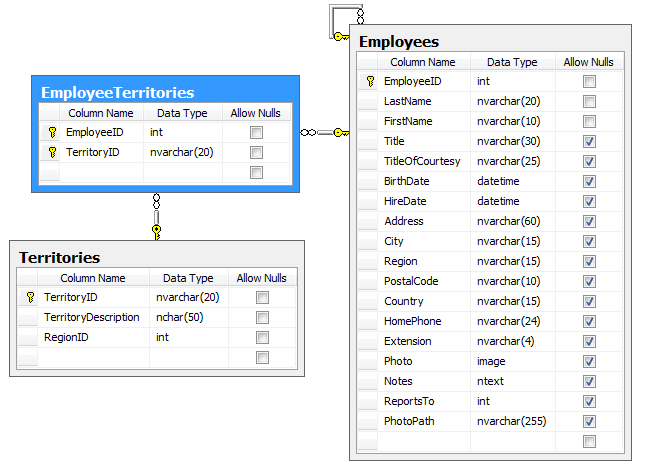
Employees, Territories, and EmployeeTerritories tables and relationships

On the Employees page of a Northwind web application, a separate child data view underneath the master record shows a list of territories associated with the selected employee.
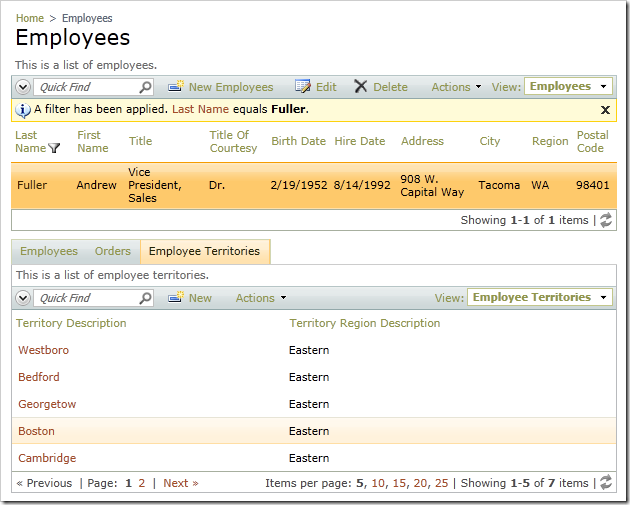
Employee Territories data view showing the Territories for the selected Employee record

Let’s display these territories as a comma separated list on the master employee record, and allow end users to select territories for each employee using a check box list style of presentation.

Start Code On Time web application generator and activate the Project Designer. In the Explorer, switch to the Controllers tab. Right-click on Employees / Fields node and select New Field.
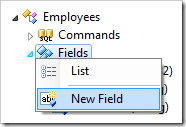
New Field for Employees controller

Give this field the following settings:

Property Value
Name Territories
Type String
Allow null values True
The value of this field is computed at run-time by SQL expression True
SQL Formula
NULL
Label Territories
Items Style Check Box List
Items Data Controller Territories
Data Value Field TerritoryId
Data Text Field Territory Description
Target Controller EmployeeTerritories

Press OK to save the field. Next, we’ll need to bind the field to each view.

At the top of the page, switch to the Data Fields tab.
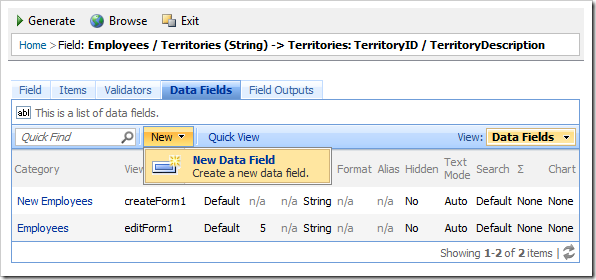
'New Data Field' for Territories field

On the action bar, press New | New Data Field. Give this data field the following settings:

Property Value
View editForm1
Category Employees
Columns 5

Press OK to save the data field. In the Explorer, double-click on Employees / Fields / Territories field node.
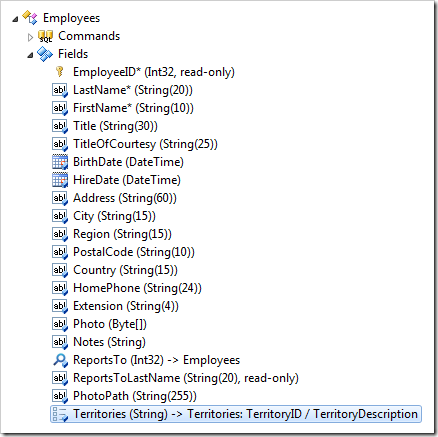
Territories field in the Employees data controller

Create another data field with the following settings:

Property Value
View createForm1
Category Employees
Columns 5

On the tool bar, press Browse to generate the application. It will open in your default web browser. Navigate to the Employees page, and select an employee. You will see a comma separated list of territories that belong to the employee.
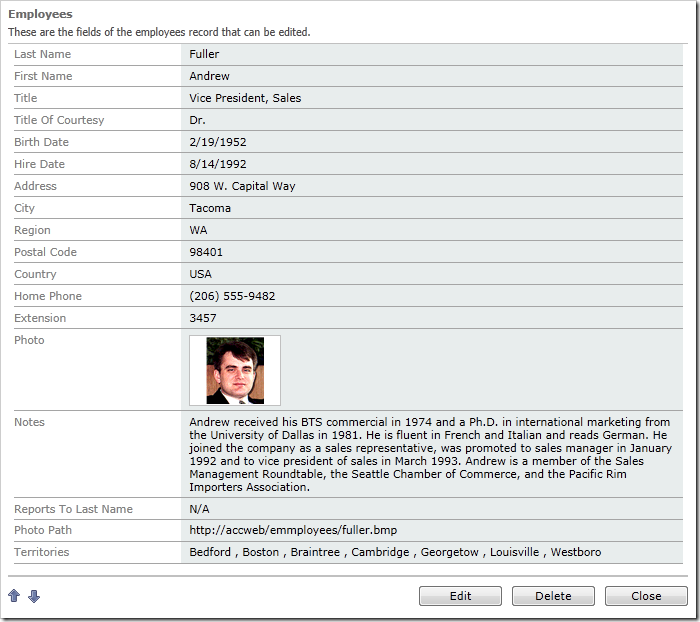
Comma separated list of territories for the selected Employee record

If you edit the employee, you will see a check box list of all options.
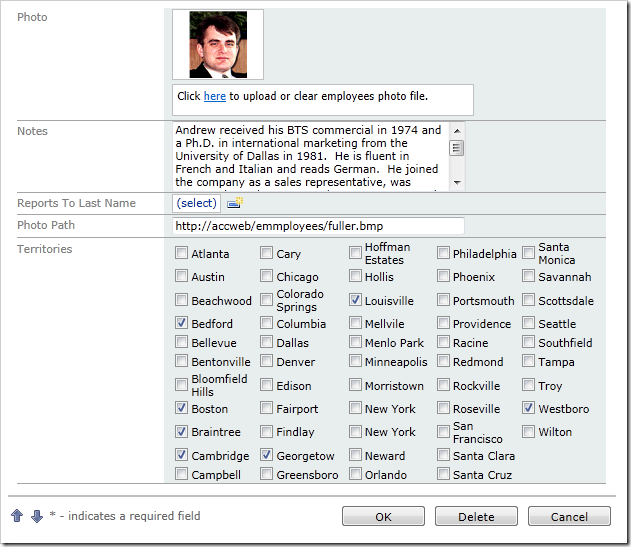
Check box list of all Territories in edit mode of Employees form