Database Lookups

Labels
AI(13) AJAX(112) App Studio(10) Apple(1) Application Builder(245) Application Factory(207) ASP.NET(95) ASP.NET 3.5(45) ASP.NET Code Generator(72) ASP.NET Membership(28) Azure(18) Barcode(2) Barcodes(3) BLOB(18) Business Rules(3) Business Rules/Logic(140) BYOD(13) Caching(2) Calendar(5) Charts(29) Cloud(14) Cloud On Time(2) Cloud On Time for Windows 7(2) Code Generator(54) Collaboration(11) command line(1) Conflict Detection(1) Content Management System(12) COT Tools for Excel(26) CRUD(1) Custom Actions(1) Data Aquarium Framework(122) Data Sheet(9) Data Sources(22) Database Lookups(50) Deployment(22) Designer(178) Device(1) Digital Workforce(3) DotNetNuke(12) EASE(20) Email(6) Features(101) Firebird(1) Form Builder(14) Globalization and Localization(6) HATEOAS(4) How To(1) Hypermedia(3) Inline Editing(1) Installation(5) JavaScript(20) Kiosk(1) Low Code(3) Mac(1) Many-To-Many(4) Maps(6) Master/Detail(36) Micro Ontology(5) Microservices(4) Mobile(63) Mode Builder(3) Model Builder(3) MySQL(10) Native Apps(5) News(18) OAuth(9) OAuth Scopes(1) OAuth2(13) Offline(20) Offline Apps(4) Offline Sync(5) Oracle(11) PKCE(2) Postgre SQL(1) PostgreSQL(2) PWA(2) QR codes(2) Rapid Application Development(5) Reading Pane(2) Release Notes(185) Reports(48) REST(29) RESTful(31) RESTful Workshop(15) RFID tags(1) SaaS(7) Security(81) SharePoint(12) SPA(6) SQL Anywhere(3) SQL Server(26) SSO(1) Stored Procedure(4) Teamwork(15) Tips and Tricks(87) Tools for Excel(3) Touch UI(93) Transactions(5) Tutorials(183) Universal Windows Platform(3) User Interface(338) Video Tutorial(37) Web 2.0(100) Web App Generator(101) Web Application Generator(607) Web Form Builder(40) Web.Config(9) Workflow(28)
Archive
Blog
Database Lookups
Saturday, March 31, 2012PrintSubscribe
Creating Static Lookup Items

In the Products table of Northwind sample database, there is a Reorder Level field. It is rendered as a textbox where users can type in any number to trigger the product reorder. If you look at the available filtering options of the Reorder Level field, you can see that there is a limited number of values stored in the database (0, 5, 10, 15, 20, 25, and 30).
Reorder Level field in Products screen presented as a textbox

Let’s change this field into a static dropdown list, and have the values displayed as words instead of numbers. For example, “0” will be Zero, “5” will be Five, and so on.

Open the web application generator, select the project name, and select Design. Switch to the Controllers tab in the Project Explorer, and double-click on Products / Fields / Reorder Level node. Change Items Style of Reorder Level field to “Drop Down List”, and press OK to save the field.
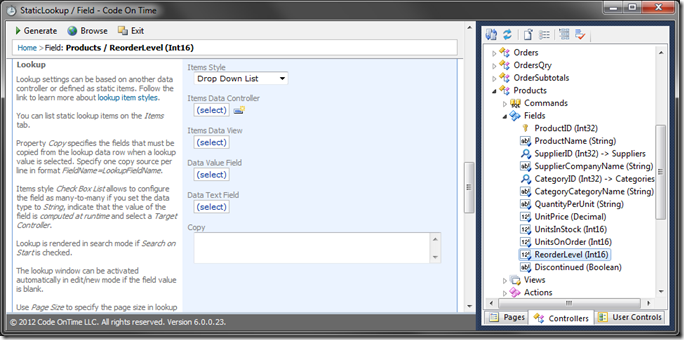
Reorder Level field changed to Items Style of 'Drop Down List'

Scroll to the top of the Designer, and click on the Items tab. On the action bar, select New | New Item.

Each item represents an option available in the dropdown list. The Value is stored in the database, while the Text is displayed to the user.

Enter the following values:
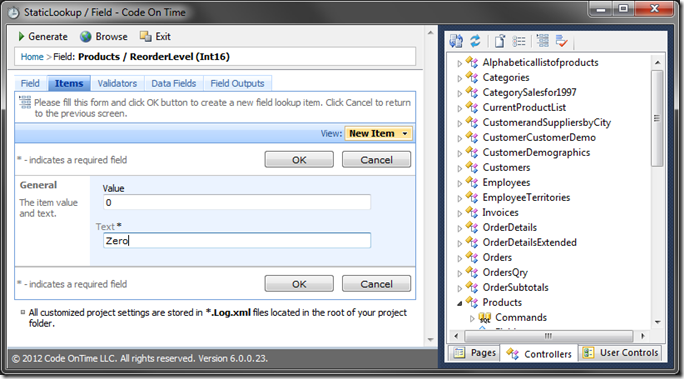
Value Text
0 Zero

New Item of '0' for Reorder Level field

Press OK to save the item. Using the same method, create more items with the following values:

Value Text
5 Five
10 Ten
15 Fifteen
20 Twenty
25 Twenty-five
30 Thirty

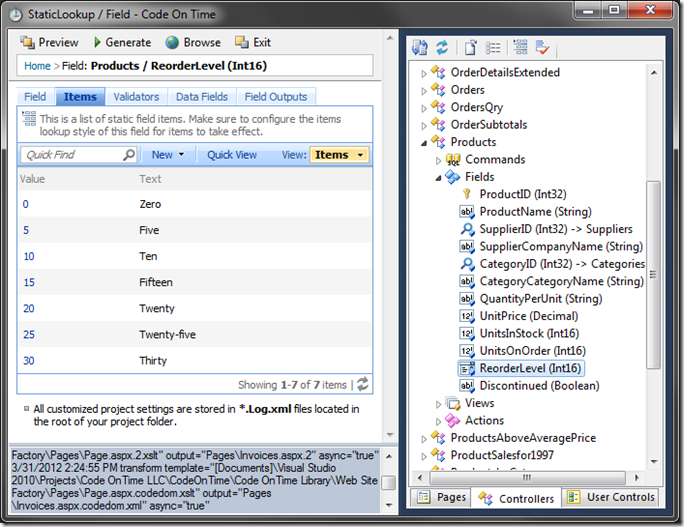
Static list of lookup items for Reorder Level field

In the top left corner, press Generate to generate the web app. A Preview window will open. Navigate to Products page, and you will see that the Reorder Level is now displayed with words. Edit a record, and the Reorder Level is now a static dropdown lookup.
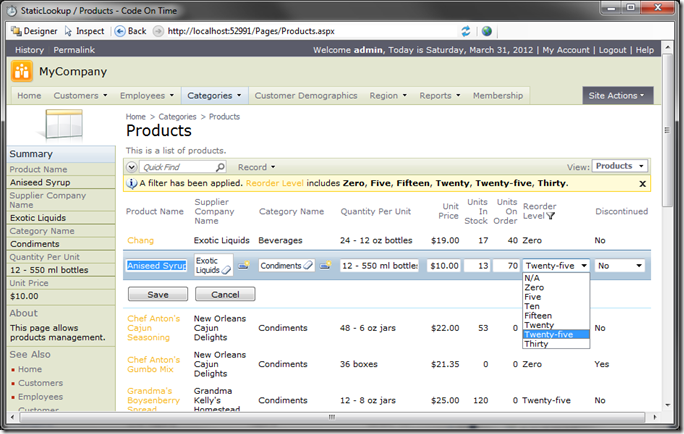
Reorder Level field presented as a drop down list with words

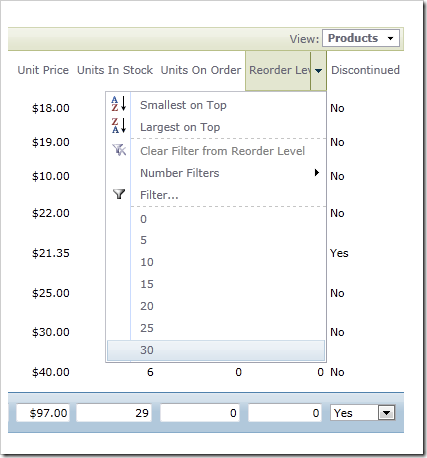
The adaptive filter in the Reorder Level column also reflects the static values.
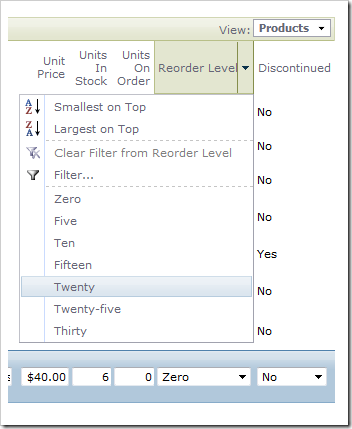
Drop Down options for Reorder Level with static items

On the action bar, select Report | PDF Document. You will see that Reorder Level displays the Text, and not the Value of the field.
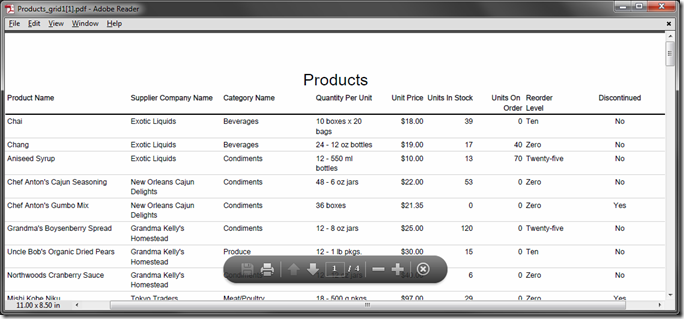
PDF Report of Products displaying text in Reorder Level field

Friday, March 23, 2012PrintSubscribe
In-Place Creation of Lookup Items

Lookup fields with the style “Lookup” render a button that allows creating new lookup items in-place.

The screen shot shows a “New Supplier” button next to the “Supplier Company Name” field on a form view.

Button 'New Lookup Item' rendered next to a lookup field allows in-place creation of lookup items

If user clicks on the button then “New Supplier” modal form is rendered.

'New ...' modal form displayed in response to in-place lookup creation button click

If the user enters the values and clicks OK then the new data record is created. The newly created record will be displayed as the lookup value.

Lookup item is automatically selected after in-place creation

The “New Lookup Item” button is displayed only if the current user is allowed to create new objects of this lookup type. If there is at least one action with command name New that is available to the users as defined by the “Suppliers” data controller, then the button is rendered.

Action 'New' displayed in Project Explorer

You can assign a value to the Roles property of all “New” actions  defined by the data controller, or implement data controller virtualization to prevent certain types of users from being able to create new lookup items in-place.

You can also specify a custom form that will be used to create new lookup items or disable this feature permanently if you change or clear the New Data View property under the Lookup section of the field.

Property 'New Data View' displayed in the 'Lookup' section of the field properties

The following screen shot shows the lookup field rendered without the “New Lookup Item” button if you clear the New Data View property of Products / Fields / SupplierID field.

Lookup field without 'New Lookup Item' button

Friday, March 23, 2012PrintSubscribe
Search by First Letter in Lookup Windows

Search by First Letter can be enabled in the lookup windows.

The following screen shot shows lookup properties of the field Products / Fields / Suppliers. Toggle the “Search by First Letter” check box to enable the feature.

Property 'Search by First Letter' in the 'Lookup' section of a field

This is how the list of suppliers is rendered when a lookup window is displayed.

Feature 'Search by First Letter' enabled in a lookup window

Users can remove the selected “first letter” filter by clicking on the filter element in the filter details area.

Filter element can be removed from the list of active filters via a single mouse-click