ASP.NET

Labels
AI(12) AJAX(112) App Studio(10) Apple(1) Application Builder(245) Application Factory(207) ASP.NET(95) ASP.NET 3.5(45) ASP.NET Code Generator(72) ASP.NET Membership(28) Azure(18) Barcode(2) Barcodes(3) BLOB(18) Business Rules(3) Business Rules/Logic(140) BYOD(13) Caching(2) Calendar(5) Charts(29) Cloud(14) Cloud On Time(2) Cloud On Time for Windows 7(2) Code Generator(54) Collaboration(11) command line(1) Conflict Detection(1) Content Management System(12) COT Tools for Excel(26) CRUD(1) Custom Actions(1) Data Aquarium Framework(122) Data Sheet(9) Data Sources(22) Database Lookups(50) Deployment(22) Designer(178) Device(1) Digital Workforce(3) DotNetNuke(12) EASE(20) Email(6) Features(101) Firebird(1) Form Builder(14) Globalization and Localization(6) HATEOAS(3) How To(1) Hypermedia(2) Inline Editing(1) Installation(5) JavaScript(20) Kiosk(1) Low Code(3) Mac(1) Many-To-Many(4) Maps(6) Master/Detail(36) Micro Ontology(5) Microservices(4) Mobile(63) Mode Builder(3) Model Builder(3) MySQL(10) Native Apps(5) News(18) OAuth(9) OAuth Scopes(1) OAuth2(13) Offline(20) Offline Apps(4) Offline Sync(5) Oracle(11) PKCE(2) Postgre SQL(1) PostgreSQL(2) PWA(2) QR codes(2) Rapid Application Development(5) Reading Pane(2) Release Notes(185) Reports(48) REST(29) RESTful(30) RESTful Workshop(15) RFID tags(1) SaaS(7) Security(81) SharePoint(12) SPA(6) SQL Anywhere(3) SQL Server(26) SSO(1) Stored Procedure(4) Teamwork(15) Tips and Tricks(87) Tools for Excel(3) Touch UI(93) Transactions(5) Tutorials(183) Universal Windows Platform(3) User Interface(338) Video Tutorial(37) Web 2.0(100) Web App Generator(101) Web Application Generator(607) Web Form Builder(40) Web.Config(9) Workflow(28)
Archive
Blog
ASP.NET
Monday, March 2, 2015PrintSubscribe
Automatic Construction of Charts in Touch UI

Data views in an app created with Code On Time may present users with the view style called “Charts”. This view style is either enabled automatically by application at runtime or by developers at design time. The purpose of the view style is to provide instant insight into data.

If the definitions of charts are not a part of application design, then the application framework will compose up to nine charts based on the properties of fields in the data view if possible.  The app will attempt to define charts after examining the presence of lookup, date, or numeric fields in the view. First, it will try creating charts with dates as the rows, and lookups as the values. Then, it will pair a few numeric fields with a lookup.

The picture shown below displays the charts automatically created for the Orders controller of the Northwind sample application.
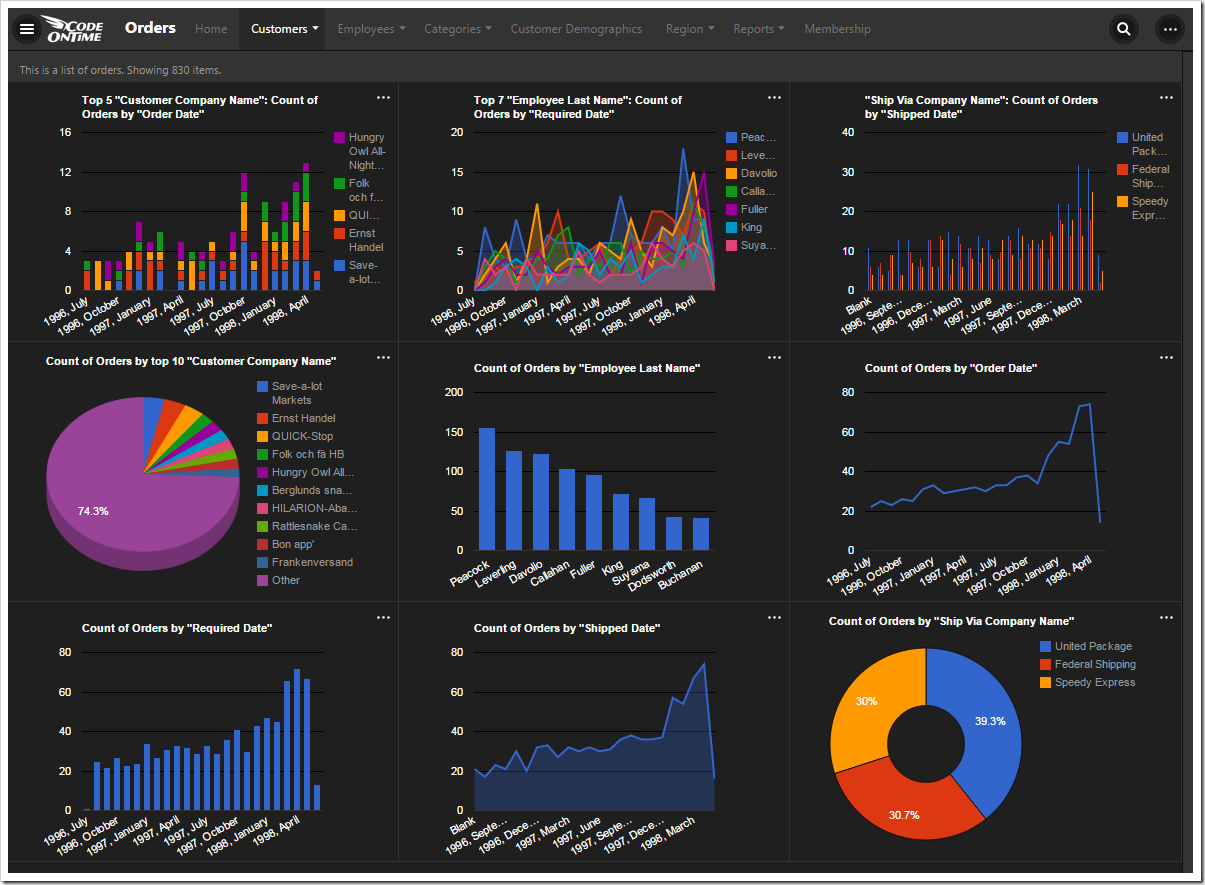
All nine charts that were automatically composed for Orders page of Northwind sample database.

The automatically created definitions for all of the nine charts are shown below. Each chart is described with one or two tags that start with “pivot-“ keyword followed by properties.  The elegant simplicity of the tag language makes possible sophisticated collections of charts defined both by developers and end users.
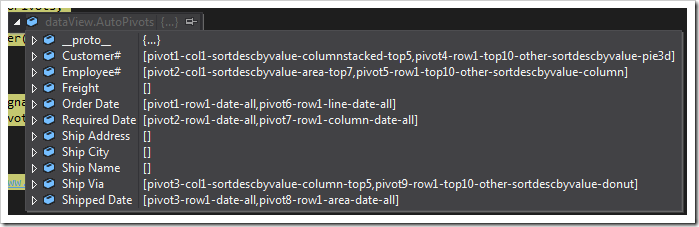
The chart definitions generated by the client library.

Application framework performs efficient server-side data pivots following the tag specification. Data pivots for all charts are performed on the server simultaneously. Data pivots take into account application-level and user-defined filters.

Let’s see how each chart works.

Chart 1 – Stacked Column + Dates
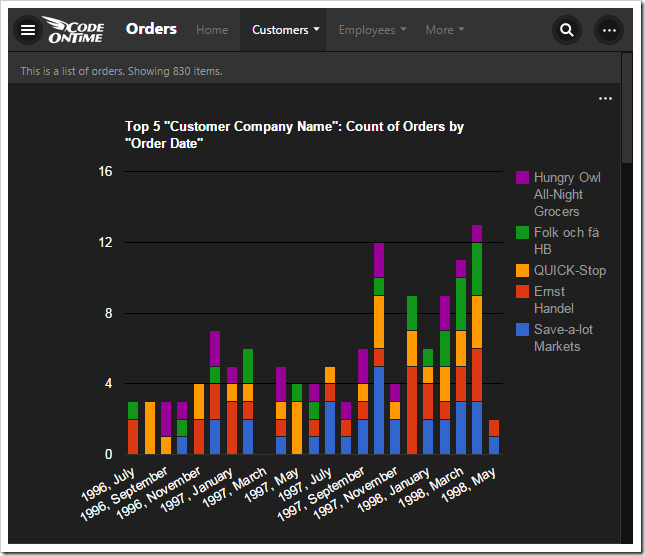
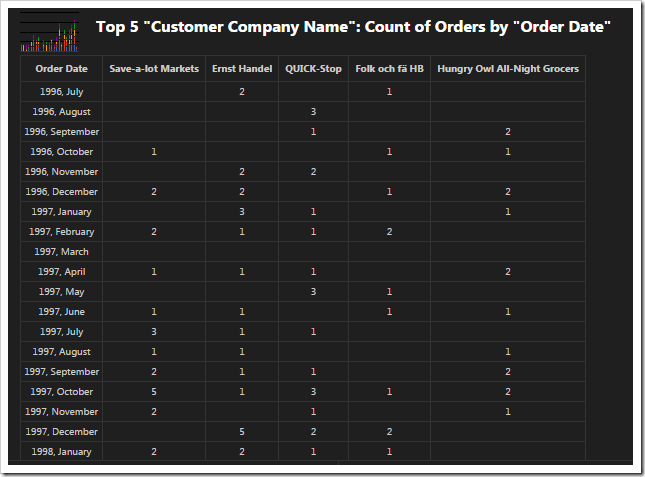
The first chart pivots customers by the order date in a stacked column chart.

Pivoted data of the 'stacked column + dates' chart.

This chart uses the first date field, OrderDate, as the rows. The “pivot1” property assigns the field to the pivot with ID of “1”. The “row” property sets the field as a row in the pivot, and assigns it index “1”.

The property “date” instructs the application to try several date bucket groups and choose the best one available based on the number of rows in the output. Application framework tries not to have too many or too few “date” rows in a pivot. For the dataset in the picture, the framework has produced the pivoted data as if tags “pivot1-row1-year pivot1-row2-month” were specified.

The “all” property ensures that any empty gaps in the data will be included in the pivot dimension.

The first lookup field, CustomerID, is used for the columns. The columns are sorted in descending order by the value of each column. Then, only the top five customers are kept, and the rest of them are dropped from the output. The “columnstacked” property defines the type of chart.

When a value field is not defined for the chart, a count of the first available field is used.

Field Name Tag
OrderDate pivot1-row1-date-all
CustomerID pivot1-col1-sortdescbyvalue-columnstacked-top5

Chart 2 – Area + Dates

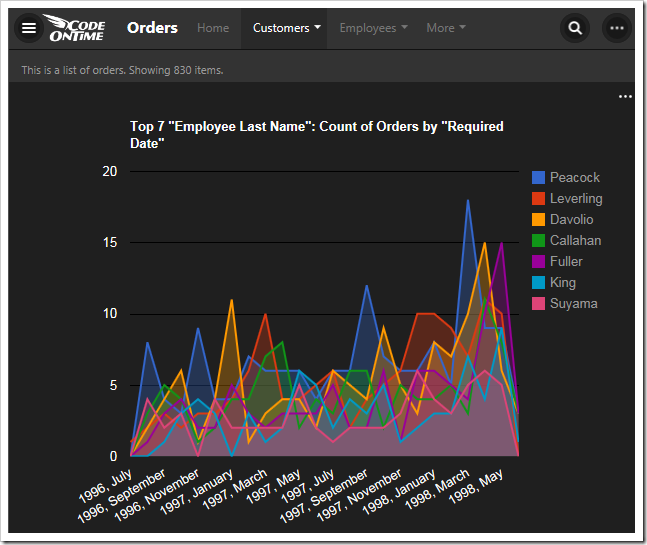
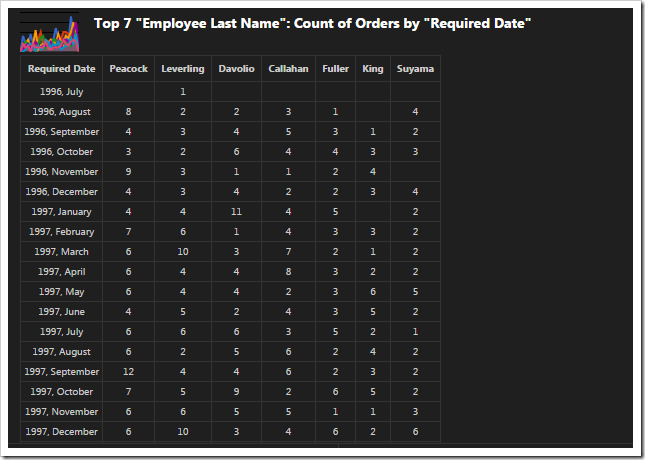
The second chart pivots employees by required date in an area chart.

Pivoted data of the 'area + dates' chart.

This chart uses the second date field, RequiredDate, as the rows.

The second lookup field, EmployeeID, is used for the columns, and the top seven employees sorted in descending order are used. The “area” property specifies the chart type.

Field Name Tag
RequiredDate pivot2-row1-date-all
EmployeeID pivot2-col1-sortdescbyvalue-area-top7

Chart 3 – Column + Dates

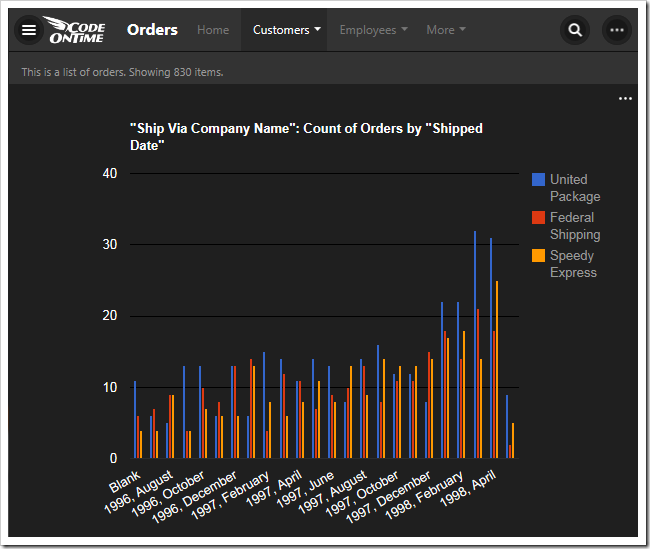
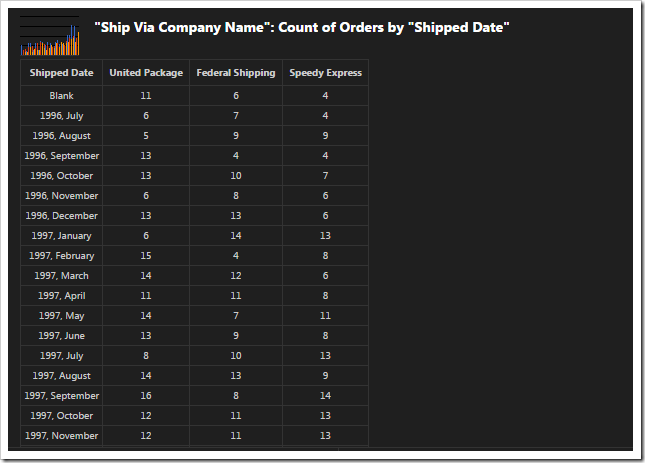
This chart pivots shipper companies by the shipped date in a column chart.

Pivoted data of 'column + dates' chart.

This chart uses the third date field, ShippedDate, as the rows of the output.

The ShipVia lookup field is used, and only the top five values are kept. The type of the chart is defined as “column”.

Field Name Tag
ShipVia pivot3-col1-sortdescbyvalue-column-top5
ShippedDate pivot3-row1-date-all

Chart 4 – 3d Pie

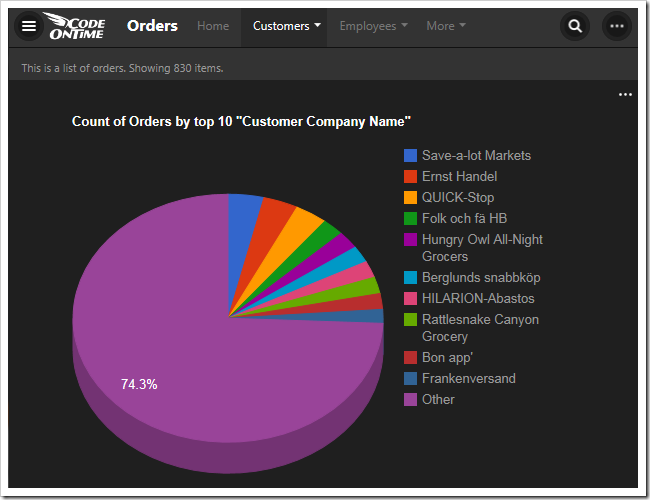
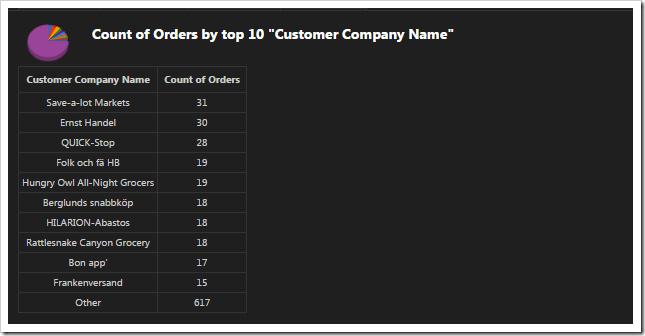
This chart shows the top ten orders by customer in a 3d pie chart.

Pivoted data of 3d pie chart.

The fourth chart uses CustomerID as the row values. The top ten values are displayed. The “other” property commands the server to sum up the rest of the values in an “Other” row. The type of chart is “pie3d”.

When no column field is defined, there will be only one column to display the value.

Field Name Tag
CustomerID pivot4-row1-top10-other-sortdescbyvalue-pie3d

Chart 5 – Columns

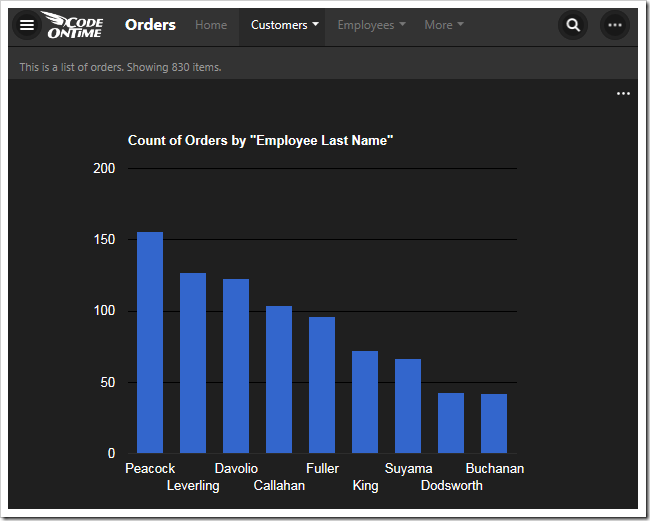
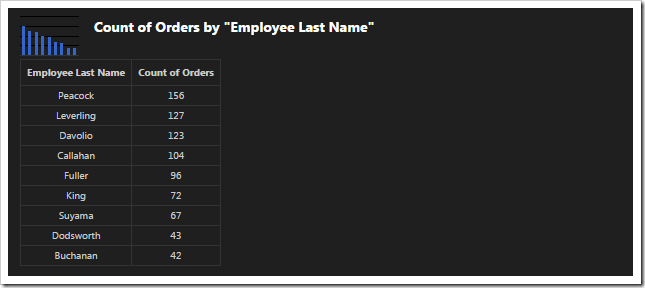
This chart shows the top 10 employees that made orders in a column chart.

Pivoted data of 'column' chart.

The fifth chart uses EmployeeID lookup field for the rows. The top ten values are displayed, and the rest are summed up into an “Other” row. The type of chart is “column”.

Field Name Tag
EmployeeID pivot5-row1-top10-other-sortdescbyvalue-column

Chart 6 – Line

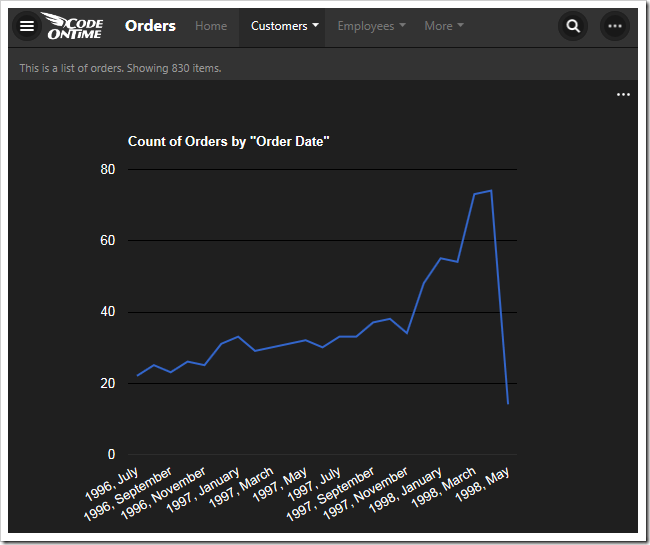
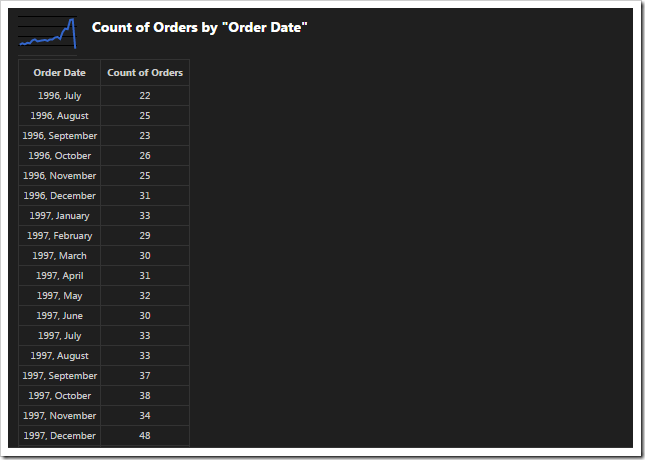
This chart shows the count of orders made by order date in a line chart.

Pivoted data of 'line' chart.

The next chart uses the OrderDate field as the rows. The “date” property will generate multiple sets of data, differentiated by bucket size, and use the best result for the chart. The property “all” will ensure that there are no missing values in the date range. The type of chart is “line”.

Field Name Tag
OrderDate pivot6-row1-line-date-all

Chart 7 – Columns

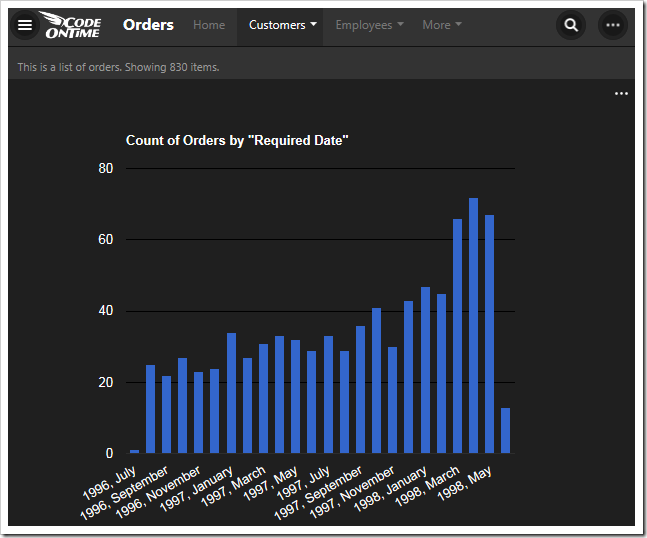
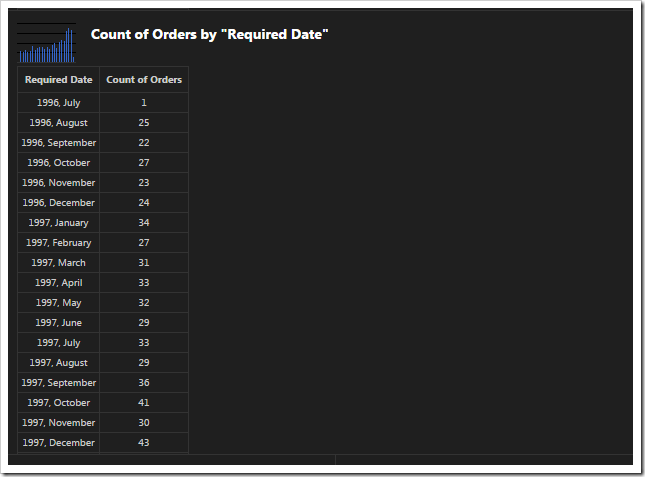
This chart shows a count of orders made by required date in a column chart.

Pivoted data of 'column' chart.

This chart uses the RequiredDate field for the row values. The type of chart is “column”. The server will compose multiple results and pick the best one that fits in the graph when “date” is used. The chart will not miss any gaps in dates with the “all” keyword.

Field Name Tag
RequiredDate pivot7-row1-column-date-all

Chart 8 - Area

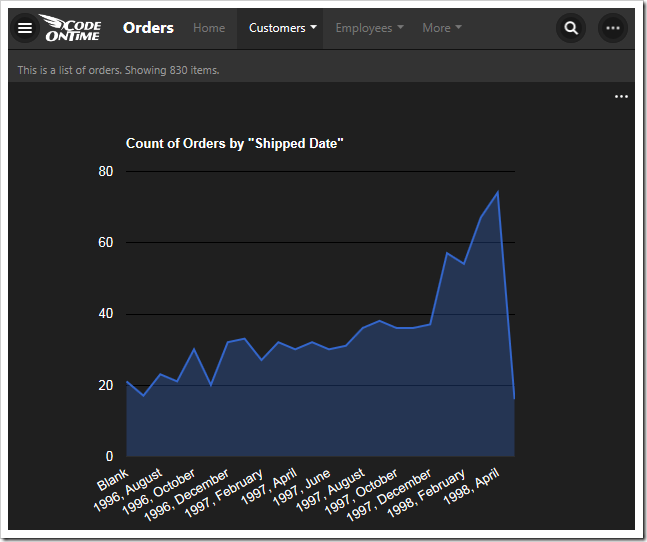
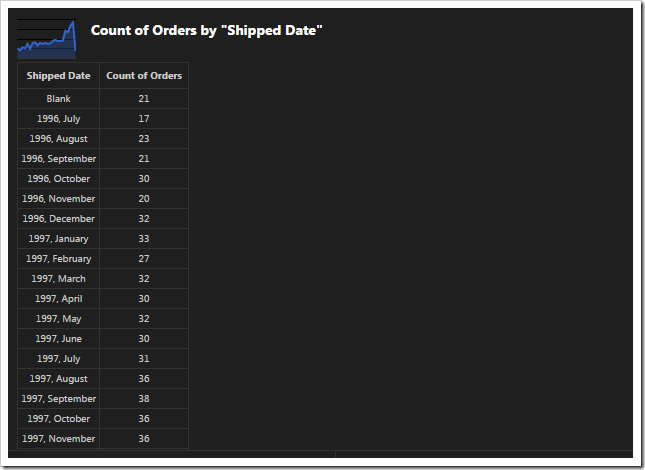
This chart shows the count of orders made by shipped date.

Pivoted data of 'area' chart.

This chart shows values grouped into rows by the ShippedDate field.

Field Name Tag
ShippedDate pivot8-row1-area-date-all

Chart 9- Donut

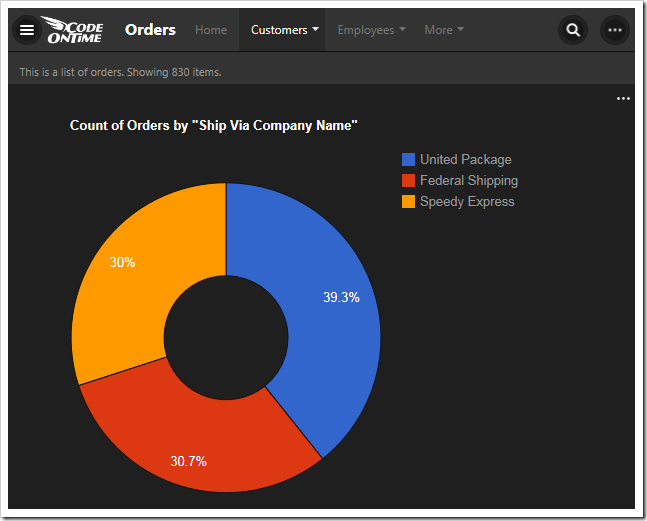
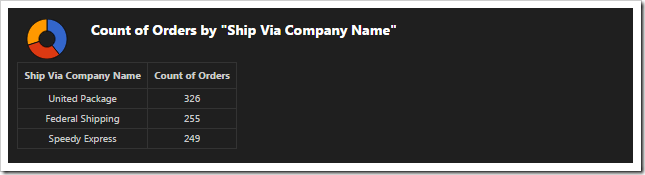
This chart shows the count of orders made, grouped by shipper company, in a donut chart.

Pivoted data of 'donut' chart.

This chart uses the ShipVia lookup field for the rows of the result. The “top10” tag is disregarded as there are less than ten values in the result.

Field Name Tag
ShipVia pivot9-row1-top10-other-sortdescbyvalue-donut
Tuesday, September 30, 2014PrintSubscribe
Fix for MySQL Connector/Net 6.9.3

The latest installer of MySQL Connector for .NET contains a bug that will cause an error in any Code On Time applications that attempt to use this provider. The bug report can be found here. The error message can be seen below:

MySQL connector for .NET server error.

In order to fix the error, please follow the steps outlined below:

1.    Press the Start button on the taskbar, and type in “Notepad”. Right-click on the Notepad program and press Run As Administrator.

Running the Notepad as an administrator.

2. On the toolbar, press File | Open, paste in the following path, and press Enter to open the file.

C:\Windows\Microsoft.NET\Framework\v4.0.30319\Config\machine.config

3. Press Ctrl+F keys on your keyboard, type in “MySql.Web.v20”. Remove the “.v20” part. Perform the operation on the MySqlMembershipProvider, MySqlProfileProvider, MySqlRoleProvider, and MySqlSiteMapProvider provider elements.

Finding the "MySql.Web.v20"lines to replace.

4. Save the file. On the toolbar, press File | Open. Paste in the following path and press Enter.

C:\Windows\Microsoft.NET\Framework64\v4.0.30319\Config\machine.config

5. Perform the same changes as described above to remove the “.v20” from “MySql.Web.v20”.

6. Save the file.

7. Restart the app generator and proceed to regenerate your web application.

Labels: ASP.NET, MySQL
Wednesday, August 27, 2014PrintSubscribe
Page Headers in Touch UI

Page headers are displayed at the top of every page to inform the user of which view or control they are currently working with. The picture below displays the page header of “Orders”, visible below the page title.

The "Orders" page header is displayed below the title bar.

In pages that display data views, the header is hidden on two conditions:

1. When the current view is the entry point to the page.

The "Customers" page header is hidden due to the fact that this view is the entry point to the page.

2. When the text of the page header matches the title of the page displayed on the menu bar at the top of the screen. For example, the child view of Employees on the Employees page in a sample Northwind app will not have a page header.

The child view does not show page header as it has the same text as the page title.

Hiding the Page Header

The header can also be hidden on a per-page basis.

Start the Project Designer. In the Project Explorer window, double-click on the Customers page.

Customers page in the Project Explorer.

Specify the following:

Property Value
Custom Style Tall

Save the page, and press Browse on the toolbar to generate the app and open the page in your default browser. Select a customer, and tap See All next to the list of orders. Note that the “Orders” page header is not displayed.

Customers page does not display any page headers.

Page Headers in Custom User Controls

The page header text for user controls is derived from the data-activator tag. By default, this tag is set to the name of the user control.

User controls show the control name as page header by default.

The header text can be specified using the data-page-header tag. For example, let’s specify the page header text for a freshly created user control. Open the user control file in Visual Studio and make the following highlighted addition:

...
<!-- 
    This section provides a sample markup for Touch UI user interface. 
-->
<div id="TestUserControl" data-app-role="page" data-activator="Button|TestUserControl" data-page-header="Custom Header">
    <div data-role="content">
        <p>
            Markup of <i>TestUserControl</i> custom user control for Touch UI.
        </p>
    </div>
</div>
...

Save the file and refresh the web page. Note that the page header text has been changed.

Custom header text has been specified for the user control page header.

The page header can be hidden by specifying “false” for the data-page-header tag. Make the following change:

...
<!-- 
    This section provides a sample markup for Touch UI user interface. 
-->
<div id="TestUserControl" data-app-role="page" data-activator="Button|TestUserControl" data-page-header="false">
    <div data-role="content">
        <p>
            Markup of <i>TestUserControl</i> custom user control for Touch UI.
        </p>
    </div>
</div>
...

Save the file and refresh. The page header will not be present.

The page header has been hidden on this user control page.