Blog

Labels
AI(12) AJAX(112) App Studio(10) Apple(1) Application Builder(245) Application Factory(207) ASP.NET(95) ASP.NET 3.5(45) ASP.NET Code Generator(72) ASP.NET Membership(28) Azure(18) Barcode(2) Barcodes(3) BLOB(18) Business Rules(3) Business Rules/Logic(140) BYOD(13) Caching(2) Calendar(5) Charts(29) Cloud(14) Cloud On Time(2) Cloud On Time for Windows 7(2) Code Generator(54) Collaboration(11) command line(1) Conflict Detection(1) Content Management System(12) COT Tools for Excel(26) CRUD(1) Custom Actions(1) Data Aquarium Framework(122) Data Sheet(9) Data Sources(22) Database Lookups(50) Deployment(22) Designer(178) Device(1) Digital Workforce(3) DotNetNuke(12) EASE(20) Email(6) Features(101) Firebird(1) Form Builder(14) Globalization and Localization(6) HATEOAS(3) How To(1) Hypermedia(2) Inline Editing(1) Installation(5) JavaScript(20) Kiosk(1) Low Code(3) Mac(1) Many-To-Many(4) Maps(6) Master/Detail(36) Micro Ontology(5) Microservices(4) Mobile(63) Mode Builder(3) Model Builder(3) MySQL(10) Native Apps(5) News(18) OAuth(9) OAuth Scopes(1) OAuth2(13) Offline(20) Offline Apps(4) Offline Sync(5) Oracle(11) PKCE(2) Postgre SQL(1) PostgreSQL(2) PWA(2) QR codes(2) Rapid Application Development(5) Reading Pane(2) Release Notes(185) Reports(48) REST(29) RESTful(30) RESTful Workshop(15) RFID tags(1) SaaS(7) Security(81) SharePoint(12) SPA(6) SQL Anywhere(3) SQL Server(26) SSO(1) Stored Procedure(4) Teamwork(15) Tips and Tricks(87) Tools for Excel(3) Touch UI(93) Transactions(5) Tutorials(183) Universal Windows Platform(3) User Interface(338) Video Tutorial(37) Web 2.0(100) Web App Generator(101) Web Application Generator(607) Web Form Builder(40) Web.Config(9) Workflow(28)
Archive
Blog
Thursday, March 1, 2012PrintSubscribe
View Filter Expressions

The alternative method of filtering is available in the data controller views. Property “View Filter” allows specifying an expression that will be embedded in the SQL statement composed by the application framework at runtime.

Suppose you want to filter a list of customers by a specific country.

Start the application generator and select your project, choose Design.

Locate the page Customers in Project Explorer, expand container1 and view1 nodes.

Double-click grid1 to active its properties.
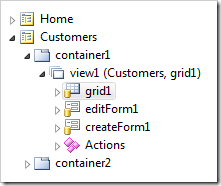
Grid view "gird1" selected in Project Explorer

Enter the following expression in Filter Expression property of the Sort and Filter section.

Country = 'USA'
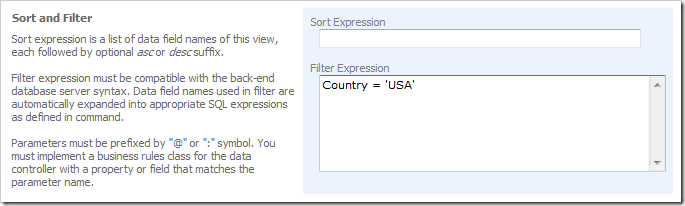
Sort and Filter section of a data controller view

Click OK button to save the changes and click Browse button on the tool bar. The generator will start the app in your default browser.

Navigate to Customers page and observe that only customers from the USA are displayed.
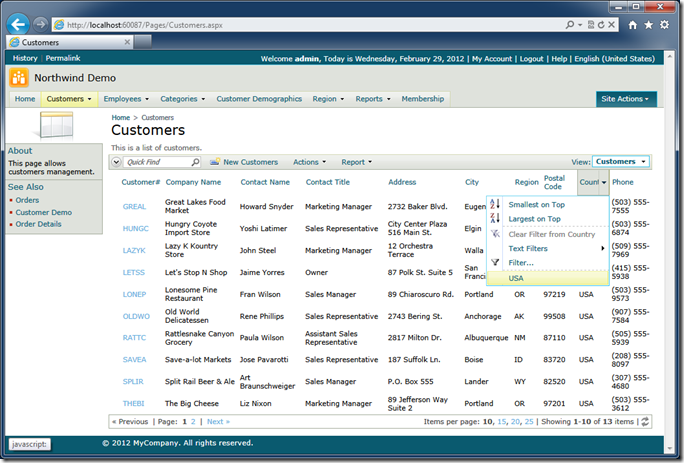
List of customers affected by the view filter Country = 'USA'

Select any customer by clicking on a link in the first column. The form view editForm1 will be activated.
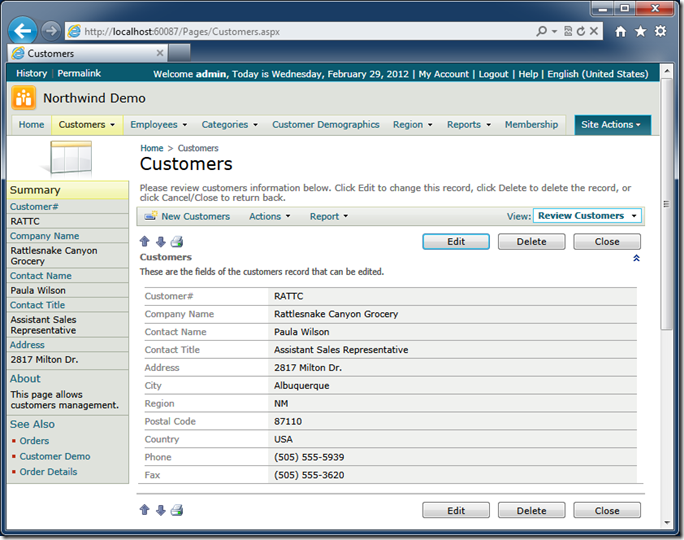
Form view 'editForm1' inherits the filter from the last view 'grid1'. 

Notice that only customers from the USA are visible when you navigate between records in the form view with the help of navigation buttons.

Form view navigation buttons

The form view automatically inherits the value of Filter Expression from the last view that was presented to the user.

Static view filters work great when you need to present several alternative views of data. Users cannot remove the view filters and apply their own criteria on top of the view filter expressions.

View filter can also reference properties of the business rules class associated with the data controller of the view.

For example, you can define the following filter that contains a parameter.

Country = 'USA' and Region = @RegionName

If you generate the application and navigate to the Customers page then you will see the following exception:

View 'grid1' uses a filter with 'RegionName' parameter. Business rules class of the controller must provide a value for this parameter. The filter is defined as (Country = 'USA' and Region = @RegionName).

The application framework does not know how to determine the value of RegionName.

Right-click the data view view1 in the Project Explorer and choose Show Controller option.
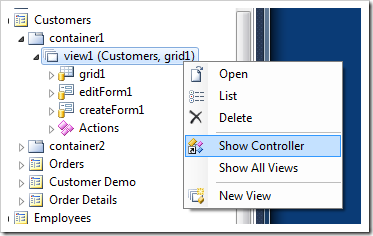
"Show Controller" option in the context menu of data view node

Double-click Customers controller on the Controllers tab of Project Explorer.
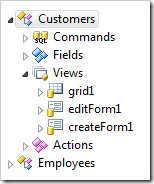
"Customers" controller selected on the Controllers tab of Project Explorer

Enter CustomersBusinessRules in the Handler property of the controller and click save.

Definition of business rules class name

Exit the Designer and proceed to generate the project.

Select the project name on the start page of web application generator and click Develop.

Visual Studio or Visual Web Developer will start.

Open ~/App_Code/Rules/CustomersBusinessRules.cs(vb) class and enter the definition of RegionName read-only property.

C#:

using System;
using System.Data;
using System.Collections.Generic;
using System.Linq;
using MyCompany.Data;

namespace MyCompany.Rules
{
    public partial class CustomersBusinessRules : MyCompany.Data.BusinessRules
    {
        public string RegionName
        {
            get
            {
                return "OR";
            }
        }
    }
}

Visual Basic:

Imports MyCompany.Data
Imports System
Imports System.Collections.Generic
Imports System.Data
Imports System.Linq
Imports System.Xml
Imports System.Xml.XPath

Namespace MyCompany.Rules

    Partial Public Class CustomersBusinessRules
        Inherits MyCompany.Data.BusinessRules

        Public ReadOnly Property RegionName As String
            Get
                Return "OR"
            End Get
        End Property

    End Class
End Namespace

Navigate to the Customers page and observe that only customers from the state of Oregon are now visible.
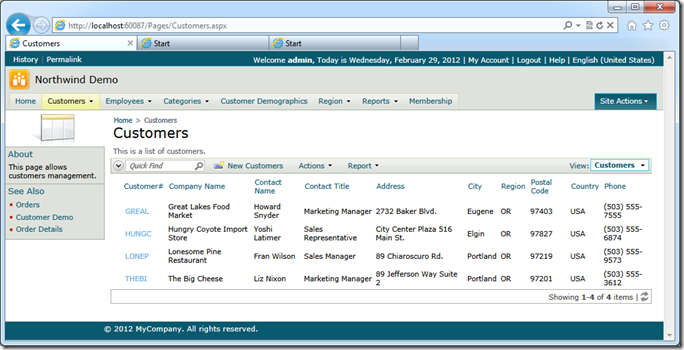
List of customers affected by view filter (Country = 'USA' and Region = @RegionName)

Notice that the value returned by RegionName property of the business rules class does not become a part of SQL statement.  The application will compose a SELECT statement that incudes the view filter expression text with the resolved names of the data fields. An actual command parameter will be created . The property value will be assigned to the parameter value.

If you want to create a filtering expression as a dynamic fragment of SQL at runtime then consider using dynamic access control rules.

If more than one value needs to be passed to the view filter then consider changing the filter definition as follows (we have replaced “=” with “in”).

Country = 'USA' and Region in @RegionName

Change the property definition to return a list or an array of values.

C#:

public List<string> RegionName
{
    get
    {
        List<string> regions = new List<string>();
        regions.Add("OR");
        regions.Add("WA");
        return regions;
    }
}

Visual Basic:

Public ReadOnly Property RegionName As List(Of String)
    Get
        Dim regions As List(Of String) = New List(Of String)
        regions.Add("OR")
        regions.Add("WA")
        Return regions
    End Get
End Property

Customers from the states of Oregon and Washington are now available in the list.
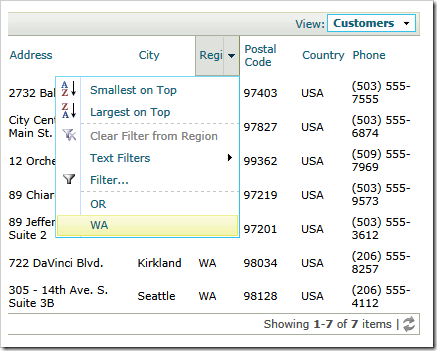
List of customers filtered by array of (WA, OR)

The application framework will list a separate parameter in the composed SELECT statement for each value in the list returned by the RegionName property of the business rules class.  In our example the actual fragment of SQL will look as follows:

("Customers"."Country" = 'USA' and "Customers"."Region" in (@RegionName0,@RegionName1))

Wednesday, February 29, 2012PrintSubscribe
Web App Themes V-Y

Vantage (Internet Explorer 9)

Vantage Theme (Internet Explorer 9)

Verdant (Chrome)

Verdant Theme (Chrome)

Viewpoint (Firefox)

Viewpoint Theme (Firefox)

White Smoke (Opera)

White Smoke Theme (Opera)

Yoshi (Safari)

Yoshi Theme (Safari)

Labels: User Interface
Wednesday, February 29, 2012PrintSubscribe
Custom Master Pages

Code On Time web applications include a standard master page. The master page provides a surrounding “frame” for all application pages. It incorporates the application navigation menu, side bar, page header, and page “work” area.

If you need to change the master page for specific application pages of your web application, then either make a copy of the standard master page or create a brand new master page in your project.

Creating a Copy of the Standard Master Page

Start the application generator, select the project name, and click Develop.

Locate the file Main.Master in the root of your web application using Solution Explorer.

Main.master selected in Solution Explorer

Right-click the file name and choose Copy.

Right-click the root of your project and choose Paste.

Rename the file “Copy of Main.master” to “MyOwn.master”.

MyOwn master page in Solution Explorer

Double-click MyOwn.master and make the required changes in Visual Studio or Visual Web Developer.

For example, we have customized the header area to include an additional div element.

<td id="PageHeaderContent">
    <div class="Header">
        <asp:SiteMapPath ID="SiteMapPath1" runat="server" SkinID="SiteMapPath" />
        <div class="Title">
            <asp:ContentPlaceHolder ID="PageHeaderContentPlaceHolder" runat="server">
                Page Title</asp:ContentPlaceHolder>
            <div style="display: inline-block; padding: 4px; background-color: Yellow; border: solid 1px Black;">
                [My Own Header Text]</div>
        </div>
    </div>
</td>

We have also changed the side bar area.

<td id="PageContentSideBar" valign="top">
    <div class="SideBarBody">
        <div style="display: inline-block; padding: 4px; background-color: Yellow; border: solid 1px Black;">
            [My Own Side Bar Text]</div>
        <asp:ContentPlaceHolder ID="SideBarPlaceHolder" runat="server" />
        <asp:Image runat="server" SkinID="Placeholder" />
    </div>
</td>

Activate the project Designer and select the page that will use the new master pager.

Enter MyOwn in the Master Page property of the page and click OK button to save the changes.

Specifying a master page in Designer

Generate the project and preview the page.

Custom master page in action

Creating a Brand New Master Page

The following markup represents the “bare minimum” master page compatible with the application pages.

<%@ Master Language="C#" AutoEventWireup="true" CodeFile="MyOwn.master.cs" Inherits="Main" %>

<!DOCTYPE html PUBLIC "-//W3C//DTD XHTML 1.0 Transitional//EN" "http://www.w3.org/TR/xhtml1/DTD/xhtml1-transitional.dtd">
<html xmlns="http://www.w3.org/1999/xhtml">
<head runat="server">
    <title>Main</title>
    <asp:ContentPlaceHolder ID="head" runat="server" />
</head>
<body runat="server" xmlns:factory="urn:codeontime:app-factory">
    <form id="form1" runat="server">
    <div>
        <!-- Toolkit Script Manager is required -->
        <act:ToolkitScriptManager ID="sm" runat="server" ScriptMode="Release"
EnableScriptGlobalization="True" /> <!-- Membership Bar is optional --> <aquarium:MembershipBar ID="mb" runat="server" EnableHistory="True"
EnablePermalinks="True" /> <!-- Mandatory "work" area of the page --> <table id="PageBody" cellpadding="0" cellspacing="0"> <tr> <td id="PageContent" valign="top"> <asp:ContentPlaceHolder ID="PageContentPlaceHolder" runat="server" /> </td> </tr> </table> <!-- The standard header and side bar are hidden on the page --> <div style="display: none"> <asp:ContentPlaceHolder ID="PageHeaderContentPlaceHolder" runat="server"> </asp:ContentPlaceHolder> <asp:ContentPlaceHolder ID="SideBarPlaceHolder" runat="server" /> </div> </div> </form> </body> </html>

Simply copy the text and replace the contents of your own master page. Make sure to adjust the Language and CodeFile attributes if you are developing with Visual Basic.

<%@ Master Language="VB" AutoEventWireup="true" CodeFile="MyOwn.master.vb" Inherits="Main" %>

The screen shot below shows the minimalist master page in action.

Minimalist master page in Code On Time web application

Continue to Web App Themes P-S