Blog

Labels
AI(13) AJAX(112) App Studio(10) Apple(1) Application Builder(245) Application Factory(207) ASP.NET(95) ASP.NET 3.5(45) ASP.NET Code Generator(72) ASP.NET Membership(28) Azure(18) Barcode(2) Barcodes(3) BLOB(18) Business Rules(3) Business Rules/Logic(140) BYOD(13) Caching(2) Calendar(5) Charts(29) Cloud(14) Cloud On Time(2) Cloud On Time for Windows 7(2) Code Generator(54) Collaboration(11) command line(1) Conflict Detection(1) Content Management System(12) COT Tools for Excel(26) CRUD(1) Custom Actions(1) Data Aquarium Framework(122) Data Sheet(9) Data Sources(22) Database Lookups(50) Deployment(22) Designer(178) Device(1) Digital Workforce(3) DotNetNuke(12) EASE(20) Email(6) Features(101) Firebird(1) Form Builder(14) Globalization and Localization(6) HATEOAS(4) How To(1) Hypermedia(3) Inline Editing(1) Installation(5) JavaScript(20) Kiosk(1) Low Code(3) Mac(1) Many-To-Many(4) Maps(6) Master/Detail(36) Micro Ontology(5) Microservices(4) Mobile(63) Mode Builder(3) Model Builder(3) MySQL(10) Native Apps(5) News(18) OAuth(9) OAuth Scopes(1) OAuth2(13) Offline(20) Offline Apps(4) Offline Sync(5) Oracle(11) PKCE(2) Postgre SQL(1) PostgreSQL(2) PWA(2) QR codes(2) Rapid Application Development(5) Reading Pane(2) Release Notes(185) Reports(48) REST(29) RESTful(31) RESTful Workshop(15) RFID tags(1) SaaS(7) Security(81) SharePoint(12) SPA(6) SQL Anywhere(3) SQL Server(26) SSO(1) Stored Procedure(4) Teamwork(15) Tips and Tricks(87) Tools for Excel(3) Touch UI(93) Transactions(5) Tutorials(183) Universal Windows Platform(3) User Interface(338) Video Tutorial(37) Web 2.0(100) Web App Generator(101) Web Application Generator(607) Web Form Builder(40) Web.Config(9) Workflow(28)
Archive
Blog
Monday, December 12, 2011PrintSubscribe
Live Inspection, EASE Auditing, New Themes

Code On Time has released update 6.0.0.16. The new updates includes a collection of new features and bug fixes described below: 

  • Live Inspection is now available.
     
  • Integrated EASE Auditing is now available in Unlimited edition.
     
  • New Modern and Dark Knight themes.
  • Reduced metadata footprint with all databases. Previous version would have enumerated all table columns even if the tables are not selected in the project.
     
  • Custom project references (for example, external assemblies) are not lost when Visual Basic projects are re-generated.
     
  • Mr. Adalberto Hernandez Vega has contributed Spanish localization for es-HN culture. Thank you!
     
  • Client Library now supports new data controller URL parameter, which allows indicating, which URL filter fields shall remain visible. The default behavior is to hide the data fields specified in the URL.
     
    A comma-separated list of fields can be specified as follows: _display=Field1,Field2,Field3. The client library will also populate field values from the values in the URL when _commandName is New. Read more about data controller URL parameters at /blog/2011/01/data-controller-url-parameters.html
     
  • Left Shift + Click on the project name will re-generate the project.
  • If the HyperlinkFormatString property of a field starts with “mailto:” then the links is formatted correctly.
     
  • The header text of the action group with scope "Action Column" is displayed in the header of the action column. If the text is blank then "Actions" is displayed instead.
     
  • Various cosmetic improvements to Project Designer.
     
  • Project Explorer tracks and updates multiple visible nodes linked to the same data controller on all tabs.
     
  • Client library detects HTML tags and does not perform HTML formatting in menus and "filter details" area of views if HTML is detected.
     
  • Automatic expansion of collapsed nodes in Project Explorer upon refresh of a node by monitor. 
     
  • Code generator will not try to delete project folders under control of Subversion.
     
  • Multi-field filter fields (up to five) are now available to allow multi-level master detail configuration with multi-column primary keys.
     
  • Client library now supports [Master.FieldName] expressions in When Client Script of actions and in new Visible When property of data views.
    Multiple-value filter fields are now working correctly.
     
  • Visual style of buttons in "Action Column" scope has changed.
     
  • Data Field Visibility is now a property of a Data Field instead of a list of Visibility expressions.
     
  • Shortcuts to Value/Text Items and Validators are displayed in fields and data fields.
     
  • Fixed the bug that was preventing deletion of visibility expressions on data fields in grid views.
     
  • Core.css has been changed to use the new Outer CSS class for icons. Existing apps will require modification to support custom action icons.
    For example: .NewIcon .Outer, .FlatGroupIcon.NewIcon
     
  • Fix the problem with disappearing “Reports|*”  nodes due to wrong schemas deduced from "_" in the names of tables.
     
  • Preview window is maximized if the Designer window is maximized.
     
  • Data controller URL parameters now support _commandName2 and _commandArgument2. The second command is executed as a follow up to the first set of _commandName and _commandArgument. Use the first set to select a record and the second command to execute a custom action on the activated record when needed.
     
  • CloudApp project file in Azure Factory applications is now compatible with Azure SDK 1.6.4
     
  • Action groups and actions feature Id property. It is used as as a CSS style on all user interface elements representing actions.
     
  • App Preview shows precisely on top of the Designer window. 
     
  • Utility Css classes are assigned to UI elements representing actions to support Designer inspection.
     
  • Icon column in grid views now renders a span to allow better formatting.
     
  • Menu options now feature Inner, Outer, and Self CSS classes to allow sophisticated styling.
  • Restored ability to go back from Controller Summary page in Project Wizard.
Thursday, December 1, 2011PrintSubscribe
Explore, Preview, and Inspect

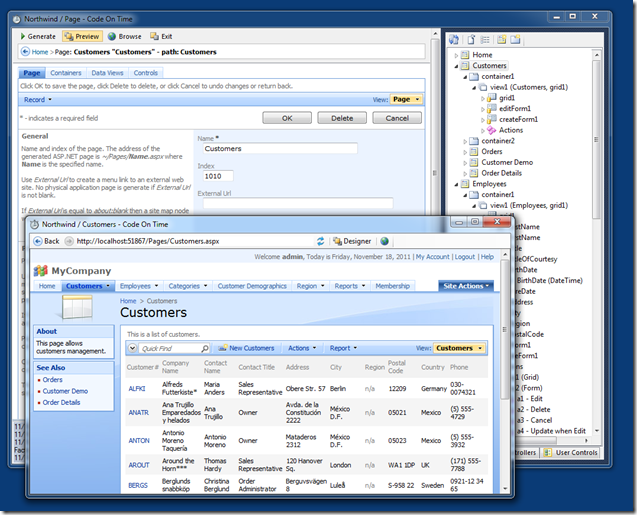
Code On Time web application generator provides an intelligent insight in the design of a generated application starting with version 6.0.0.16.

Select your project, activate Project Designer and start exploring the logical structure of application.

image

A holistic view of the entire application is available in the Project Explorer displayed on the right-hand side of the Designer window.

Code On Time developer is able to see and change the hierarchy of application pages, containers, data views, linked data controllers, and user controls.

You can generate and preview the web application without leaving the Designer. Simply choose Generate button on the tool bar to initiate the code generation.

image

The built-in Preview window will show up. Use Designer button in the preview to quickly return to design environment and Preview button to switch from the Designer to an open Preview.

The Preview window offers basic navigation buttons and web address of the current page.

image

The brand new feature also allow instant inspection of page elements. Click Inspect button to initiate inspection mode.

image

Click on any element on the page and the relevant item will open in Project Designer allowing for easy modification.

image

With this new Point & Inspect experience, it becomes easier than ever to learn and customize Code On Time web applications. This feature drastically shortens the learning curve and speeds up the development cycle.

How do we learn about the world around us? A child points with a finger, and a happy parent explains: “That’s a dog honey”. We don’t treat you as a child, but offer an intelligent guide whenever you need help. Help is literally a click away.

Saturday, November 19, 2011PrintSubscribe
Designer and Explorer – The New Look Of Code On Time

Code On Time web application generator has a new look.

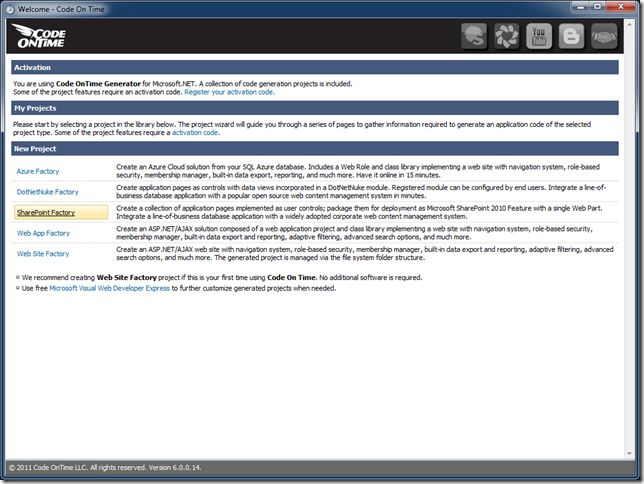
The New Project page is fundamentally the same and will soon feature a new project option – SharePoint Factory.
image

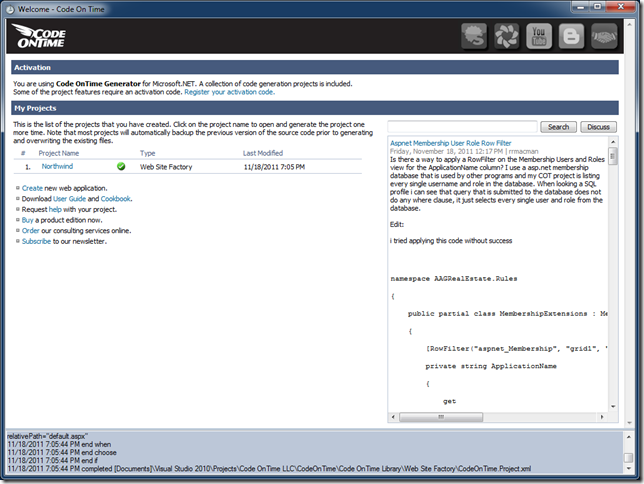
My Projects page has been simplified.

We have removed the Actions column and widened the community section.
image

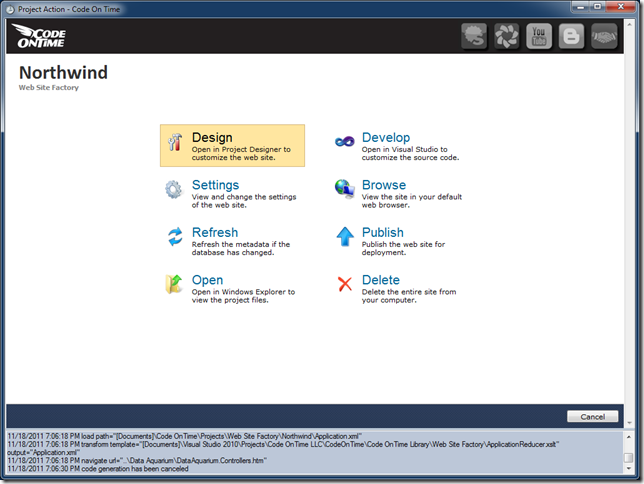
A menu of project actions is available when you click on the project name. These include previously available actions and some useful shortcuts.
image

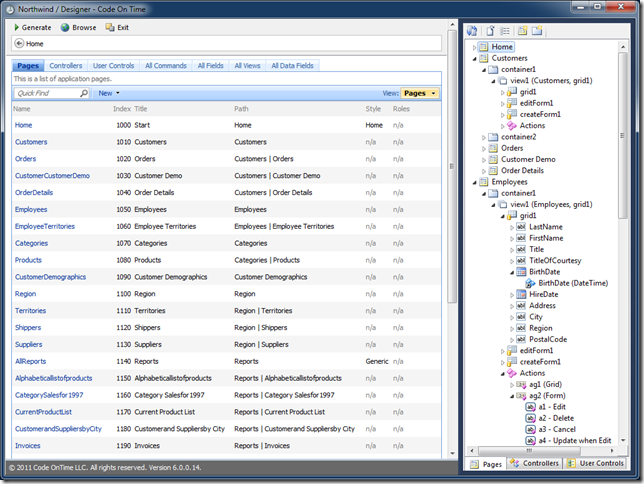
Project Designer is loaded upon selection of Design action.

Tabs on the start page of Designer have been rearranged. The first three tabs are Pages, Controllers, and User Controls to reflect the development workflow.

Project Explorer is displayed on right-hand side of the window. Three tabs at the bottom of the Explorer allow management of Pages, Controllers, and User Controls.

Selection of nodes in the tree view activates the relevant page in the Designer.

The tree on the Pages tab provides a unified view of all application resources including pages, containers, data views, fields, actions, and user controls.
image

Project Designer features a fixed tool bar with actions Generate, Browse and Exit. It is now possible to generate and preview application without leaving the design environment.

Generate button will generate the app and launch it in a built-in Preview browser.

Browse button will generate the app and launch it in your default web browser.
image