web application generator

Labels
AI(19) AJAX(112) App Studio(10) Apple(1) Application Builder(245) Application Factory(207) ASP.NET(95) ASP.NET 3.5(45) ASP.NET Code Generator(72) ASP.NET Membership(28) Azure(18) Barcode(2) Barcodes(3) BLOB(18) Business Rules(3) Business Rules/Logic(140) BYOD(13) Caching(2) Calendar(5) Charts(29) Cloud(14) Cloud On Time(2) Cloud On Time for Windows 7(2) Code Generator(54) Collaboration(11) command line(1) Conflict Detection(1) Content Management System(12) COT Tools for Excel(26) CRUD(1) Custom Actions(1) Data Aquarium Framework(122) Data Sheet(9) Data Sources(22) Database Lookups(50) Deployment(22) Designer(178) Device(1) Digital Workforce(3) DotNetNuke(12) EASE(20) Email(6) Features(101) Firebird(1) Form Builder(14) Globalization and Localization(6) HATEOAS(10) How To(1) Hypermedia(3) Inline Editing(1) Installation(5) JavaScript(20) Kiosk(1) Low Code(3) Mac(1) Many-To-Many(4) Maps(6) Master/Detail(36) Micro Ontology(5) Microservices(4) Mobile(63) Mode Builder(3) Model Builder(3) MySQL(10) Native Apps(5) News(18) OAuth(9) OAuth Scopes(1) OAuth2(14) Offline(20) Offline Apps(4) Offline Sync(5) Oracle(11) PKCE(2) Postgre SQL(1) PostgreSQL(2) PWA(2) QR codes(2) Rapid Application Development(5) Reading Pane(2) Release Notes(186) Reports(48) REST(29) RESTful(33) RESTful Workshop(14) RFID tags(1) SaaS(7) Security(81) SharePoint(12) SPA(5) SQL Anywhere(3) SQL Server(26) SSO(1) Stored Procedure(4) Teamwork(15) Tips and Tricks(87) Tools for Excel(3) Touch UI(93) Transactions(5) Tutorials(183) Universal Windows Platform(3) User Interface(337) Video Tutorial(37) Web 2.0(100) Web App Generator(101) Web Application Generator(607) Web Form Builder(40) Web.Config(9) Workflow(28)
Archive
Blog
web application generator
Thursday, March 1, 2012PrintSubscribe
Creating a Northwind App

Let’s create a baseline Code On Time Web Site Factory application. Run the web app generator, and select Web Site Factory project type.

Project Selection screen in Code On Time web application generator

Web Site Factory project type is based on a directory structure. Files will be compiled upon saving to the hard drive. Web Site Factory is suitable for an application of any complexity and is the easiest to manage. If you’re starting web development or coming to ASP.NET from other technologies, then this is the project type for you.

In the Name field, enter “OrderForm”. This will be the name of the folder that stores the project, and will be the display name shown on the start page of the code generator. Select the programming language of your choice, and press Create.

New Project Screen in Code On Time web application generator

On the next page, you can enter the Namespace, which will be used throughout the whole application. The namespace is a prefix used in all classes of the generated code base. We’ll leave the default name “MyCompany”. You can also change the Framework to either .NET 3.5 or 4.0. The latter is suggested, as it has better performance.

Namespace and Framework page in Code On Time Generator

When finished, press Next. This will create the project.
Wednesday, February 29, 2012PrintSubscribe
Custom Master Pages

Code On Time web applications include a standard master page. The master page provides a surrounding “frame” for all application pages. It incorporates the application navigation menu, side bar, page header, and page “work” area.

If you need to change the master page for specific application pages of your web application, then either make a copy of the standard master page or create a brand new master page in your project.

Creating a Copy of the Standard Master Page

Start the application generator, select the project name, and click Develop.

Locate the file Main.Master in the root of your web application using Solution Explorer.
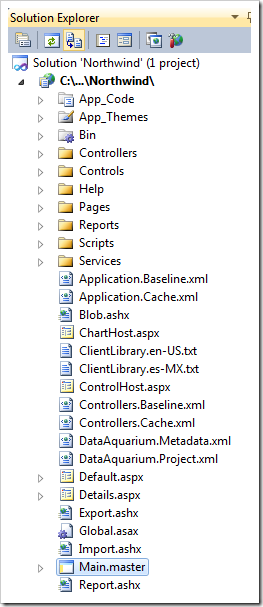
Main.master selected in Solution Explorer

Right-click the file name and choose Copy.

Right-click the root of your project and choose Paste.

Rename the file “Copy of Main.master” to “MyOwn.master”.
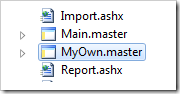
MyOwn master page in Solution Explorer

Double-click MyOwn.master and make the required changes in Visual Studio or Visual Web Developer.

For example, we have customized the header area to include an additional div element.

<td id="PageHeaderContent">
    <div class="Header">
        <asp:SiteMapPath ID="SiteMapPath1" runat="server" SkinID="SiteMapPath" />
        <div class="Title">
            <asp:ContentPlaceHolder ID="PageHeaderContentPlaceHolder" runat="server">
                Page Title</asp:ContentPlaceHolder>
            <div style="display: inline-block; padding: 4px; background-color: Yellow; border: solid 1px Black;">
                [My Own Header Text]</div>
        </div>
    </div>
</td>

We have also changed the side bar area.

<td id="PageContentSideBar" valign="top">
    <div class="SideBarBody">
        <div style="display: inline-block; padding: 4px; background-color: Yellow; border: solid 1px Black;">
            [My Own Side Bar Text]</div>
        <asp:ContentPlaceHolder ID="SideBarPlaceHolder" runat="server" />
        <asp:Image runat="server" SkinID="Placeholder" />
    </div>
</td>

Activate the project Designer and select the page that will use the new master pager.

Enter MyOwn in the Master Page property of the page and click OK button to save the changes.
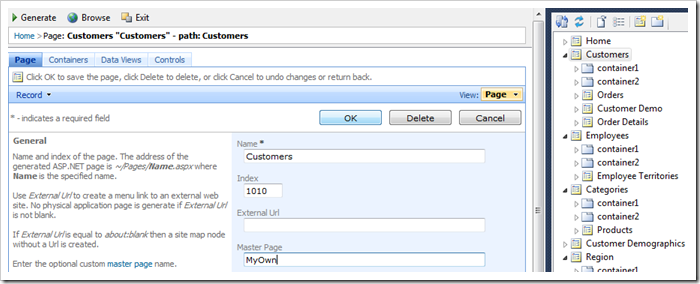
Specifying a master page in Designer

Generate the project and preview the page.
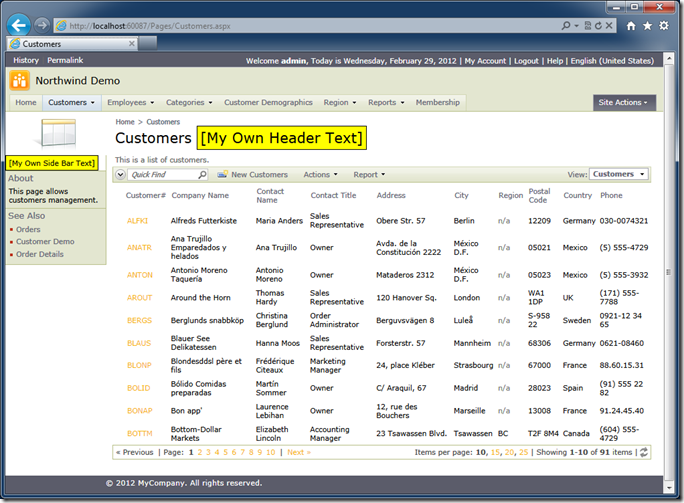
Custom master page in action

Creating a Brand New Master Page

The following markup represents the “bare minimum” master page compatible with the application pages.

<%@ Master Language="C#" AutoEventWireup="true" CodeFile="MyOwn.master.cs" Inherits="Main" %>

<!DOCTYPE html PUBLIC "-//W3C//DTD XHTML 1.0 Transitional//EN" "http://www.w3.org/TR/xhtml1/DTD/xhtml1-transitional.dtd">
<html xmlns="http://www.w3.org/1999/xhtml">
<head runat="server">
    <title>Main</title>
    <asp:ContentPlaceHolder ID="head" runat="server" />
</head>
<body runat="server" xmlns:factory="urn:codeontime:app-factory">
    <form id="form1" runat="server">
    <div>
        <!-- Toolkit Script Manager is required -->
        <act:ToolkitScriptManager ID="sm" runat="server" ScriptMode="Release"
EnableScriptGlobalization="True" /> <!-- Membership Bar is optional --> <aquarium:MembershipBar ID="mb" runat="server" EnableHistory="True"
EnablePermalinks="True" /> <!-- Mandatory "work" area of the page --> <table id="PageBody" cellpadding="0" cellspacing="0"> <tr> <td id="PageContent" valign="top"> <asp:ContentPlaceHolder ID="PageContentPlaceHolder" runat="server" /> </td> </tr> </table> <!-- The standard header and side bar are hidden on the page --> <div style="display: none"> <asp:ContentPlaceHolder ID="PageHeaderContentPlaceHolder" runat="server"> </asp:ContentPlaceHolder> <asp:ContentPlaceHolder ID="SideBarPlaceHolder" runat="server" /> </div> </div> </form> </body> </html>

Simply copy the text and replace the contents of your own master page. Make sure to adjust the Language and CodeFile attributes if you are developing with Visual Basic.

<%@ Master Language="VB" AutoEventWireup="true" CodeFile="MyOwn.master.vb" Inherits="Main" %>

The screen shot below shows the minimalist master page in action.
Minimalist master page in Code On Time web application

Wednesday, February 29, 2012PrintSubscribe
Automated Translation

Code On Time supports automated translation of web application resources from English to other languages with the help of Google Translate API.

You can create a multi-lingual web application by specifying a collection of additional culture sets required for your application.

Start the application generator, select the project name, and choose Settings project action.

Click on Globalization and Localization option.

Select the default culture set for your application using the drop downs and list any additional cultures in Supported Culture Sets text box.

Enter the Google Translate API Key in the input field. Note that the key in the picture is not real.

Globalization and Localization Project Settings

The support culture sets can optionally start with the default culture selected in the drop downs. The culture set specifies the culture used for internal calculations and the culture of the user interface. Both cultures in a culture set are separated by a comma.

Multiple culture sets can be listed one per line or separated with the semicolon.

This culture set will enable English (US) and Spanish (Mexico).

en-US,en-US; es-MX,es-MX;

The generated web application will offer a language selector on the membership bar.

The screen shot below shows the page presented in Spanish with translated system resources.

image

Various column labels and page titles are not translated.

Supposes you want to translate the title of the page Customers.

Start the application generator and select the project name, click Design.

Select Customers page in Project Explorer and change Title, Path, Description, and About This Page properties as follows.

Title:
^Customers^Customers^Customers^
Path:
^Customers^Customers^Customers^
Description:
^ViewCust^View Customers^ViewCust^
About This Page:
^CustDesc^This page allows management of customers.^CustDesc^

Localization tokens are “wrapping” the actual text written in English.

Localization tokens in page properties

Save the changes, exit the Designer and re-generate the application.

Select Spanish as the application language.

Language selector in Code On Time web application.

The translations of resources wrapped in localization tokens will show up in the user interface.

Translated page properties in action.