Security

Labels
AI(22) AJAX(112) App Studio(10) Apple(1) Application Builder(245) Application Factory(207) ASP.NET(95) ASP.NET 3.5(45) ASP.NET Code Generator(72) ASP.NET Membership(28) Azure(18) Barcode(2) Barcodes(3) BLOB(18) Business Rules(3) Business Rules/Logic(140) BYOD(13) Caching(2) Calendar(5) Charts(29) Cloud(14) Cloud On Time(2) Cloud On Time for Windows 7(2) Code Generator(54) Collaboration(11) command line(1) Conflict Detection(1) Content Management System(12) COT Tools for Excel(26) CRUD(1) Custom Actions(1) Data Aquarium Framework(122) Data Sheet(9) Data Sources(22) Database Lookups(50) Deployment(22) Designer(178) Device(1) Digital Workforce(3) DotNetNuke(12) EASE(20) Email(6) Features(101) Firebird(1) Form Builder(14) Globalization and Localization(6) HATEOAS(13) How To(1) Hypermedia(3) Inline Editing(1) Installation(5) JavaScript(20) Kiosk(1) Low Code(3) Mac(1) Many-To-Many(4) Maps(6) Master/Detail(36) Micro Ontology(5) Microservices(4) Mobile(63) Mode Builder(3) Model Builder(3) MySQL(10) Native Apps(5) News(18) OAuth(9) OAuth Scopes(1) OAuth2(14) Offline(20) Offline Apps(4) Offline Sync(5) Oracle(11) PKCE(2) Postgre SQL(1) PostgreSQL(2) PWA(2) QR codes(2) Rapid Application Development(5) Reading Pane(2) Release Notes(186) Reports(48) REST(29) RESTful(33) RESTful Workshop(14) RFID tags(1) SaaS(7) Security(81) SharePoint(12) SPA(5) SQL Anywhere(3) SQL Server(26) SSO(1) Stored Procedure(4) Teamwork(15) Tips and Tricks(87) Tools for Excel(3) Touch UI(93) Transactions(5) Tutorials(183) Universal Windows Platform(3) User Interface(337) Video Tutorial(37) Web 2.0(100) Web App Generator(101) Web Application Generator(607) Web Form Builder(40) Web.Config(9) Workflow(28)
Archive
Blog
Security
Monday, September 15, 2008PrintSubscribe
Server-Side Data Filters

Data Aquarium Framework and Aquarium Express applications are featuring user-defined adaptive filtering. Users can select any combination of field values in dynamic menus of grid view columns to find the data they need.

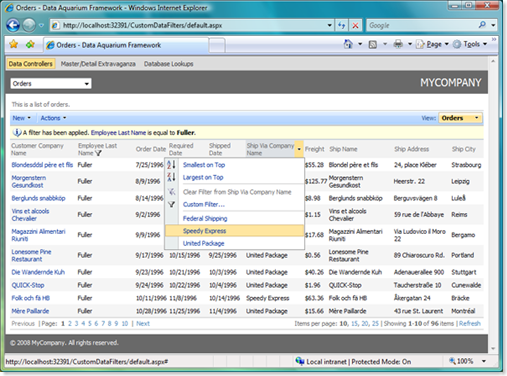
Take a look at a live example of Northwind database web application available at http://dev.codeontime.com/demo/northwind. The screen shot displays a list of orders filtered down to employee with last name Fuller. User is about to apply an additional filter to the column Ship Via Company Name.
image

If you want your users to see only a subset of data then define alternative data views based on queries that are limiting data in the SQL query in the foundation of each views.  The advantage of this approach is an ability to quickly define a data subset limited by a known criteria. Dynamic parameter values are not allowed in the query.

What if you want to limit the list of orders to those placed by currently signed-in employee only?

New feature available in Data Aquarium Framework allows to define a reusable data filter class used by linked data controllers automatically whenever a corresponding data retrieval operation requires a  filter. Let's see how it works.

Generate a web site code with Data Aquarium Framework project  and Northwind database.  Open this web site in Visual Studio 2008 or free Visual Web Developer 2008 Express Edition. Add Class1 to App_Code folder and enter the following code.

Data filter written in C#:

using System;
using System.Collections.Generic;
using MyCompany.Data;

public class Class1 : IDataFilter
{
    void IDataFilter.Filter(SortedDictionary<string, object> filter)
    {
        filter.Add("EmployeeID", new int[] { 2, 1 });
        filter.Add("ShipVia", 1);
    }
}

Here is VB.NET version of this class:

Imports System.Collections.Generic
Imports MyCompany.Data

Public Class Class1
    Implements IDataFilter

    Public Sub Filter(ByVal filter As SortedDictionary(Of String, Object)) _
        Implements MyCompany.Data.IDataFilter.Filter
        filter.Add("EmployeeID", New Object() {2, 1})
        filter.Add("ShipVia", 1)
    End Sub
End Class

Open data controller descriptor ~/Controllers/Orders.xml and  add an attribute dataFilterType as shown below:

<dataController 
  name="Orders" conflictDetection="overwriteChanges" 
  label="Orders" xmlns="urn:schemas-codeontime-com:data-aquarium" 
  dataFilterType="Class1">

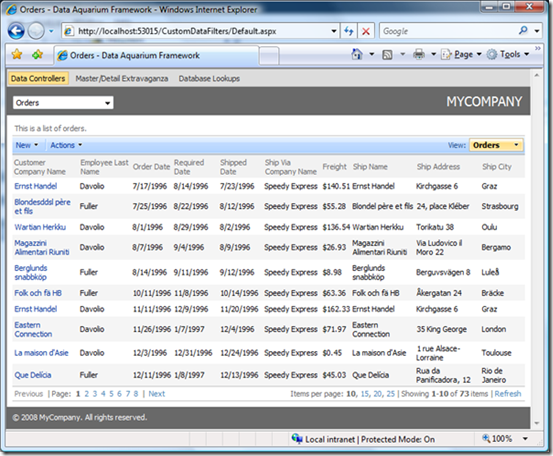
If you run the web site and select Orders in the drop down of the default page then a view like the one below is displayed.
image

Only eight pages of orders are available. All of them are limited to those placed by employees Fuller and Davolio. All of these orders were shipped via Speedy Express.  If you look at the sample code then you will notice that we are supplying filter values for EmployeeID field as an array with two values, while the ShipVia field is filtered by a single value only.

A quick and easy enhancement will make your view less busy. In our example only one shipper is displayed. You can hide this column from user interface by adding an additional hidden attribute to dataField element in the data controller descriptor ~/Controllers/Orders.xml.

<dataField fieldName="ShipVia" aliasFieldName="ShipViaCompanyName"  hidden="true"/>

In a real-world scenario you will likely use HttpContext.Current.User.Identity property or HttpContext.Current.User.IsInRole method to determine the scope of data that you want to include in the result set displayed to a currently signed in user. Make sure to add System.Web namespace to the list of namespaces in your data filter to get access to HttpContext.Current property.

What do you do if the number of filter values is greater than just a few? In this case you might want to consider creating a database table that holds sets of filter values matched with user identities or roles and then join this table into SQL queries defined in corresponding data controller descriptors. Implement a server-side data filter to provide an ID or a role of current user.

If the name of the data filter field is not matched with any of the fields in the result set then the value is ignored. You can link the same filter to multiple data controllers to take advantage of centralized processing architecture of Data Aquarium Framework.

Wednesday, August 6, 2008PrintSubscribe
Using "roles" and "writeRoles" Attributes with Fields and Actions

Data Aquarium Framework allows controlling user access to the fields and actions defined by data controller based on user roles. The standard ASP.NET security infrastructure is being utilized to determine the role of the current user. You must enable any form of authentication supported by ASP.NET to be able to use this features.

Element “field” in the “/dataController/fields” section has attributes “roles” and “writeRoles”. The first attribute specifies a space- or comma-separated list of roles allowed to read the field. If “roles” element is not present or defined as a blank string then any user is allowed to see the field presented in the views. If “roles” attribute is not blank then a call

HttpContext.Current.User.IsInRole(role)

is executed by the framework to see if the field should be visible in the presentation views defined in the data controller XML file.

Attribute “writeRoles” specifies the roles that user must have in order to be able to change the field content.

Element “action” of any “/dataController/actions/actionGroup” section allows specifying user roles that are allowed to execute that action. If the attribute is not present or blank then the action is available to everyone. If a space- or comma-separated list is present then the framework will ask ASP.NET to see if the user does have one of this roles before this action is allowed to be displayed and executed in the views defined in the data controller file.

Notice that the same action may be defined in multiple actions group. For example, the standard generated definition of the data controller will have “Delete” action defined twice in the action group with scope “Grid” and twice in the action group with scope “Form”. You have to make sure that the same list of roles allowed to execute the “Delete” action is duplicated in all four instances.

Let’s try the real example. This example assumes that you do have SQL Server 2005 Express Edition installed on your development machine.

Generate a Data Aquarium project for the Northwind database. Open the web site with Visual Studio 2008 or Visual Web Developer Express 2008 and add a form named Login.aspx to the root of the new web site. Switch this form to design mode and drop Login control on the form. Save the form. Here is the snippet of your from text with the Login control in it.

<html xmlns="http://www.w3.org/1999/xhtml">
<head runat="server">
    <title>Untitled Page</title>
</head>
<body>
    <form id="form1" runat="server">
    <div>
    <asp:Login ID=Login1 runat=server></asp:Login>
    </div>
    </form>
</body>
</html>

Select “Website ASP.NET Configuration” menu option in Visual Studio and enable security for our sample application. Indicate that your users are visiting your site from Internet. Specify that you want to enable roles. Create two roles named Admin and User. Create two user accounts, one for each role, and make sure to memorize their user names and password. Create an access rule that denies anonymous user access to the root of your web site. The configuration tool will automatically insert the needed settings in to the web.config file of the sample application will create App_Data project folder with ASP.NET Membership database in it.

Start default.aspx page. You will be asked to sign in. Make sure that you can sign in with one of the user accounts that you have created. When sign in successfully the default page will display the views defined in the ~/Controllers/Employees.xml data controller configuration file. Close the browser and open that data controller file in Visual Studio.

Make the following changed in the definition of LastName, FirstName, and Title fields.

    <field name="LastName" type="String" allowNulls="false" label="Last Name"  writeRoles="Admin"/>
    <field name="FirstName" type="String" allowNulls="false" label="First Name" writeRoles="Admin"/>
    <field name="Title" type="String" label="Title"  roles="Admin"/>

Run the application a few times while singing in with different user accounts that you have created. Notice that when you sign with account that has User role then Title field is not visible in any of the presentation views. User with Admin can see the Title field at all times.

Fields LastName and FirstName are accessible to the user with role User but this field is always read-only whenever you switch to any of the edit or insert views.

Now change the action groups to have roles attribute for command Select, Edit, and Delete as shown below.

    <actionGroup scope="Grid">
      <action commandName="Select" commandArgument="editForm1" roles="Admin,User" />
      <action commandName="Edit"  roles="Admin"/>
      <action commandName="Delete" confirmation="Delete?" roles="Admin"/>
      <action whenLastCommandName="Edit" commandName="Update" headerText="Save" />
      <action whenLastCommandName="Edit" commandName="Cancel" />
    </actionGroup>
    <actionGroup scope="Form">
      <action commandName="Edit" />
      <action commandName="Delete" confirmation="Delete?"  roles="Admin"/>
      <action commandName="Cancel" headerText="Close" />
      <action whenLastCommandName="Edit" commandName="Update" headerText="OK" />
      <action whenLastCommandName="Edit" commandName="Delete" confirmation="Delete?" roles="Admin"/>
      <action whenLastCommandName="Edit" commandName="Cancel" />
      <action whenLastCommandName="New" commandName="Insert" headerText="OK" />
      <action whenLastCommandName="New" commandName="Cancel" />
    </actionGroup>

User with administrative accounts will see no difference in the presentation views. User with role User will only Select option in the context menu of the data row in the grid view of employees. Delete action will not be allowed to that user in the form views as well.

As you can see there are plenty of declarative options to control security in the AJAX-enabled user interface without actually writing a single line of code. Any web form that is using your data controller will automatically inherit all security settings, which makes application maintenance a snap.