Database Lookups

Labels
AI(22) AJAX(112) App Studio(10) Apple(1) Application Builder(245) Application Factory(207) ASP.NET(95) ASP.NET 3.5(45) ASP.NET Code Generator(72) ASP.NET Membership(28) Azure(18) Barcode(2) Barcodes(3) BLOB(18) Business Rules(3) Business Rules/Logic(140) BYOD(13) Caching(2) Calendar(5) Charts(29) Cloud(14) Cloud On Time(2) Cloud On Time for Windows 7(2) Code Generator(54) Collaboration(11) command line(1) Conflict Detection(1) Content Management System(12) COT Tools for Excel(26) CRUD(1) Custom Actions(1) Data Aquarium Framework(122) Data Sheet(9) Data Sources(22) Database Lookups(50) Deployment(22) Designer(178) Device(1) Digital Workforce(3) DotNetNuke(12) EASE(20) Email(6) Features(101) Firebird(1) Form Builder(14) Globalization and Localization(6) HATEOAS(13) How To(1) Hypermedia(3) Inline Editing(1) Installation(5) JavaScript(20) Kiosk(1) Low Code(3) Mac(1) Many-To-Many(4) Maps(6) Master/Detail(36) Micro Ontology(5) Microservices(4) Mobile(63) Mode Builder(3) Model Builder(3) MySQL(10) Native Apps(5) News(18) OAuth(9) OAuth Scopes(1) OAuth2(14) Offline(20) Offline Apps(4) Offline Sync(5) Oracle(11) PKCE(2) Postgre SQL(1) PostgreSQL(2) PWA(2) QR codes(2) Rapid Application Development(5) Reading Pane(2) Release Notes(186) Reports(48) REST(29) RESTful(33) RESTful Workshop(14) RFID tags(1) SaaS(7) Security(81) SharePoint(12) SPA(5) SQL Anywhere(3) SQL Server(26) SSO(1) Stored Procedure(4) Teamwork(15) Tips and Tricks(87) Tools for Excel(3) Touch UI(93) Transactions(5) Tutorials(183) Universal Windows Platform(3) User Interface(337) Video Tutorial(37) Web 2.0(100) Web App Generator(101) Web Application Generator(607) Web Form Builder(40) Web.Config(9) Workflow(28)
Archive
Blog
Database Lookups
Wednesday, June 6, 2012PrintSubscribe
Using Alternative Views for Data Lookup

Lookup fields, when activated, display a view to allow the users to select an item. By default, the first grid view in the controller is used. Let’s create and use an alternate view for the CustomerID lookup field in the Orders controller.

Start the Project Designer. In the Project Explorer, switch to the Controllers tab. Right-click on Customers / Views and select New View option.
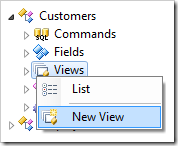
Create New View in Customers controller in Code On Time Project Explorer.

Configure the new view with the following values:

Property Value
Id grid2
Type Grid
Command command1
Label Customers from USA
Header Text This is a list of customers from the United States.
Filter Expression Country='USA'

Press OK to save the view.

Next, add all data fields that exist in grid1 except Country. In the Project Explorer, right-click on Customers / Views / grid2 node, and select New Data Field option.
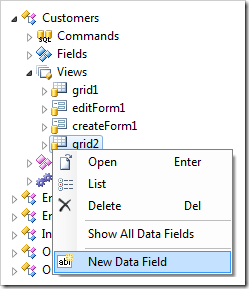
New Data Field in 'grid2' view of Customers controller.

Specify the field name for the data field:

Property Value
FieldName CustomerID

Press OK to save the data field. Create the rest of the data fields:

Field Name
CompanyName
ContactName
ContactTitle
Address
City
Region
PostalCode
Phone

On the toolbar, press Browse. When the application starts in the web browser, navigate to Orders page. Edit a record, and activate the lookup for Customer Company Name.
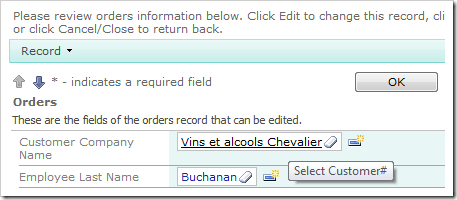
Customer Company Name lookup on the Orders edit form.

The lookup window will display Customers (grid1) view. Click on the View dropdown on the right side of the action bar and select Customers from USA. The view grid2 will be displayed, showing only customers from USA. There will not be a Country column.
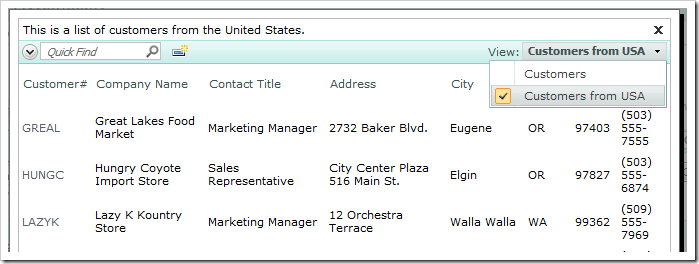
Select Customers from USA view using the view selector.

Let’s configure Orders.CustomerID lookup field to use grid2 by default. Switch back to the Project Designer. Double-click on Orders / Fields / CustomerID field node.
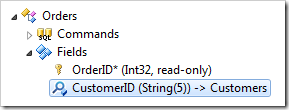
CustomerID field of Orders controller.

Change the Items Data View property:

Property New Value
Items Data View grid2

Press OK to save the field. To prevent users from selecting Customers from USA view on other pages, let’s remove the view from the view selector.

In the Project Explorer, double-click on Customers / Views / grid2 view node.
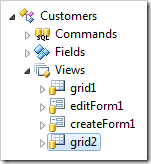
image

Prevent the view from showing up in the view selector:

Property New Value
Show in View Selector False

Press OK to save the view. On the toolbar, select Browse. Navigate to the Orders page, and edit a record. Activate the Customer Company Name lookup. The grid2 view will be displayed.
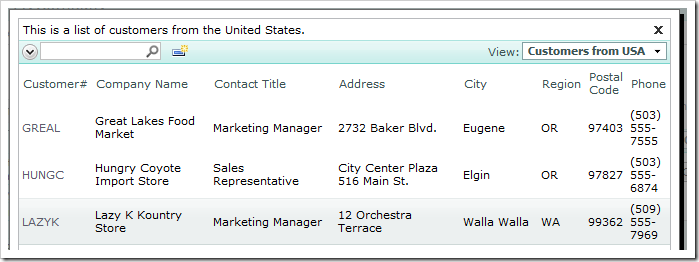
Customer Company Name lookup using the 'Customers from USA' view.

Monday, June 4, 2012PrintSubscribe
Data Field Search Modes

The Advanced Search Bar allows end users to combine specific search parameters to find the data they need.

When the user first opens the search bar, three search fields will be present, matching the first three data fields in the grid.

Default advanced search bar for Products grid view.

The web app can be customized to require users to use a search field, suggest a field, or restrict users from searching by a specific field.

For example, the customized search bar below has one required field (Product Name) and three suggested fields (Unit Price, Units In Stock, Units On Order) that appear when the user opens the search bar for the first time. The required Product Name field cannot be changed.

Customized search bar for Products grid view. Product Name is required and cannot be changed. Unit Price, Units In Stock, and Units On Order are suggested.

If a search is performed without entering a parameter in the required field, the user will be notified that the field is required.

When a search is performed without a required search parameter, the user will be prompted to enter a parameter.

The Discontinued field was marked as “Forbidden”, and does not show up on the list of searchable fields.

Fields marked as 'Forbidden' will not show up on the list of search fields.

Monday, June 4, 2012PrintSubscribe
Data Field Search Options

The Advanced Search Bar automatically determines multiple search options for each search field, based on the type of the field.

Advanced Search Bar with search options dropdown activated for a date field.

It is possible to limit the amount of options displayed to the user.

Let’s require users to search by the Birth Date field on the Employees grid view, and only permit between, equals, and includes search options.

Start the Project Designer. In the Project Explorer, switch to Controllers tab, and double-click on Employees / Views / grid1 / BirthDate data field node.

Birthdate data field of grid1 view in the Employees controller.

Make the following changes:

Property New Value
Search Mode Required
Search Options
$between,=,$in

Press OK to save the data field. On the toolbar, click Browse to regenerate the web application.

Navigate to the Employees page, and expand the advanced search bar.

Birth Date search field showing search options of 'between', 'equals', 'includes', and 'does not include'.

The Birth Date search field will appear first, with a limited subset of search options. The first search option will be activated when the search bar is opened for the first time.

For the Last Name field, instead of having the default first search option of equals, let’s change it to begins with, and preserve the rest of the search options.

Go back to the Project Designer. In the Project Explorer, double-click on Employees / Views / grid1 / LastName data field node.

Last Name data field of grid1 view in Employees controller.

Make the following changes:

Property New Value
Search Mode Suggested
Search Options
$beginswith,*

Press OK to save the data field, and click Browse on the toolbar.

Activate the search bar on the Employees page, and you will see that Last Name shows up by default. The begins with search option will show up first, but the user can change it to any other option.

Last Name search field showing search option 'begins with' first.