ASP.NET

Labels
AI(12) AJAX(112) App Studio(10) Apple(1) Application Builder(245) Application Factory(207) ASP.NET(95) ASP.NET 3.5(45) ASP.NET Code Generator(72) ASP.NET Membership(28) Azure(18) Barcode(2) Barcodes(3) BLOB(18) Business Rules(3) Business Rules/Logic(140) BYOD(13) Caching(2) Calendar(5) Charts(29) Cloud(14) Cloud On Time(2) Cloud On Time for Windows 7(2) Code Generator(54) Collaboration(11) command line(1) Conflict Detection(1) Content Management System(12) COT Tools for Excel(26) CRUD(1) Custom Actions(1) Data Aquarium Framework(122) Data Sheet(9) Data Sources(22) Database Lookups(50) Deployment(22) Designer(178) Device(1) Digital Workforce(3) DotNetNuke(12) EASE(20) Email(6) Features(101) Firebird(1) Form Builder(14) Globalization and Localization(6) HATEOAS(3) How To(1) Hypermedia(2) Inline Editing(1) Installation(5) JavaScript(20) Kiosk(1) Low Code(3) Mac(1) Many-To-Many(4) Maps(6) Master/Detail(36) Micro Ontology(5) Microservices(4) Mobile(63) Mode Builder(3) Model Builder(3) MySQL(10) Native Apps(5) News(18) OAuth(9) OAuth Scopes(1) OAuth2(13) Offline(20) Offline Apps(4) Offline Sync(5) Oracle(11) PKCE(2) Postgre SQL(1) PostgreSQL(2) PWA(2) QR codes(2) Rapid Application Development(5) Reading Pane(2) Release Notes(185) Reports(48) REST(29) RESTful(30) RESTful Workshop(15) RFID tags(1) SaaS(7) Security(81) SharePoint(12) SPA(6) SQL Anywhere(3) SQL Server(26) SSO(1) Stored Procedure(4) Teamwork(15) Tips and Tricks(87) Tools for Excel(3) Touch UI(93) Transactions(5) Tutorials(183) Universal Windows Platform(3) User Interface(338) Video Tutorial(37) Web 2.0(100) Web App Generator(101) Web Application Generator(607) Web Form Builder(40) Web.Config(9) Workflow(28)
Archive
Blog
ASP.NET
Saturday, March 7, 2015PrintSubscribe
Pie Chart Type

The “pie” chart type is rendered as a circle. Each data point is displayed as a slice out of the circle. This chart type is useful to show the size of values relative to one another. One example may be the number of orders made by each employee – the largest slice of the pie is taken by the employee who made the most orders.

To use “column” chart type, add the keyword “column” to any “pivot-” tag, and make sure that it is separated with hyphens (-).

Data Field Tag
EmployeeID pivot1-row1-pie

A pie chart showing the relative size of orders made by each employee.

The data for the chart can be seen below.

The data showing count of orders by employee.

If the slice is large enough, the percentage value is displayed. Hovering over or clicking on a slice will reveal the data.

The tooltip displaying the value is rendered when hovering over or clicking on a slice of the pie.

If there are too many slices, the chart may become unreadable to the users. Use “topX”, sort the row values, and enable “Other” row to ensure that only the largest X number of slices are displayed, and the rest are collapsed.

Data Field Tag
EmployeeID pivot1-row1-pie-top5-other-sortbyvalue

The pie chart shows top 5 sorted values, with the rest being grouped under "Other".

The sorted top five rows and “Other” row can be seen in the data below.

The data for the pie chart that shows top 5 values, with the rest grouped under "Other" row.

The pie can also be rendered as a 3D pie by using the “pie3d” chart type instead.

Data Field Tag
EmployeeID pivot1-row1-pie3d

The pie chart has been rendered as a 3d pie.

The chart can also be rendered with a hole in the center by specifying the “donut” chart type.

Data Field Tag
EmployeeID pivot1-row1-donut

The pie chart has been rendered as a donut with a hole in the middle.

Saturday, March 7, 2015PrintSubscribe
Geo Chart Type

The “geo” chart type will render a map of the Earth. Each value will be a country, region, or city with a number associated with it. Countries with larger numbers will be a darker shade. The scale for the values is shown in the bottom right corner. The example below shows the location of customers by country in the Northwind sample app.

To use “geo” chart type, add the keyword “geo” to any “pivot-” tag, and make sure that it is separated with hyphens (-).

Data Field Tag
Country pivot1-row1-geo

Geo chart showing customers in each country.

The data for the chart can be seen below.

Data for the geo chart of customers in each country.

Hovering over a data point will reveal the data. An arrow will be rendered on the scale in the bottom right corner.

Hovering over a country or region will reveal the value.

The label for each row is attempted to be resolved by Google Maps. Please see the Google Maps Terms of Service for more information on their data policy.

Display Mode

The “displaymode” property determines the rendering of data points on the chart. By default, the mode is determined automatically. When using countries, such as in the example above, it will render using “regions”. One alternative mode is to place markers that are relative to the size of the value by specifying “markers”.

To define the display mode, add the keyword “displaymode”, followed by a colon and the value in quotation marks. This keyword must be the last in the tag.

Data Field Tag
Country pivot1-row1-geo pivot1-displaymode:"markers"

The geo chart also supports displaying values as marker.

Hovering over densely packed data points will magnify the region.

Hovering over dense data points will magnify the area.

Using a display mode of “text” will render the value as a string over the correct location. The size and boldness of the text reflects the size of the value.

The 'text' display mode will render data points as text.

Region

The “region” property allows setting the zoom level of the map. By default, the property is set to “world”, to display the full map. The value can be set to a continent using its 3-digit code, a country with the ISO 3166-1 alpha-2 code, or a state in the United States with the ISO 3166-2:US code. If using a state, the resolution property must be set to “provinces” or “metros”.

The example below is set to zoom into the continent of Europe with code “150”.

Data Field Tag
Country pivot1-row1-geo pivot1-region:"150"

The geo chart is set to only render the region of Europe.

Resolution

The “resolution” property determines the display of data points on the geo chart. By default, it is set to “countries”. The “provinces” value is supported for some country regions and US state regions. The “metros” value is supported for US country region and US state regions only.

Data Field Tag
Region pivot1-row1-geo pivot1-region:"US" pivot1-resolution:"provinces"

The geo chart shows a map of the US and has resolution of 'provinces'.

An example of the “metros” resolution mode can be seen below. The chart uses “markers” display mode.

Data Field Tag
City pivot1-row1-geo pivot1-region:"US" pivot1-displaymode:"markers' pivot1-resolution:"metros"

The geo chart shows a resolution of 'metros' in the United States.

Tuesday, March 3, 2015PrintSubscribe
Introduction to Charts

Every Code On Time web app comes with multiple ways of displaying your data. One way to visualize your data is with charts. See an example of charts on the Orders page of Northwind sample below.
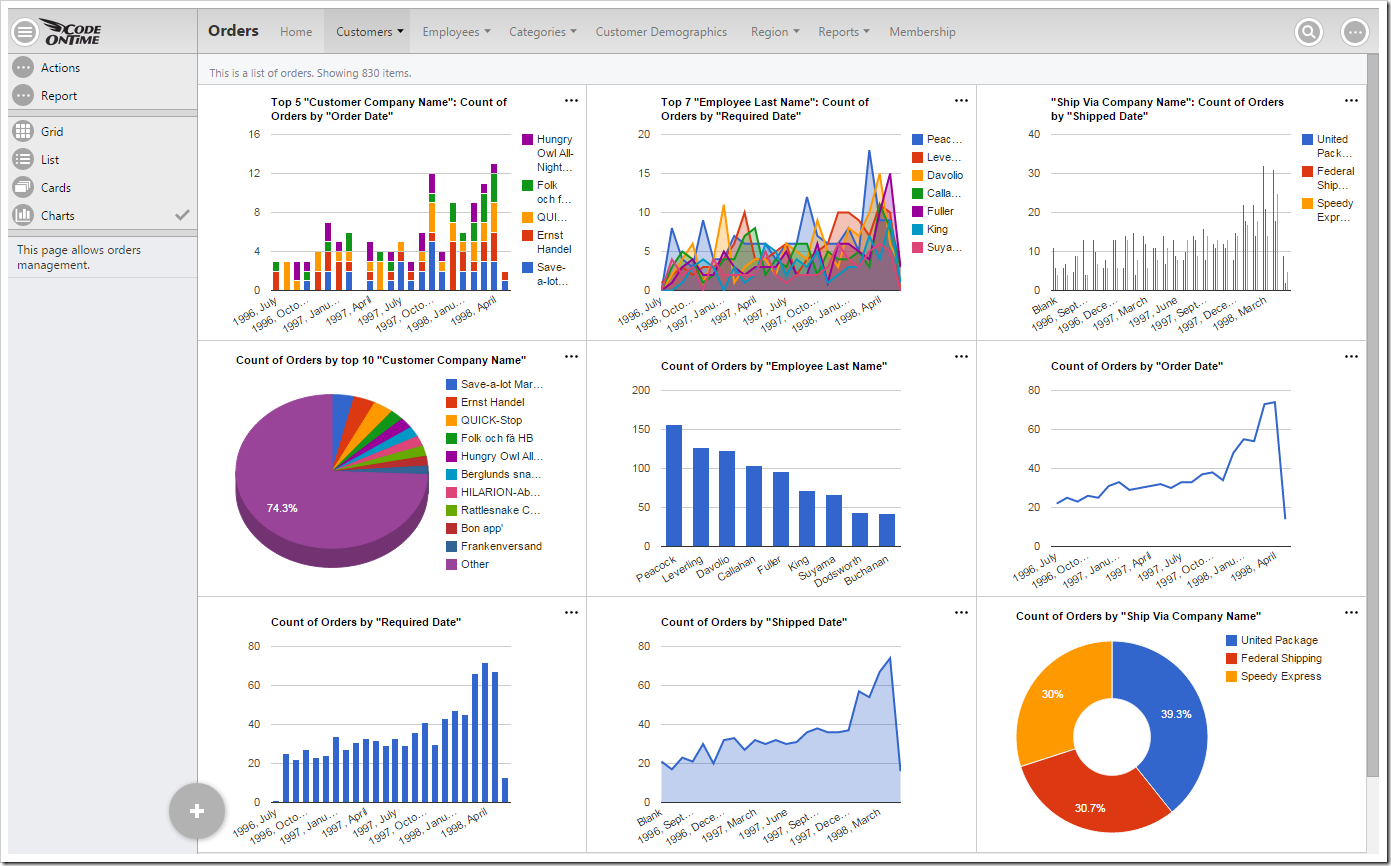
Default data insight charts displayed for orders page of a Northwind sample app.

When a user activates the Charts presentation style, any developer-defined charts will be displayed. If none have been defined, then the application will automatically construct charts based on the data fields present in that view.

Activating Charts Presentation

Charts can be activated by clicking on the “Charts” presentation style option in the sidebar on the left hand side of the screen.
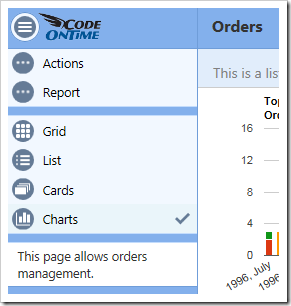
Selecting the Charts data presentation style from the sidebar.

If the device you are using is narrow or the sidebar has been disabled, you can click on the context menu button “…” in the top right corner of the screen to bring up the context menu.

Selecting the three dot context menu button in the top right corner of the screen.

Then, click on the name of the view to bring up view options.
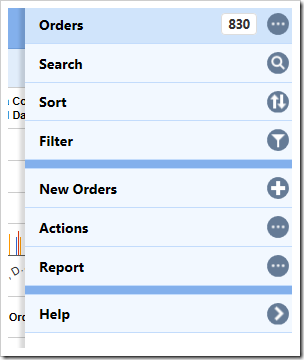
Activating the view settings by clicking on the view name from the context menu.

Select the “Charts” data presentation style, and the view will refresh and display charts to the user.
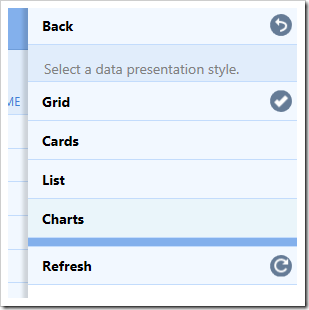
Selecting the charts data presentation style from the view options menu.

Responsive Design

Charts offer a responsive design that will scale to fit any device, regardless of the device’s screen size. You can get a comprehensive snapshot of your data from your phone, tablet, or desktop computer. The largest screen sizes will display three columns of charts.
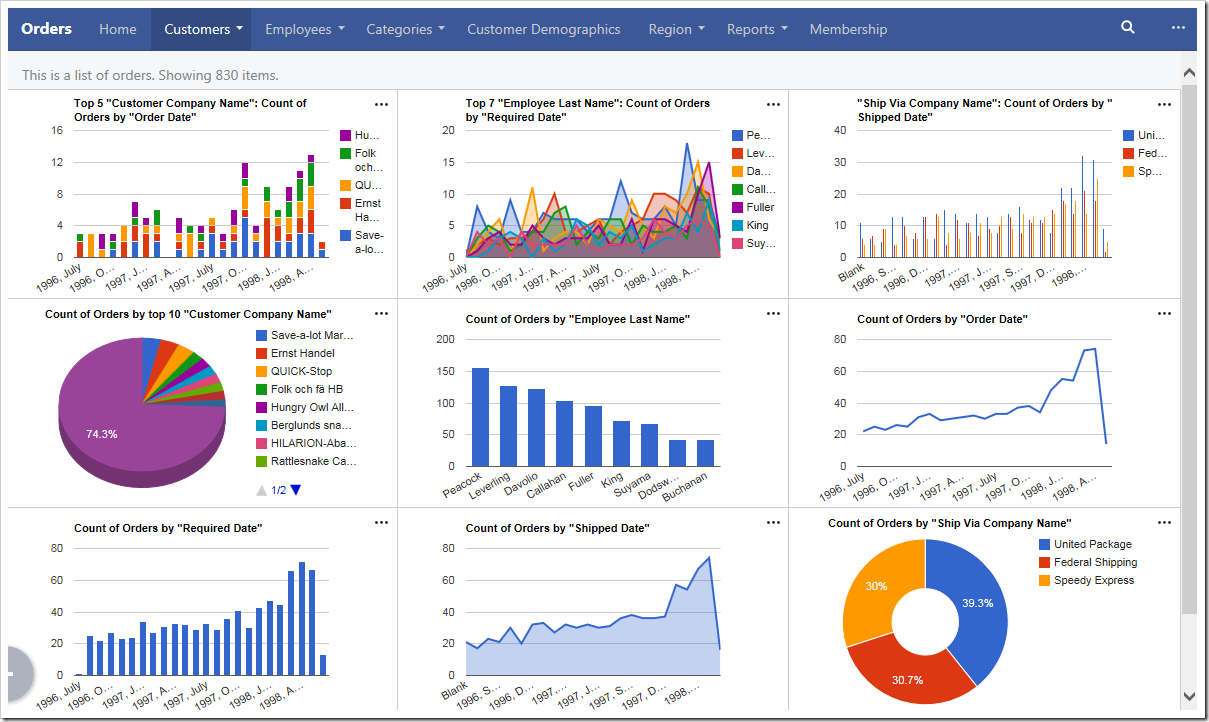
The largest screens and devices will show three columns of charts.

If the window is shrunk to a moderate size or the device is a tablet, two columns of charts will be shown instead.
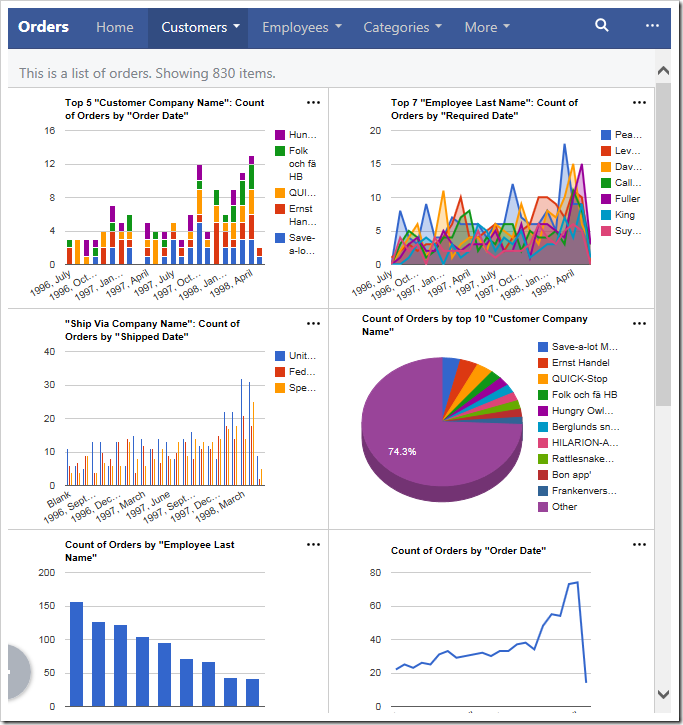
Only two columns of charts will be shown when the device is of medium size.

Smaller devices will display one chart at a time.
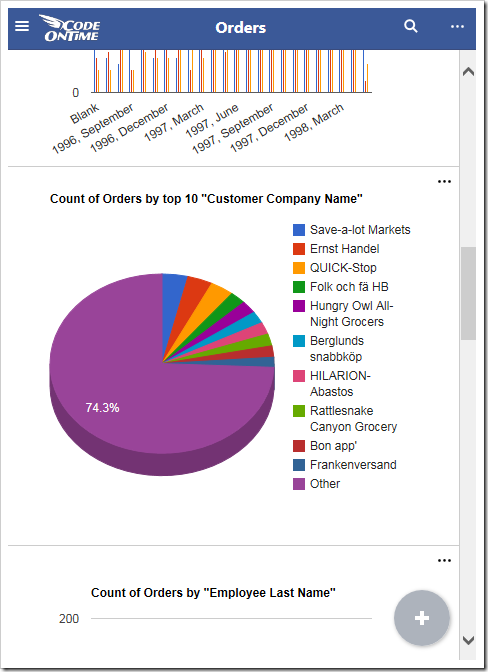
Smaller devices show one chart at a a time.

If the device or window has a short height (or if your phone is rotated horizontally), then the charts will be shrunk vertically in order to fit at least one chart at a time on the screen.
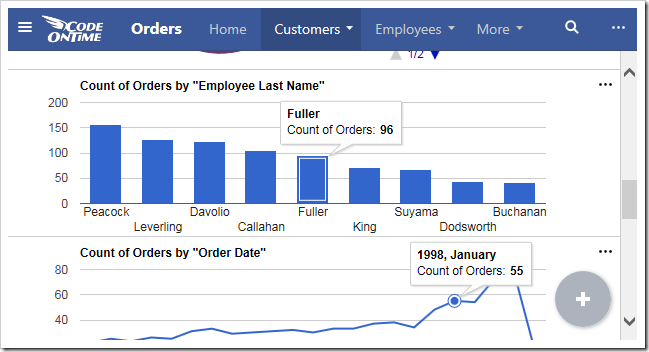
Charts will shrink vertically to fit the screen size.

Sizing Charts

Charts can also be individually resized. Each chart is set to “Small” by default. This will render three columns on large screens, two columns on medium screens, and one column on small screens. If only one chart is present for the view, then that chart will always be maximum size available for the device.

The user can change the size of each chart by clicking on the three dot context menu “…” in the top right corner of the chart. Large devices will have access to “Small”, “Medium” and “Large” sizes.
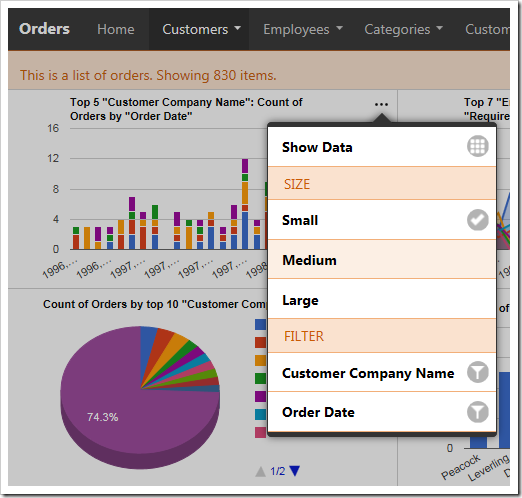
User can define the size for the chart from the context menu

Select “Large” to display a chart at full width and height of the screen. “Large” charts will scale down to “Medium” size on moderately sized devices, and to “Small” if the device cannot fit medium charts.
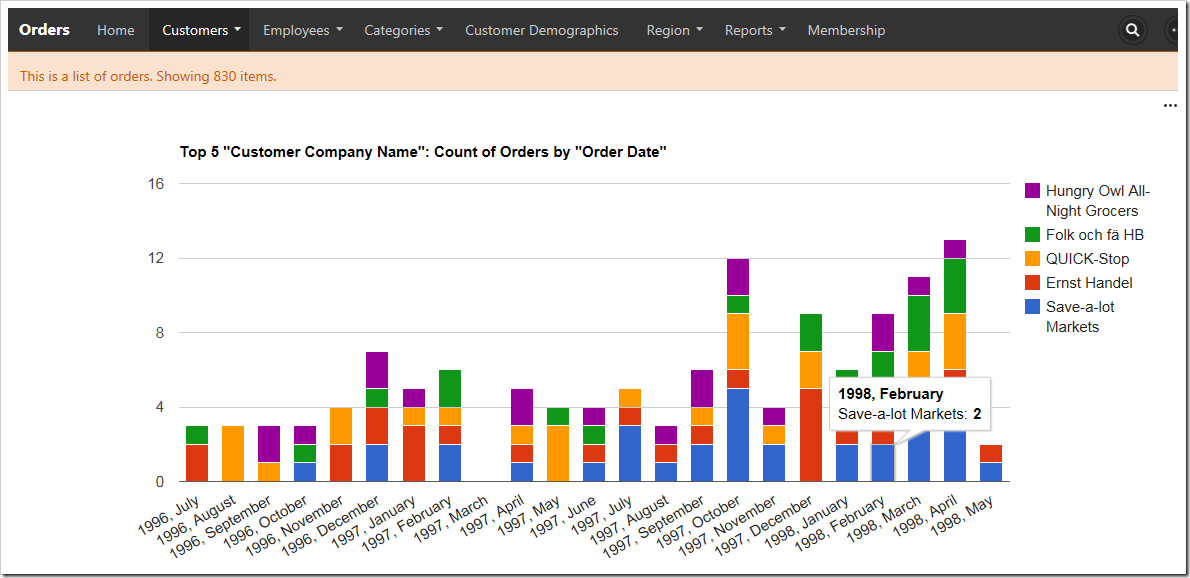
Large charts take the full height and width of the screen.

“Medium” chart size uses two thirds of the width and height a large screen, leaving space for one small chart in each dimension.
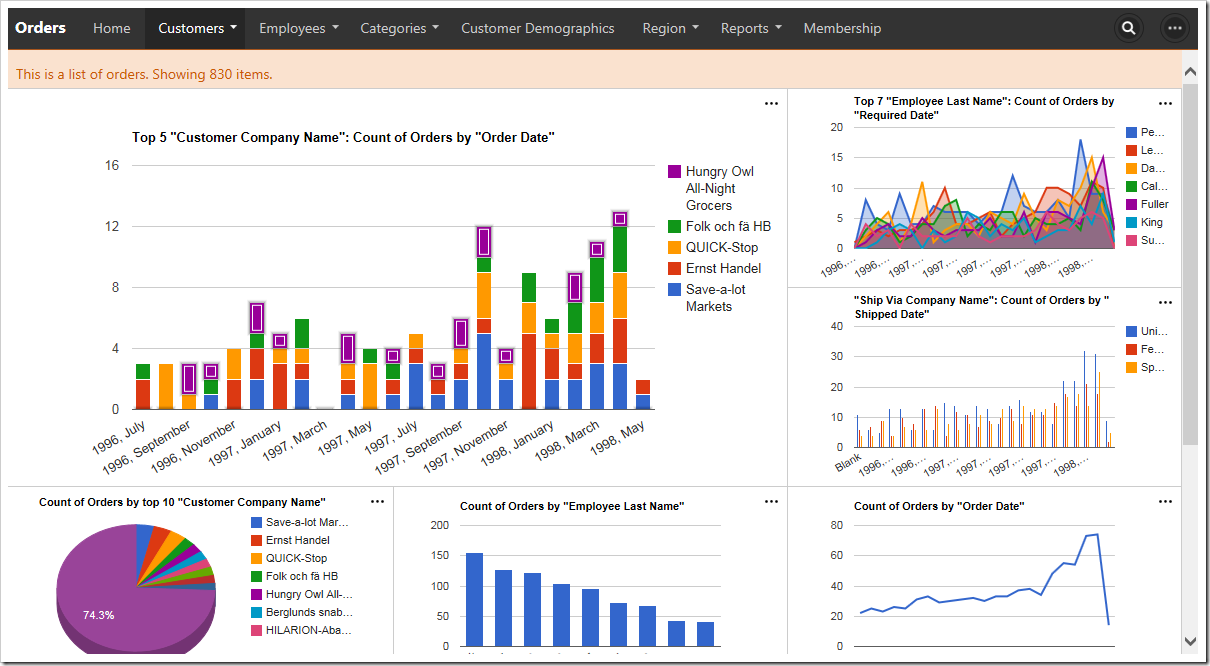
Medium size charts will take 2/3s of the height and width of the screen.

Medium charts on a medium size device will take the full width and two thirds of the height, leaving room for one chart above or below.
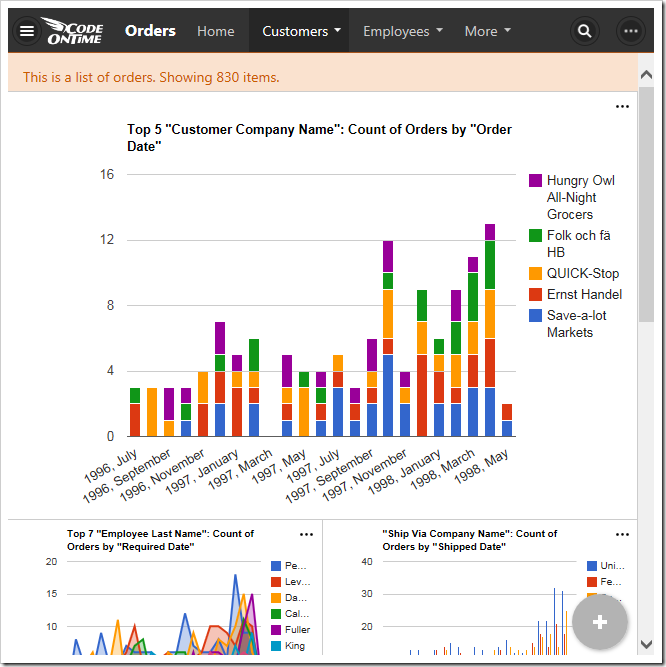
Medium size charts on a medium size device will take the full width and 2/3s of the height.

Default chart sizes can also be specified by the developer at design time.

Filtering with Charts

Any filters applied to the data view will be used by the charts. Quick filter options are available for the relevant fields in the context menu of each chart.
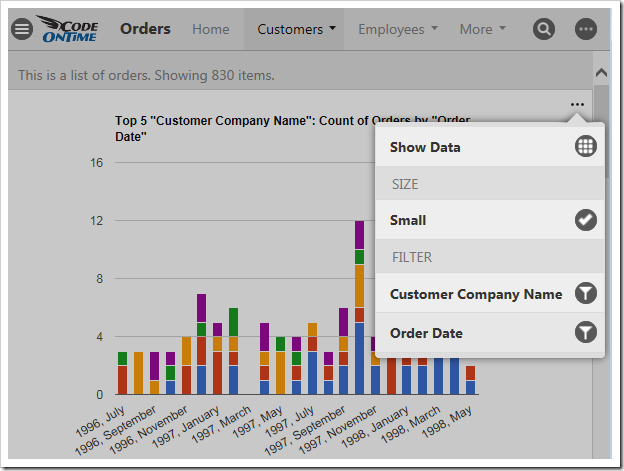
Quick filtering options are available based on the fields that are present in the chart.

Clicking on the name of a field will open the filter panel for that field.
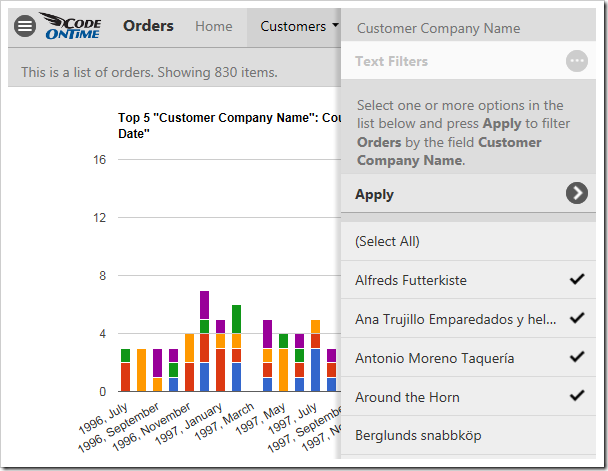
The filter panel for Customer Company Name has been opened.

Select several options from the panel and press “Apply” to filter. The charts will refresh with the new, filtered data.
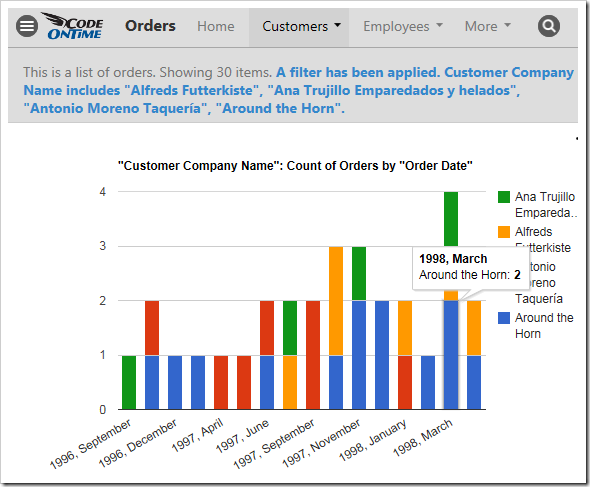
An Orders chart that is filtered by the customer.

Child data views also derive the filter from the selected master record. The screen below shows charts giving insight to the orders from the customer “Save-a-lot Market” – Davolio seems to be the preferred employee.
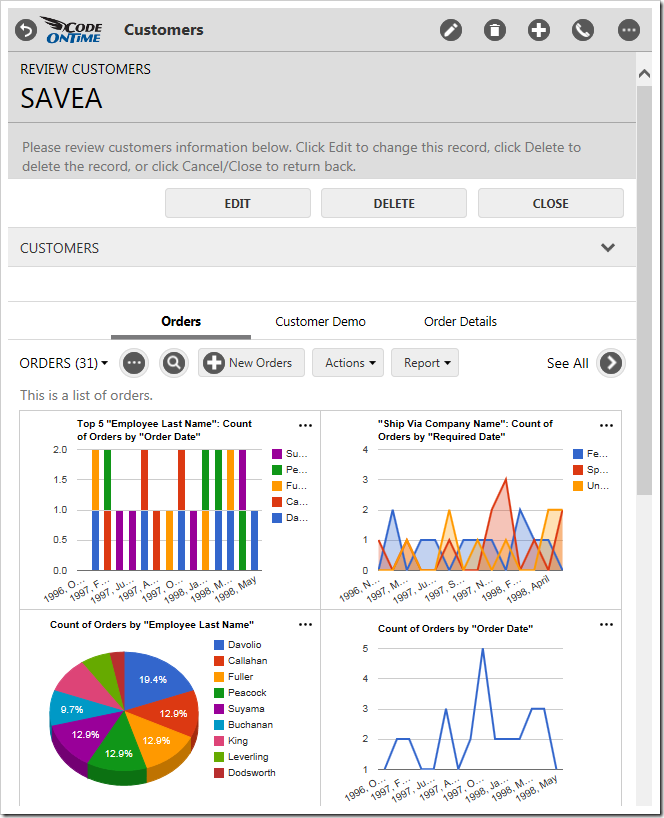
Charts for orders that are specific to a customer that has been selected as the master record.

Viewing the Data Behind the Chart

Users also have the option to view the pivoted data that the chart is based on in a table. Click on the three dot context menu “…” in the top right corner of a chart. Select “Show Data” option.
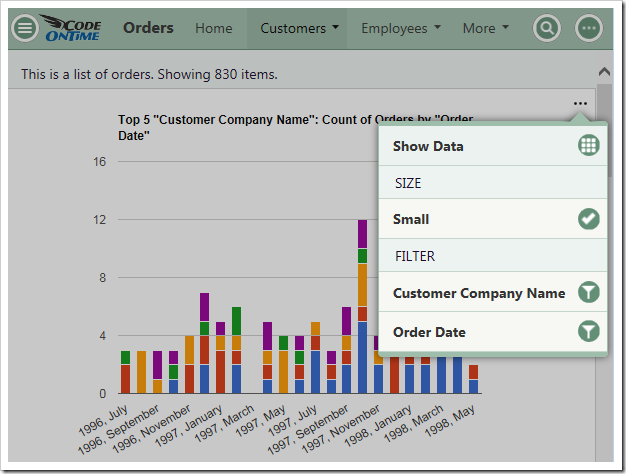
The 'Show Data' option in the context menu of a chart.

The chart will be replaced by a table that shows the data. A miniature chart preview will be shown in the top left corner.
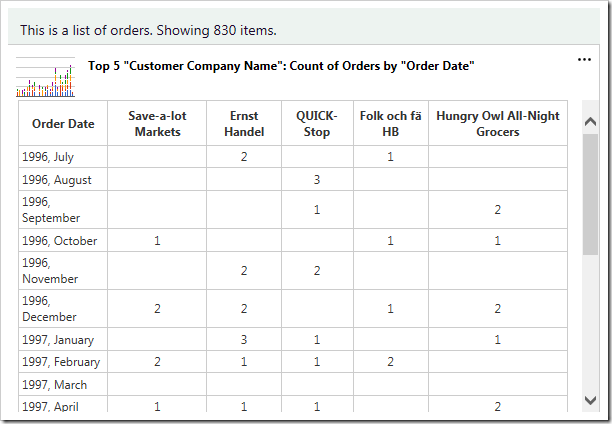
The data for the chart is displayed in a table.

Clicking on the mini chart in the top left hand corner will restore the chart. The user can also use the “Show Chart” option in the context menu.
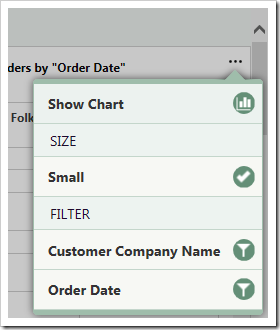
The 'Show Chart' option will restore the chart.