web application generator

Labels
AI(19) AJAX(112) App Studio(10) Apple(1) Application Builder(245) Application Factory(207) ASP.NET(95) ASP.NET 3.5(45) ASP.NET Code Generator(72) ASP.NET Membership(28) Azure(18) Barcode(2) Barcodes(3) BLOB(18) Business Rules(3) Business Rules/Logic(140) BYOD(13) Caching(2) Calendar(5) Charts(29) Cloud(14) Cloud On Time(2) Cloud On Time for Windows 7(2) Code Generator(54) Collaboration(11) command line(1) Conflict Detection(1) Content Management System(12) COT Tools for Excel(26) CRUD(1) Custom Actions(1) Data Aquarium Framework(122) Data Sheet(9) Data Sources(22) Database Lookups(50) Deployment(22) Designer(178) Device(1) Digital Workforce(3) DotNetNuke(12) EASE(20) Email(6) Features(101) Firebird(1) Form Builder(14) Globalization and Localization(6) HATEOAS(10) How To(1) Hypermedia(3) Inline Editing(1) Installation(5) JavaScript(20) Kiosk(1) Low Code(3) Mac(1) Many-To-Many(4) Maps(6) Master/Detail(36) Micro Ontology(5) Microservices(4) Mobile(63) Mode Builder(3) Model Builder(3) MySQL(10) Native Apps(5) News(18) OAuth(9) OAuth Scopes(1) OAuth2(14) Offline(20) Offline Apps(4) Offline Sync(5) Oracle(11) PKCE(2) Postgre SQL(1) PostgreSQL(2) PWA(2) QR codes(2) Rapid Application Development(5) Reading Pane(2) Release Notes(186) Reports(48) REST(29) RESTful(33) RESTful Workshop(14) RFID tags(1) SaaS(7) Security(81) SharePoint(12) SPA(5) SQL Anywhere(3) SQL Server(26) SSO(1) Stored Procedure(4) Teamwork(15) Tips and Tricks(87) Tools for Excel(3) Touch UI(93) Transactions(5) Tutorials(183) Universal Windows Platform(3) User Interface(337) Video Tutorial(37) Web 2.0(100) Web App Generator(101) Web Application Generator(607) Web Form Builder(40) Web.Config(9) Workflow(28)
Archive
Blog
web application generator
Monday, June 4, 2012PrintSubscribe
Extending Pages with Custom Content

If you would like to use a standard or third-party ASP.NET components on your pages, then a custom user control should be created and inserted in the page. Let’s add a few custom user controls and a data view to a test page.

Creating the Page

Start the Project Designer. On the action bar, click New | New Page option.
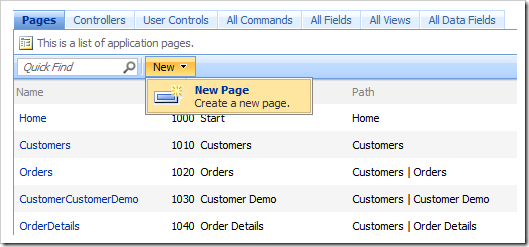
New Page menu option in the Project Designer.

Give this page the following properties:

Property Value
Name Test
Index 1005
Title Test
Path Test
Description This is a test page.
Style Categories
About This Page This page will host several user controls.
Roles N/A

Press OK to save the page.

Adding Containers

In the Project Explorer, right click on Test page node, and select New Container.
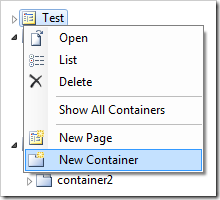
New Container to 'Test' page in Project Explorer.

Enter the following properties:

Property Value
Flow New Row
Width 33%

Press OK to save the container. Create three more containers, configured as follows:

Property Value
Flow New Column
Width 200px

Property Value
Flow New Column

Property Value
Flow New Row
Creating and Adding the User Controls

In the Project Explorer, right-click on Test / c100 container node, and select New Control.
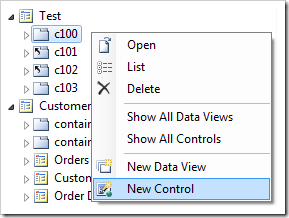
Add New Control to 'c100' container in Project Explorer.

Next to the User Control property, click on the New User Control icon.
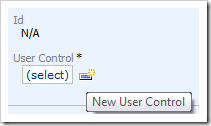
Create New User Control icon on New Control form.

Give this user control the following properties:

Property Value
Name TopLeft

Press OK to create the user control and have it selected in the User Control property.
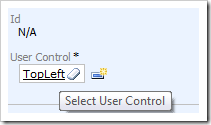
TopLeft user control inserted in the 'User Control' property.

Press OK again to save the control.

Right-click on Test / c101 container node, and choose New Control. Click on the New Record icon again, and create a new user control:

Property Value
Name TopCenter

Press OK to save the user control, and again to save the control. Create another control on Test / c102 container node. The new user control will have the following parameter:

Property Value
Name TopRight

Save the user control and control, and create another control on Test / c103 container node. The user control will use the following:

Property Value
Name CustomerList

Save the user control, and then the control. The logical page structure in the Project Explorer should look like the picture below.
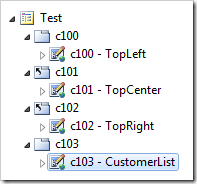
User controls populated for each container on Test page.

Exit the designer, and generate the web application.

When your default web browser opens the app, navigate to the Test page. There will be four user controls on the page, in two rows.
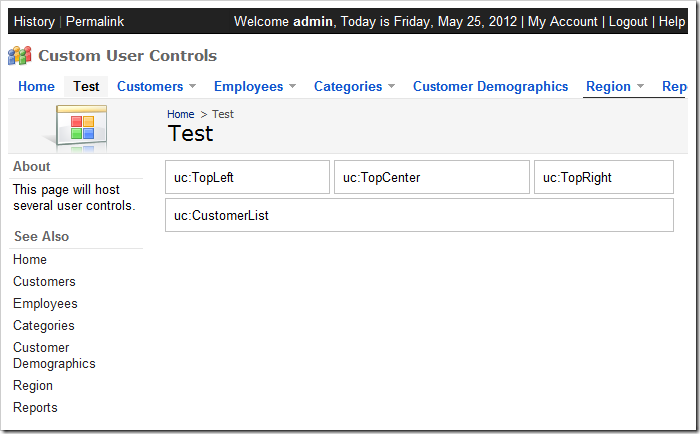
Test page with uncustomized user controls.

Customizing the User Controls

Switch back to the web application generator, click on the project name, and select Develop to open the project in Visual Studio. In the Solution Explorer, double-click 0n ~\Controls\TopLeft.ascx file.
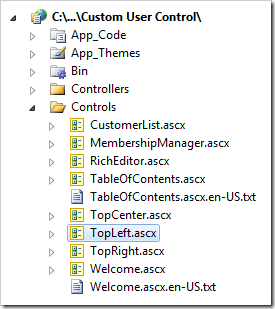
TopLeft user control in Visual Studio's Solution Explorer.

Press Ctrl+K, Ctrl+D to format the document. Add the highlighed CSS rule to the style attribute of the div element:

<%@ Control Language="C#" AutoEventWireup="true" CodeFile="TopLeft.ascx.cs" 
    Inherits="Controls_TopLeft" %>
<asp:UpdatePanel ID="UpdatePanel1" runat="server">
    <ContentTemplate>
        <div style="margin: 2px; border: solid 1px silver; padding: 8px; 
            background-color:LightBlue; height: 150px;">
            uc:TopLeft</div>
    </ContentTemplate>
</asp:UpdatePanel>

Save the file. In the Solution Explorer, double-click on ~\Controls\TopCenter.ascx file.
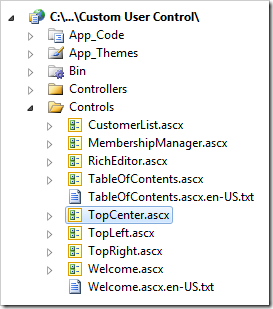
TopCenter user control in Visual Studio's Solution Explorer.

Format the document using Ctrl+K, Ctrl+D, and enter the following CSS properties in the style attribute of the div element:

background-color: LightGreen; height: 150px;

Save the file. In the Solution Explorer, double-click on ~\Controls\TopRight.ascx file.
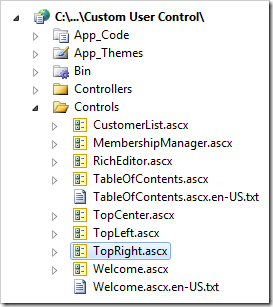
TopRight user control in Visual Studio's Solution Explorer.

Format the document, and enter the following CSS properties in the style attribute of the div element:

background-color: Pink; height: 120px;

Save the file. Switch back to the web browser and refresh the page. The three top user controls will have the assigned background colors and height.
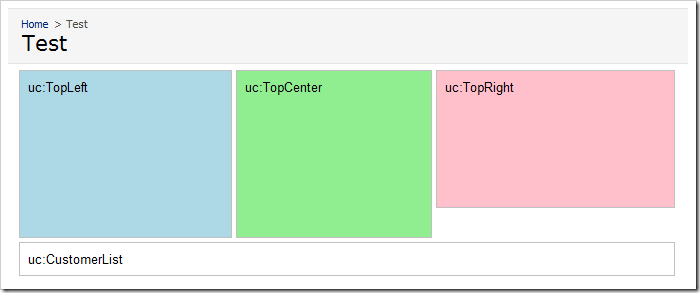
Test page with customized 'Top' user controls.

Adding a Data View

Switch back to Visual Studio. In the Solution Explorer, double-click on ~\Controls\CustomerList.ascx document,
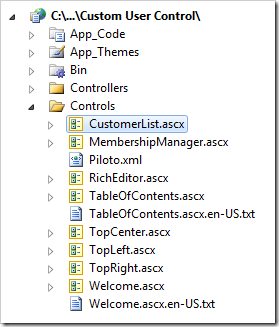
CustomerList user control in Visual Studio's Solution Explorer.

Press Ctrl+K, Ctrl+D to format. Making sure to preserve the original <%@Control%>  header, replace the UpdatePanel element in the file with the following:

<asp:UpdatePanel ID="UpdatePanel1" runat="server">
    <ContentTemplate>
        <div id="Customers" runat="server">
        </div>
        <aquarium:DataViewExtender ID="dve1" runat="server" 
        Controller="Customers" TargetControlID="Customers"
            PageSize="5" ShowInSummary="true" ShowPager="false"/>
    </ContentTemplate>
</asp:UpdatePanel>

Save the file, and refresh the webpage. The customers list will load underneath the three colorful user controls.
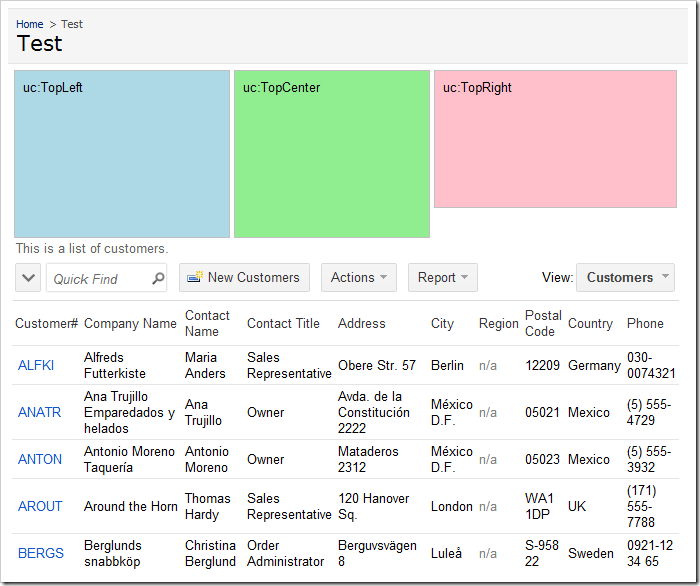
Test page with customized 'Top' user controls and customer list at the bottom of the page.

Changing the Page Layout

Switch back to the Project Designer. In the Project Explorer, expand the Test page. Move the c103 container to the first position.
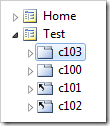
Test page with 'c103' container moved to first position in Project Explorer.

On the toolbar, press Browse. Navigate to the Test page, and you will see that the customers list will be at the top of the page, with the colorful user controls underneath.
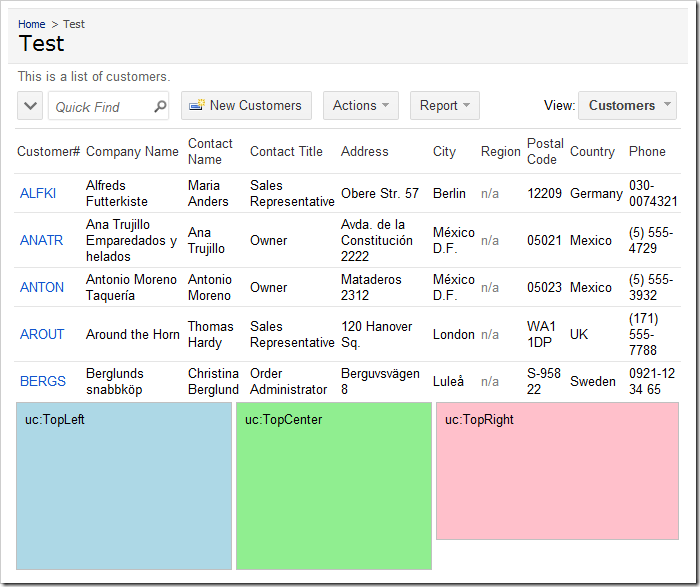
Test page with customized 'Top' user controls and customer list at the top of the page.

Monday, June 4, 2012PrintSubscribe
Items Style User Id Lookup

ASP.NET Membership offers a prefabricated registry of users and roles. There are situations in which the membership User ID needs to be referenced in the database. You can reference a User ID with the User Id Lookup items style.

Create an Owner field in the Orders table.

Start SQL Server Management Studio. In the Object Explorer, right-click on Databases / Northwind / Tables / dbo.Orders node, and select Design option.

Design Orders table in Northwind database.

Add a column with the following properties:

Column Name Data Type Allow Nulls
OwnerId nvarchar(50) True

Save the table design modifications.

Note that the data type of the field may be configured as uniqueidentifier if you are working with SQL Server. If your database engine is MySQL, then int type can be used instead.

Start Code On Time web application generator. Click on the project name, and refresh the Orders data controller.

Refresh the Orders controller.

Press Generate to regenerate the web application. When it opens in a browser window, navigate to Orders page and edit a record. The OwnerId field is just a simple text box. It needs to be converted into a User Id Lookup.

The OwnerId field is a simple text box.

Start the Project Designer. Switch to the Controllers tab, and double-click on Orders/ Fields / OwnerId node.

OwnerId field in the Orders controller in Code On Time Project Explorer.

Give this field the following properties:

Property Value
Label Owner
Items Style User ID Lookup

Press OK to save the field. On the toolbar, press Browse, and wait for the application to load.

Navigate to the Orders page, and edit a record. The Owner field will now be a lookup.

OwnerId field is now a User Id Lookup.

Click on the lookup link, and it will show a list of users.

User Id Lookup displaying a list of users.

When you select a user, the User Id will be inserted into the field.

Owner field displaying the User Id.

Monday, June 4, 2012PrintSubscribe
Password Text Mode

Some applications require protected input of sensitive field values. Examples include a user password, social security number, or national id.

Let’s configure a Social Security Number field on the Employees table. Start SQL Server Management Studio. In the Object Explorer, right-click on Databases / Northwind / Tables / dbo.Employees node. Select Design option.

Design option for Employees table of Northwind database.

Add the following column:

Column Name Data Type Allow Nulls
SocialSecurityNumber nvarchar(50) True

Save your changes and refresh the Employees data controller.

Generate the project. Navigate to the Employees page and edit a record. Change the Social Security Number field value and save. The field value is visible and unprotected.

Social Security number field value is displayed to the user.

Start the Project Designer. In the Project Explorer, double-click on Employees / container1 / view1 / editForm1 / c1 – Employees / SocialSecurityNumber data field node.

SocialSecurityNumber data field in editForm1 view on the Employees page.

Change the properties of the data field:

Property New Value
Columns 10
Text Mode Password

Press OK to save. On the toolbar, press Browse.

When the web app opens in the browser, navigate to Employees and select a record. The field value will be presented to the user as a series of asterisks (*).

When the form is in read mode, the password field is rendered as a series of asterisks.

Edit the record. The field value will be displayed as dots, and cannot be copied or otherwise extracted.

When form is in edit mode, the password field is rendered as a series of dots.

This solution is effective in preserving the confidentiality of the information.

A common practice is to reveal a part of the protected information. It may be necessary to reveal the last four digits of the Social Security Number.

Switch back to the Project Designer. In the Project Explorer, switch to the Controllers tab. Right-click on Employees / Fields node and select New Field.

Create New Field in Employees controller.

Configure the field using the following values:

Property Value
Name SocialSecurity4Digit
Type String
Length 50
Allow null values. True
The value of this field is computed at run-time by SQL expression True
SQL Formula
'***-**-' + SUBSTRING(Employees.SocialSecurityNumber, 
(LEN(Employees.SocialSecurityNumber)-3), 
LEN(Employees.SocialSecurityNumber))
Label Social Security Number
Values of this field cannot be edited True

Press OK to save the new field.

The SocialSecurity4Digit field should be visible when the form is in read mode while the SocialSecurityNumber field should not be displayed. In edit mode, the visibility of the fields will be reversed.

In the Project Explorer, right-click on Employees / Views / editForm1 / c1 – Employees category node, and select New Data Field option.

Add New Data Fields in editForm1 view of Employees controller.

Use the following configuration:

Property Value
Field Name SocialSecurity4Digit
Visible When
this.get_isEditing() == false

Press OK to save the data field.

In the Project Explorer, double-click on Employees / Views / editForm1 / c1 – Employees / SocialSecurityNumber data field node.

SocialSecurityNumber data field in editForm1 of Employees controller.

Add the following Visible When expression:

Property Value
Visible When
this.get_isEditing() == true

Press OK to save the data field.

On the toolbar, press Browse. Navigate to the Employees page and select a record.

The field SocialSecurity4Digit is displayed when the form is in read mode.

Four digits of the Social Security Number are displayed when the form is in read mode.

The field SocialSecurityNumber is displayed when the form enters edit mode.

The encrypted field is editable when the form is in edit mode.