Security

Labels
AI(22) AJAX(112) App Studio(10) Apple(1) Application Builder(245) Application Factory(207) ASP.NET(95) ASP.NET 3.5(45) ASP.NET Code Generator(72) ASP.NET Membership(28) Azure(18) Barcode(2) Barcodes(3) BLOB(18) Business Rules(3) Business Rules/Logic(140) BYOD(13) Caching(2) Calendar(5) Charts(29) Cloud(14) Cloud On Time(2) Cloud On Time for Windows 7(2) Code Generator(54) Collaboration(11) command line(1) Conflict Detection(1) Content Management System(12) COT Tools for Excel(26) CRUD(1) Custom Actions(1) Data Aquarium Framework(122) Data Sheet(9) Data Sources(22) Database Lookups(50) Deployment(22) Designer(178) Device(1) Digital Workforce(3) DotNetNuke(12) EASE(20) Email(6) Features(101) Firebird(1) Form Builder(14) Globalization and Localization(6) HATEOAS(13) How To(1) Hypermedia(3) Inline Editing(1) Installation(5) JavaScript(20) Kiosk(1) Low Code(3) Mac(1) Many-To-Many(4) Maps(6) Master/Detail(36) Micro Ontology(5) Microservices(4) Mobile(63) Mode Builder(3) Model Builder(3) MySQL(10) Native Apps(5) News(18) OAuth(9) OAuth Scopes(1) OAuth2(14) Offline(20) Offline Apps(4) Offline Sync(5) Oracle(11) PKCE(2) Postgre SQL(1) PostgreSQL(2) PWA(2) QR codes(2) Rapid Application Development(5) Reading Pane(2) Release Notes(186) Reports(48) REST(29) RESTful(33) RESTful Workshop(14) RFID tags(1) SaaS(7) Security(81) SharePoint(12) SPA(5) SQL Anywhere(3) SQL Server(26) SSO(1) Stored Procedure(4) Teamwork(15) Tips and Tricks(87) Tools for Excel(3) Touch UI(93) Transactions(5) Tutorials(183) Universal Windows Platform(3) User Interface(337) Video Tutorial(37) Web 2.0(100) Web App Generator(101) Web Application Generator(607) Web Form Builder(40) Web.Config(9) Workflow(28)
Archive
Blog
Security
Wednesday, February 29, 2012PrintSubscribe
Automatic Data Filtering

Web applications created with Code On Time offer impressive built-in filtering capabilities available to the end user. Just a few mouse clicks and a list of products is custom tailored to match complex filtering requirements.
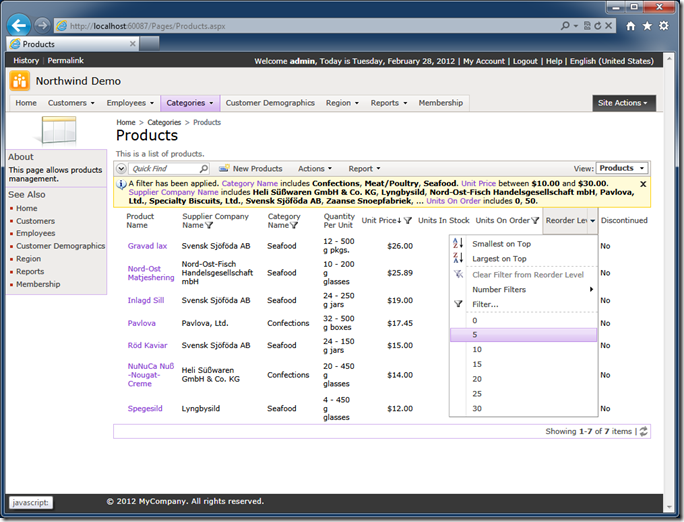
Complex filter defined by end user.

If the audience of your web application is composed of independent groups of users then the data must be segregated automatically. Each group of users will see only the data that meets certain criteria.

Consider the Orders table from the Northwind sample.
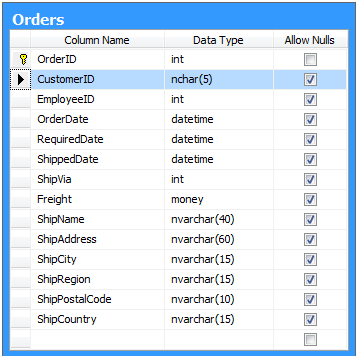
Northwind.dbo.Orders

Customers signing in the Northwind web application should only see their own orders.

A simple SELECT statement will filter the list of order by @CustomerID parameter.

select * from Orders where CustomerID = @CustomerID  

The snippet below shows the definition of the Orders data controller command from the Northwind sample.

  <commands>
    <command id="command1" type="Text">
      <text><![CDATA[
select
    "Orders"."OrderID" "OrderID"
    ,"Orders"."CustomerID" "CustomerID"
    ,"Customer"."CompanyName" "CustomerCompanyName"
    ,"Orders"."EmployeeID" "EmployeeID"
    ,"Employee"."LastName" "EmployeeLastName"
    ,"Orders"."OrderDate" "OrderDate"
    ,"Orders"."RequiredDate" "RequiredDate"
    ,"Orders"."ShippedDate" "ShippedDate"
    ,"Orders"."ShipVia" "ShipVia"
    ,"ShipVia"."CompanyName" "ShipViaCompanyName"
    ,"Orders"."Freight" "Freight"
    ,"Orders"."ShipName" "ShipName"
    ,"Orders"."ShipAddress" "ShipAddress"
    ,"Orders"."ShipCity" "ShipCity"
    ,"Orders"."ShipRegion" "ShipRegion"
    ,"Orders"."ShipPostalCode" "ShipPostalCode"
    ,"Orders"."ShipCountry" "ShipCountry"
from "dbo"."Orders" "Orders"
    left join "dbo"."Customers" "Customer" on "Orders"."CustomerID" = "Customer"."CustomerID"
    left join "dbo"."Employees" "Employee" on "Orders"."EmployeeID" = "Employee"."EmployeeID"
    left join "dbo"."Shippers" "ShipVia" on "Orders"."ShipVia" = "ShipVia"."ShipperID"
]]></text>
    </command>

If you paste this query in SQL Server Management Studio and click execute button then the list of orders will come up in the output window.

Your first natural instinct is to stick the “WHERE Orders.CustomerID = @CustomerID” right in the command text. All you need to know is how to provide the parameter value. Isn’t it that sample? The answer is “yes” and “no”.

Code On Time web applications do not use the command text “as-is”.  The application framework uses the command text as a developer-friendly dictionary. The text of the command allows your application locating the “from..” clause, the name of  the “main” table, the SQL expressions hidden behind the field aliases. The application framework uses the command text snippets to put together SELECT, UPDATE, INSERT, and DELET statements at runtime. Notice that SELECT statements are also automatically enhanced with a complex “WHERE …” clause to incorporate the user-defined filters when needed.

Filtering shall be accomplished with the help of the business rules. Your custom filters will be injected by the application framework in the right spot of dynamically created SQL statements and will co-exist with the user-defined criteria.

Let’s consider what it takes to create a programmatic filter.

Click on the name of the Northwind sample project on the start page of the web application generator and select Design project action.

Activate Controllers tab in the Project Explorer and double-click the name of your data controller.

Enter OrdersBusinessRules in the Handler property of the data controller Orders and click OK button.

"Handler" property of data controller

Click Exit button on the tool bar and proceed to generate the application.

Select the project name on the start page of the generator one more time and  choose Develop project action. Visual Studio of Visual Web Developer will start up.

Press Ctrl+Shift+F when the project loads in the development environment and search for OrdersBuinessRules. Double-click OrdersBusinessRules.cs(vb) in the Find Results window to open the business rules file.

This file is created if it does not exist already. Subsequent code generation will not overwrite your changes.

Enter the method ShowOrdersPlacedByCustomer in the definition of the class.

C#:

using System;
using System.Data;
using System.Collections.Generic;
using System.Linq;
using MyCompany.Data;

namespace MyCompany.Rules
{
    public partial class OrdersBusinessRules : MyCompany.Data.BusinessRules
    {
        [AccessControl("Orders", "CustomerID", "[CustomerID] = @CustomerID")]
        public void FilterOrdersPlacedByCustomer()
        {
            if (!UserIsInRole("Administrators"))
                RestrictAccess("@CustomerID", "AROUT");
        }
    }
}

Visual Basic:

Imports MyCompany.Data
Imports System
Imports System.Collections.Generic
Imports System.Data
Imports System.Linq

Namespace MyCompany.Rules

    Partial Public Class OrdersBusinessRules
        Inherits MyCompany.Data.BusinessRules

        <AccessControl("Orders", "CustomerID", "[CustomerID] = @CustomerID")>
        Public Sub FilterOrdersPlacedByCustomer()
            If (Not UserIsInRole("Administrators")) Then
                RestrictAccess("@CustomerID", "AROUT")
            End If
        End Sub
    End Class
End Namespace

If you sign in with user account user/user123% then you should see the following list of orders.
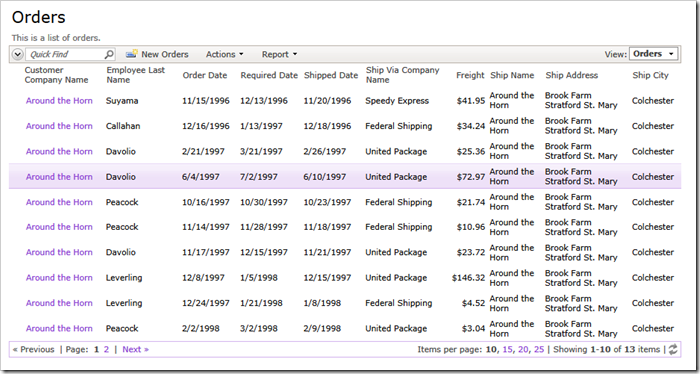
Orders filtered by Customer ID

Administrative user account admin/admin123% will have an unrestricted view of orders stored in the database.

The definition of access control attribute placed above the method name activates the method at runtime. The parameters of the access control attribute determine how the access control is performed.

AccessControl("Orders", "CustomerID", "[CustomerID] = @CustomerID")

The first parameter indicates the name of the data controller. The application framework treats this parameter as a regular expression that is matched against the name of the data controller. You can enter  a blank string as an alternative.  The blank string or “partial match” regular expression works well in shared business rules when the same access control rule is applied to multiple data controllers.

The second parameter is the name of the field that must exist in the data view for the access control rule to be triggered. In our example any of the fields defined in view grid1 can be used as the second parameter of AccessControl attribute.
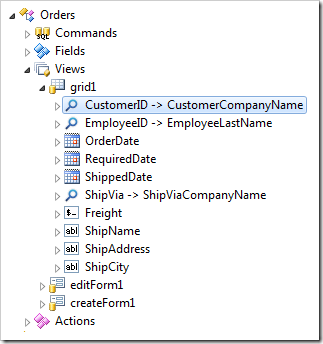
View of the data controller Orders in Project Explorer

The third parameter defines the SQL snippet that will be embedded in the SELECT statement produced by application framework at runtime. The application framework replaces any references to the data fields placed in square brackets with the actual expressions defined in data controller command.

For example, the alternative definition of the filtering expression will work exactly the same way if you enter the AccessControl attribute as follows.

AccessControl("Orders", "CustomerID", "Orders.CustomerID = @CustomerID")

The SQL snippet may have any complexity. You can explicitly reference any fields inferred from the “FROM…” clause of the data controller command text. You can reference any data fields defined in the view using square brackets around their names. You can reference any functions supported by your database server. SQL snippet is physically embedded in the SELECT statement composed by the app.

For example, the definition of the access control rule below will limit customer orders to those shipped by United Package.

AccessControl("Orders", "CustomerID", 
            "[CustomerID] = @CustomerID and [ShipViaCompanyName]='United Package'")

The screen shot shows the end result.
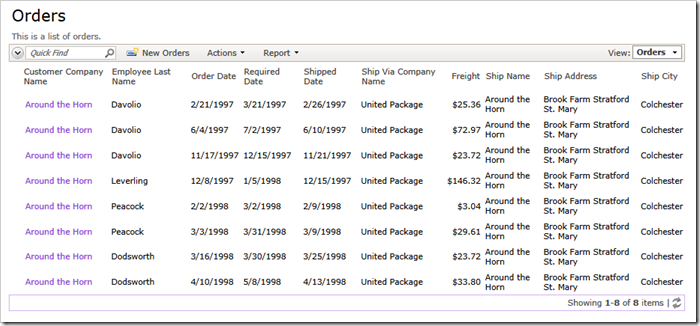
Orders filtered  by CustomerID and Ship Via Company name

The definition of the access control rule below uses SQL expression that starts with the word “SELECT…”.

AccessControl("Orders", "CustomerID", 
            "select CustomerID from Customers where CustomerID = @CustomerID")

If the SQL parameter of the attribute starts with “SELECT” then the application framework will assume that a single column is returned in the output data set and the values of the field CustomerID must be contains in the data set.

The end result composed by the application framework will be equivalent to the following filtering expression.

select * from Orders 
where Orders.CustomerID in (
    select CustomerID from Orders where @CustomerID
)

In this particular example there is little value in using this syntax. Utilize this form of access control rules when you need to match customer ID with more than one value.

If only one field has to be filtered by a programmatic value then you can omit the SQL property in the access control rule definition.

C#:

[AccessControl("Orders", "CustomerID")]
public void FilterOrdersPlacedByCustomer2()
{
    if (!UserIsInRole("Administrators"))
        RestrictAccess("AROUT");
}

Visual Basic:

<AccessControl("Orders", "CustomerID")>
Public Sub FilterOrdersPlacedByCustomer2()
    If (Not UserIsInRole("Administrators")) Then
        RestrictAccess("AROUT")
    End If
End Sub

Notice that you can call the method RestrictAccess multiple times to filter the customer ID by more than one value.

You can define multiple methods with arbitrary names adorned with one or several AccessControl attributes. The method is called by the application framework if the attributes were matched to the runtime conditions. Actual filtering will only take place if you invoke the RestrictAccess method at least once. This allows for programmatically controlled filtering under any imaginable conditions.

Programmatic filters cannot be removed the end users. The single access control rule will impact all pages of your application that reference the same data controller. For example, the following screen shot shows the Orders lookup with the user-defined filter impacted by our access control rule.
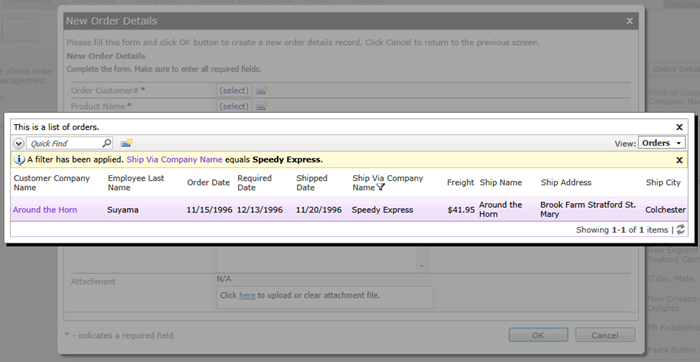
image

Saturday, February 25, 2012PrintSubscribe
Multiple Role-Specific Access Control Rules

Consider the following access control rule defined in the business rules class of the Northwind sample.

The rule will limit the list of customers to those from USA and having the Contact Title of Owner if the end user is not in the role of SuperUser.

C#:

using System;
using System.Data;
using System.Collections.Generic;
using System.Linq;
using MyCompany.Data;

namespace MyCompany.Rules
{
    public partial class CustomersBusinessRules : MyCompany.Data.BusinessRules
    {
        [AccessControl("Customers", "CustomerID",
            "select CustomerID from Customers " +
            "where Country = @Country and ContactTitle = @ContactTitle")]
        public void LimitAccessToCustomersFromUSA()
        {
            if (!UserIsInRole("SuperUser"))
            {
                RestrictAccess("@Country", "USA");
                RestrictAccess("@ContactTitle", "Owner");
            }
        }
    }
}

VB:

Imports MyCompany.Data
Imports System
Imports System.Collections.Generic
Imports System.Data
Imports System.Linq

Namespace MyCompany.Rules

    Partial Public Class CustomersBusinessRules
        Inherits MyCompany.Data.BusinessRules

        <AccessControl("Customers", "CustomerID", 
            "select CustomerID from Customers " + 
            "where Country = @Country and ContactTitle = @ContactTitle")> 
        Public Sub LimitAccessToCustomersFromUSA()
            If (Not UserIsInRole("SuperUser")) Then
                RestrictAccess("@Country", "USA")
                RestrictAccess("@ContactTitle", "Owner")
            End If
        End Sub
    End Class
End Namespace

This is the effect of the method LimitAccessToCustomersFromUSA  when a list of customers presented to the standard user account admin. This user account has two roles associated with it - Administrators and Users. The absence of the SuperUser role activates the restriction.

image

What if you want to expand this rule and apply another SQL-based restriction to the same data controller for a different user role?

Simply add another method to the business rules class. For example, the following method will extend the restrictions to include customers from United Kingdom located in the city of London. The restriction will apply to all users. Notice that we have specified @Country2 parameter to ensure that there will be no conflict with the parameter @Country if both access control rules are applied at runtime.

C#:

[AccessControl("Customers", "CustomerID",
    "select CustomerID from Customers " +
    "where Country = @Country2 and City = @City")]
public void ShowUnitedKingdomCustomers()
{
    if (UserIsInRole("Users"))
    {
        RestrictAccess("@Country2", "UK");
        RestrictAccess("@City", "London");
    }
}

VB:

<AccessControl("Customers", "CustomerID",
    "select CustomerID from Customers " +
    "where Country = @Country2 and City = @City")>
Public Sub ShowUnitedKingdomCustomers()
    If (UserIsInRole("Users")) Then
        RestrictAccess("@Country2", "UK")
        RestrictAccess("@City", "London")
    End If
End Sub

This is the view of customers presented to the admin user. Both access control rules have a cumulative effect if conditional expressions in methods LimitAccessToCustomersFromUSA  and ShowUnitedKingdomCustomers are evaluated as true. The admin user account belongs to Users and is not a SuperUser.

image

Tuesday, December 13, 2011PrintSubscribe
EASE Auditing

Tracking of user activities is a frequent requirement in many line-of-business applications. Knowing when a particular database record has been created, as well as who changed it is crucial in many industries.

Application developers rely on a proven set of techniques to satisfy data auditing requirements. They introduce data auditing columns in relevant database tables and utilize event logs to keep a journal of the system events. Values of auditing columns are updated by the application.

If the field name contains words “create”, “modified” or “update” , it’s purpose is probably to track user actions.

Examples

Consider customer table of Sakila database used to train MySQL developers. Field create_date tells when the record was created. Field last_update indicates when the customer record has changed.

image

If you generate an app based on this database then you will find out that additional manual configuration will be required to prevent users from entering values directly in the input fields and to ensure that fields are updates as intended. Manual configuration of auditing fields is described at /Documents/CB-CreatedBy_CreatedOn_ModifiedBy_ModifiedOn.pdf.

image

Unlimited edition of Code On Time offers a powerful option that makes configuration of auditing fields virtually effortless.

Select your project on the start page of the code generator and choose Settings action.

Select Features and activate EASE Configuration section.

Click on the “here” link under Audit Field Map to create sample map entries. Change the entries as shown below or in the picture.

Modified By User Name =
Modified By User ID =
Modified On Date = last_update
Created By User Name =
Created By User ID =
Created On Date = create_date

image

Click Finish  and regenerate the project. Try to update existing records or create new ones - you will notice that users are not able to change the auditing  fields directly, and that values of the fields are processed automatically.

image

Consider another example.

Almost all tables in the sample Adventure Works database are provided with ModifiedDate column. There are 99 tables and views in the R2 release of this popular training database used to illustrate the capabilities of Microsoft SQL Server 2008.

image

Here is how the audit field ModifiedDate look is presented if you generate a brand new Adventure Works application.

image

Change the Audit Field Map as follows:

Modified By User Name =
Modified By User ID      =
Modified On Date          = ModifiedDate
Created By User Name  =
Created By User ID       =
Created On Date           =

Generate the app and the same screen will look differently. Try editing records and observe that the field value is changed accordingly.

image

Understanding Audit Field Map

Audit Field Map associates predefined “logical” field names with the patterns of actual field names of the application database tables and views.

The “logical” field names are self-explanatory. If your application does not require a specific type of auditing then do not enter a pattern matching the logical audit field or delete the logical field from the map.

The pattern is treated as a regular expression. If you are consistently using the same field names for auditing purposes then enter the full field names as patterns. If there are variations of the fields conceptually playing the same audit role then separate the full names or name fragments with the symbol of “|” (do not include  double quotes).

Let’s build an application with the complete set of audit fields in at least one database table.

Start by creating a Web Site Factory application using the Northwind Sample.

Locate the Products page in the generated web application and begin editing a product record. Here is our version of the Products page.

image

Modify the Products table in SQL Server Management Studio by adding the six audit columns that follow right after the Discontinued column in the next screenshot. Allow null values in the new columns and save the changes.

image

Code generator does not know that the database has changed. We need to refresh the application baseline.

Select the project name on the start page of the code generator and choose Refresh action.

image

Toggle the check box next to the name of the data controller Products and click OK button.

image

Generate the application and select a product record one more time. New fields are now available and clearly require additional configuration.

image

Select the project on the start page of the code generator and choose Settings. Proceed to Features | EASE Configuration and enter the following Audit Field Map.

Modified By User Name = ModifiedByUserName
Modified By User ID      = ModifiedByUserId
Modified On Date          = ModifiedOnDate
Created By User Name  = CreatedBy
Created By User ID       = CreateId
Created On Date           = CreatedOn

Generate the web application and edit the exact same record.

If you compare the previous screen with the next one then you will notice that we are left with the four visible audit fields. The two fields designed to capture user IDs are not visible. Both CreateId and ModifiedByUserId are hidden from the application end users. The rest of the new audit fields are blank.

Click OK button to save the record.

image

Start editing the same record one more time. If you are signed in as user admin then your will see “admin” in the fields Created By and Modified By User Name.

Notice that both field names are rendered as links. If you click on a link then the default email software installed on your computer will be activated with the user’s email in the “To” input of the new message.

image

The physical ID of the user has been captures as well.

image

We suggest that you experiment edited data under different user identities to see the audit processing in action.

If you start creating new records then the audit fields will be prepopulated right away.

Future Audit Enhancements

The impressive ease of EASE Auditing will not stop here.

We are working on adding three major auditing enhancements that will become available in February of 2012.

  1. Access By/On columns will allow tracking the event of the web application user selecting a master record on the page. Typically users are looking for a record and then drill in the details. This moment in time and the user identity will be captured when needed. A perfect example of such event is a customer service representative accessing a customer account. Nothing has been changed but the fact of a person looking at the data is captured.
  2. Deleted By/On columns will help implementing a “soft delete”. The application will detect the presence of such fields and will convert “Delete” action into “Update” of the field values. The application will also filter out the “deleted” rows. Many businesses are now trying to avoid a loss of important business information and “soft delete” is a popular technique.
  3. Code On Time  web applications have unique knowledge of the data and actions that pass from the client to the server. The upcoming release of Dynamic Access Control List will also introduce an automatic logging of all user actions as a part of EASE Auditing.
Continue to URL Hashing