Database Lookups

Labels
AI(13) AJAX(112) App Studio(10) Apple(1) Application Builder(245) Application Factory(207) ASP.NET(95) ASP.NET 3.5(45) ASP.NET Code Generator(72) ASP.NET Membership(28) Azure(18) Barcode(2) Barcodes(3) BLOB(18) Business Rules(3) Business Rules/Logic(140) BYOD(13) Caching(2) Calendar(5) Charts(29) Cloud(14) Cloud On Time(2) Cloud On Time for Windows 7(2) Code Generator(54) Collaboration(11) command line(1) Conflict Detection(1) Content Management System(12) COT Tools for Excel(26) CRUD(1) Custom Actions(1) Data Aquarium Framework(122) Data Sheet(9) Data Sources(22) Database Lookups(50) Deployment(22) Designer(178) Device(1) Digital Workforce(3) DotNetNuke(12) EASE(20) Email(6) Features(101) Firebird(1) Form Builder(14) Globalization and Localization(6) HATEOAS(4) How To(1) Hypermedia(3) Inline Editing(1) Installation(5) JavaScript(20) Kiosk(1) Low Code(3) Mac(1) Many-To-Many(4) Maps(6) Master/Detail(36) Micro Ontology(5) Microservices(4) Mobile(63) Mode Builder(3) Model Builder(3) MySQL(10) Native Apps(5) News(18) OAuth(9) OAuth Scopes(1) OAuth2(13) Offline(20) Offline Apps(4) Offline Sync(5) Oracle(11) PKCE(2) Postgre SQL(1) PostgreSQL(2) PWA(2) QR codes(2) Rapid Application Development(5) Reading Pane(2) Release Notes(185) Reports(48) REST(29) RESTful(31) RESTful Workshop(15) RFID tags(1) SaaS(7) Security(81) SharePoint(12) SPA(6) SQL Anywhere(3) SQL Server(26) SSO(1) Stored Procedure(4) Teamwork(15) Tips and Tricks(87) Tools for Excel(3) Touch UI(93) Transactions(5) Tutorials(183) Universal Windows Platform(3) User Interface(338) Video Tutorial(37) Web 2.0(100) Web App Generator(101) Web Application Generator(607) Web Form Builder(40) Web.Config(9) Workflow(28)
Archive
Blog
Database Lookups
Friday, April 27, 2012PrintSubscribe
Using Check Box List for New Many-to-Many Relationship

The “Check Box List” lookup item style can be used to enter multi-value or many-to-many fields.

In the Multiple Value Field tutorial, we created a Shipping Methods field in the Shippers table that stored a comma separated list of values. This may be sufficient for some people, but it would be standard operating procedure to normalize this list into a separate table in order to store the values externally.

Let’s create a separate table by the name of ShipMethods, and a table to store the many-to-many relationship called ShippersShipMethods.

In the Object Explorer, right-click on Databases / Northwind / Database Diagrams and select New Database Diagram. Select Yes to install diagram support in the database.

When the Add Table screen opens, highlight Shippers and press Add.
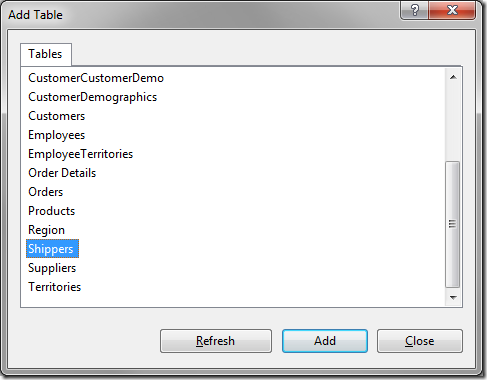
Add 'Shippers' table to diagram

Press Close to close the screen. Click on the Shippers table. Mouse over the Table View property, and change it to Standard.

Right-click on white space in the diagram and press New Table. Give the table the name of “ShipMethods”. Press OK to create a table with this name.
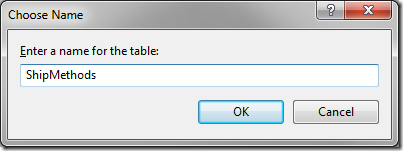
Enter 'ShipMethods' table name

Give this table the following fields:

Primary Key? Column Name Data Type Allow Nulls
Yes ShipMethodID int No
  ShipMethodName nvarchar(50) No

Highlight the ShipMethodID column. In the Properties window, change (Is Identity) to “Yes”.

Create another table with the name of “ShippersShipMethods”.
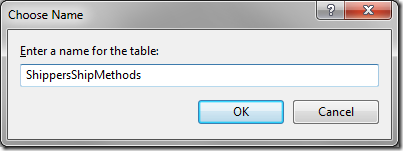
Enter 'ShippersShipMethods' table name

Give this table the following fields:

Primary Key? Column Name Data Type Allow Nulls
Yes ShipperID int No
Yes ShipMethodID int No

Drag the ShipperID column from ShippersShipMethods to Shippers table. Keep the default Relationship name and press OK twice to save the relationship.

Drag the ShipMethodID column from ShippersShipMethods to ShipMethods table. Press OK twice to save.

Save this diagram to apply the changes. Your diagram should look like the one below.
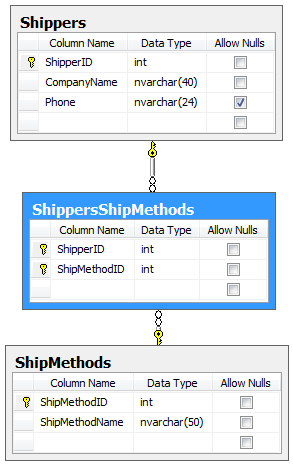
Shippers, ShipMethods, and ShippersShipMethods table relationship

Start Code On Time web application generator, click on the project name, and select the Refresh option. Toggle the checkboxes next to the tables dbo.ShipMethods, dbo.ShippersShipMethods, and the controller Shippers. Press Refresh, and press Yes to confirm the operation.
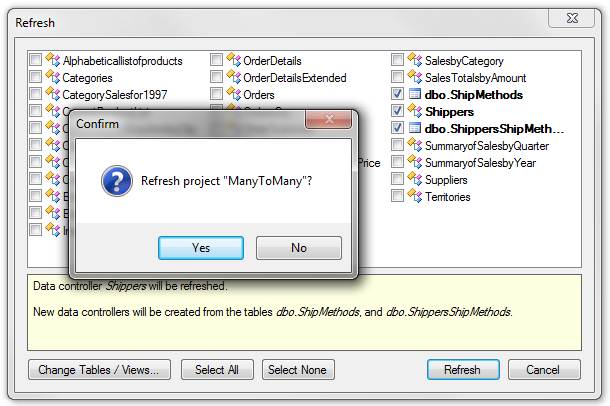
Refresh the ShipMethods, Shippers, ShippersShipMethods tables

When the Refresh is complete, select the Design option on the Summary page.

In the Project Explorer, switch to the Controllers tab. Right-click on Shippers / Fields node and select New Field.
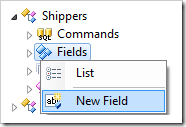
New Field option for Shippers controller

Give this field the following settings:

Property Value
Name ShipMethods
Allow Null Values True
The value of this field is computed at run-time by SQL Expression True
SQL Formula
NULL
Label Ship Methods
Items Style Check Box List
Items Data Controller ShipMethods
Data Value Field ShipMethodID
Data Text Field ShipMethodName
Target Controller ShippersShipMethods

Press OK to save the field. In the Project Explorer, right-click on Shippers / Views / editForm1 / c1 – Shippers category node and select New Data Field.
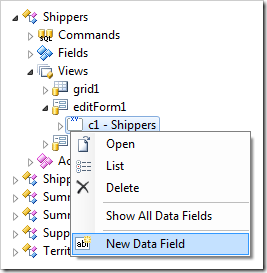
New Data Field in 'editForm1'

Give this data field the following settings:

Property Value
Field Name ShipMethods
Columns 3

Press OK to save the data field. Right-click on Shippers / Views / createForm1 / c1 – New Shippers category node and choose New Data Field.
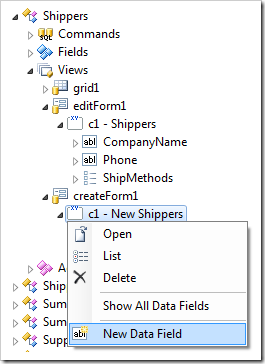
New Data Field in 'createForm1'

Give this data field the following settings:

Property Value
Field Name ShipMethods
Columns 3

Press OK to save the data field. Let’s display a read-only list of fields in the grid view as well. Right-click on Shippers / Views / grid1 view node and select New Data Field.
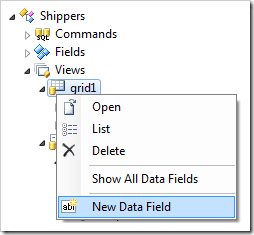
New Data Field for 'grid1'

Give this data field the following settings:

Property Value
Field Name ShipMethods
Columns 3
Values of this field cannot be edited Yes

Press OK to save the data field. On the tool bar, select Browse to generate the web application.

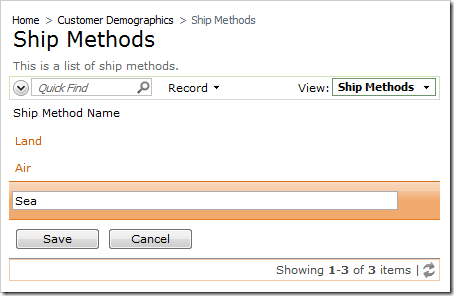
When it opens in your default web browser, navigate to the Ship Methods page. Create three new shipping methods:

Ship Method Name
Land
Air
Sea

Three records created in Ship Methods table

Next, navigate to Shippers page. You will see all shippers have “N/A” Ship Methods. Edit a record, and a check box list will appear with the available options.
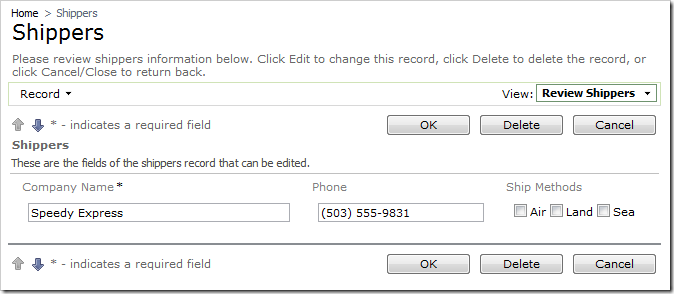
Three Ship Methods options presented as check box list

Select a few ship methods for each shipper. When not in edit mode, the check box list will be replaced with a comma separated list of values. The data field on the grid view will stay in read only mode when a record is being edited.
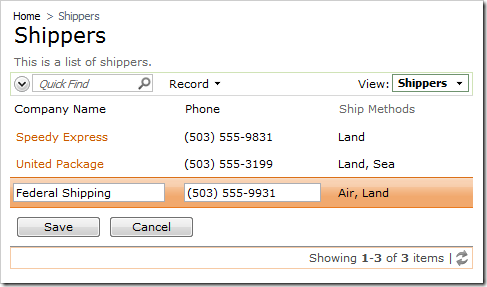
Ship Methods shown as comma separated list in grid view

Tuesday, April 24, 2012PrintSubscribe
Displaying a Check Box List

If you need to store multiple values in the same field, then set its items style to Check Box List. The values will be stored as a comma-separated list, but rendered as a check box list of all available options when in edit mode.

Let’s introduce such a field in the Northwind database.

Run Microsoft SQL Server Management Studio and right-click on Databases / Northwind / Tables / dbo.Shippers. Select Design option.

Design Shippers table in Microsoft SQL Server Management Studio

Add a new field with the following properties.

Column Name Data Type Allow Nulls
ShipMethods nvarchar(200) Yes

'ShipMethods' field added to Shippers table

Save the table, and refresh settings of the Northwind web application. Make sure to select the Shippers in the list of data controllers in the Refresh dialog.

Click Design option to activate the Project Designer.

In the Project Explorer, switch to the Controllers tab. Select the Shippers / Fields / ShipMethods field node.

New 'ShipMethods' field in Shippers controller

Change the following setting:

Property New Value
Items Style Check Box List

Press OK to save the field.

In the Project Explorer, right-click on the ShipMethods field, and select Show Value/Text Items.

'Show Value/Text Items' option in Code On Time Project Explorer

On the action bar, press New | New Item. Create three new items with the following properties:

Value Text
Ground Ground
Air Air
Sea Sea

Three new data items for field

On the tool bar, press Browse to generate the application. The application will open in your default web browser. Navigate to the Shippers page.

The ship methods for each shipper will currently say “N/A”. If you edit a shipper, you will see the lookup items presented in a check box list. When you save, your choices will be saved in a comma separated list.

Check Box List being used for 'Ship Methods' field

You may also consider creating a many-to-many relationship field for Ship Methods.

Monday, April 16, 2012PrintSubscribe
Opening a Lookup Window in Search Mode

Lookup windows can display the first page of data, or present search options instead upon activation.

In a sample Northwind application, navigate to Orders page. On the action bar, press New Orders. Click the (select) link in the first data field, Customer Company Name.

Customer Company Name lookup link on New Orders form

The lookup window will show the first page of data rows. The default page size is ten.

Default Customer ID lookup window in Code On Time web application

A user can perform Quick Find or activate the advanced search bar to narrow down the list of available data rows.

Advanced search bar in the lookup window

Let’s activate the search mode immediately when the lookup window is displayed for the first time. This will be useful if the number of lookup records is large. The display of the first page of data has little use in such cases.

Start Code On Time web application generator, click on the project name, and select Design. In the Project Explorer, switch to Controllers tab. Double-click on Orders / Fields / CustomerID node.

Scroll down to the Lookup section. Toggle the checkbox next to Search On Start property.

'Search On Start' property enabled for CustomerID field in Code On Time Designer

Press OK to save the field. On the tool bar, press Browse to generate the application and open it in your default web browser.

Navigate to the Orders page, and create a new order. Activate the Customer Company Name lookup, and you will see the lookup window open in advanced search mode.

Lookup window opened in advanced search mode

Enter the search parameters and press Search to find a record. Alternatively, you can just press the Search button without entering any search parameters, and a full list of customers will appear.

List of records pulled in Customer ID lookup window